
How to Effectively Search for Movies in IPTV Services

You just subscribed to an IPTV service with 50,000+ channels and a massive VOD library, but when you actually sit down to find a specific movie, you're completely lost. The search function doesn't seem to work, your M3U playlist loads thousands of titles with no clear organization, and you end up scrolling endlessly through categories that make no sense. Sound familiar? This guide walks you through exactly how to search movie in IPTV across every major app and device so you can go from confused to watching your favorite film in under two minutes.
Knowing how to search movie in IPTV properly is not optional if you want a premium streaming experience. It's the difference between a $10/month service that feels like a luxury and one that feels like a broken mess. Mastering search also helps you navigate VOD libraries that contain tens of thousands of titles without losing your mind.
Core Concepts & Need-To-Know Info
- VOD (Video on Demand): This is the section of your IPTV service where movies and TV series are stored as individual files, separate from live channels. Your search will almost always happen within the VOD section.
- M3U Playlist Structure: Your IPTV provider delivers content through an M3U URL or Xtream Codes login. Movies are tagged with metadata like title, year, and genre inside this file, and that metadata is what search functions actually scan.
- Xtream Codes API: Many premium IPTV apps (TiviMate, IPTV Smarters Pro, GSE Smart IPTV) use Xtream Codes login credentials. This format typically has a much better-organized VOD library with proper categories and search functionality.
- Search Indexing: Some apps index your VOD library as it loads, meaning search works best after the full playlist has been downloaded and cached. If you search immediately after adding a new playlist, results may be incomplete.
- Category Filtering: Most IPTV apps organize movies by genre (Action, Comedy, Horror, etc.) before you even type a search query. Using these filters alongside the search bar dramatically narrows results.
- Internet Speed Matters: A slow connection (under 10 Mbps) can cause the VOD library to load sluggishly, making search feel broken when it's actually just your network lagging behind.
Step-by-Step Guide
- Step 1: Open Your IPTV App and Navigate to the VOD Section:
- Launch your IPTV app, whether that's TiviMate, IPTV Smarters Pro, GSE Smart IPTV, or Flix IPTV. On the home screen or main menu, look for a tab labeled Movies, VOD, or Video on Demand. Do not search from the Live TV section as that section only scans channel names, not movie titles.
- Step 2: Wait for the Library to Fully Load:
- Before you type anything, let the VOD thumbnail grid fully populate. You'll usually see a loading spinner or progress bar in the top corner of the app. Searching before this completes will return partial results. On slower connections, this can take 15 to 30 seconds depending on how large your provider's library is.
- Step 3: Locate the Search Icon or Press the Search Button:
- On most apps, the search function is represented by a magnifying glass icon in the top-right or top-left corner of the VOD screen. On a Firestick remote, you can also press the microphone button if the app supports voice search. On Android TV, press the dedicated Search button on your remote.
- Step 4: Type the Movie Title Using the On-Screen Keyboard:
- Enter the movie title clearly and precisely. If you're searching for something like The Dark Knight, type at least Dark Knight. Most IPTV app search functions use partial matching, so even typing Dark Kni will start returning relevant results. Avoid spelling errors since IPTV search functions rarely have autocorrect.
- Step 5: Apply Filters to Narrow Down Results:
- Once results appear, use the Genre, Year, or Quality filter options if your app provides them. In TiviMate, you can filter by category after searching. In IPTV Smarters Pro, tap the filter icon next to the search bar and select a genre. This is especially useful if your provider has multiple versions of the same movie at different resolutions (HD, FHD, 4K).
- Step 6: Select Your Movie and Choose a Stream Quality:
- Tap on the movie thumbnail to open its detail page. Here you'll see the title, description, and sometimes multiple stream options labeled by quality. Select the version that matches your internet speed. If you're on a 25 Mbps connection, FHD (1080p) is your sweet spot. Press Play and enjoy.
- Step 7: Add to Favorites for Quick Access Later:
- Most IPTV apps let you long-press or right-click a movie title to add it to a Favorites or Watchlist. Use this feature so you never have to search for the same movie twice. In TiviMate, this shows up under a dedicated Favorites tab in the VOD section.

ISP throttling is a real-world problem that affects far more IPTV users than most people realize. Your search appears to work, a movie loads, then 20 minutes in it starts buffering because your provider detected heavy streaming activity and throttled your connection. A reliable paid VPN like NordVPN or ExpressVPN encrypts your traffic so your ISP can't identify or throttle it. Think of it as a non-negotiable part of your IPTV setup if you stream more than casually.
Best VPNs to Stop ISP Throttling During Movie Searches
- NordVPN: Consistently the top recommendation in the IPTV community. NordVPN's NordLynx protocol delivers speeds above 300 Mbps on most connections, making 4K VOD streaming completely smooth. It works seamlessly on Firestick via sideloading or the native Amazon app.
- ExpressVPN: Slightly more expensive but offers a native Firestick app that requires zero sideloading. Its Lightway protocol is optimized for low latency, which matters when your IPTV app is loading thousands of VOD titles.
- Surfshark: The budget-friendly option that doesn't sacrifice speed. Surfshark allows unlimited simultaneous connections, so you can protect your Firestick, Android TV box, and phone all on one plan.
- How to set it up: Install the VPN app on your streaming device, connect to a server in your home country (or the country your IPTV provider is based in for best performance), then launch your IPTV app. The VPN runs in the background, encrypting all traffic.
TiviMate vs IPTV Smarters Pro: Which Has Better Movie Search?
- TiviMate has the cleanest and fastest search experience for Firestick and Android TV users. Its search indexes your entire M3U playlist locally, so once the library is loaded, searches return results almost instantly. The interface is polished and the category filtering is the best in the business.
- IPTV Smarters Pro is better if your provider uses Xtream Codes credentials, as it pulls category data directly from the server API, keeping your movie library better organized with proper genre tags. Voice search support on Fire TV devices is also a major plus for hands-free searching.
- GSE Smart IPTV is the most flexible option if you use multiple IPTV providers simultaneously. It supports both M3U playlists and Xtream Codes, and its search function scans across all loaded playlists at once.
- Recommendation: Start with TiviMate if you're on Firestick or Android TV and want the fastest, cleanest search experience. Use IPTV Smarters Pro if voice search and server-side category organization matter more to you.
Common Setup Mistakes That Break Movie Search
- Using an M3U URL that hasn't been updated: Providers regularly rotate M3U URLs for security. If your playlist URL is outdated, the VOD library won't load properly and search will return nothing. Log into your provider's panel and grab the latest M3U URL or refresh your Xtream Codes credentials.
- App cache overload: After weeks of use, IPTV apps accumulate cached data that can slow down or corrupt the search index. On your Firestick, go to Settings, then Applications, then Manage Installed Applications, then your IPTV app, then Clear Cache. Do this once a month.
- Wrong playlist type selected: Some apps let you choose between M3U Playlist and Xtream Codes as the input method. If your provider gave you Xtream Codes credentials but you're entering them as an M3U URL, the library structure will be broken and search won't work correctly.
- Ignoring app updates: IPTV app developers frequently push updates that improve search speed and fix indexing bugs. Always keep your apps updated through the Google Play Store or Amazon App Store.
Network Requirements for Smooth VOD Browsing and 4K Streaming
- Minimum for HD (1080p) VOD: 15 Mbps download speed, with under 50ms ping to your IPTV provider's server. This handles standard movie streaming without any buffering.
- Recommended for 4K VOD: 25 to 35 Mbps minimum, ideally on a wired Ethernet connection rather than Wi-Fi. 4K IPTV streams can spike to 25 Mbps during action sequences, so headroom matters.
- Wi-Fi vs. Ethernet: If you're on Wi-Fi and experiencing slow VOD library loading (which makes search feel sluggish), try a powerline Ethernet adapter. This single change fixes the problem for the majority of users experiencing network-related search issues.
- DNS Settings: Changing your device's DNS to Cloudflare (1.1.1.1) or Google (8.8.8.8) can speed up how quickly your app resolves the IPTV server address, reducing initial load time before you can even start searching.
Troubleshooting: When Movie Search Returns No Results
- Force refresh your playlist: In TiviMate, go to Playlists, long-press your playlist, then select Refresh. In IPTV Smarters Pro, go to the VOD section and pull down to trigger a refresh. This re-downloads all movie metadata and rebuilds the search index.
- Check if your subscription is active: A lapsed subscription will often result in a partial or empty VOD library loading, making search appear broken. Log into your provider's customer portal to verify your account status.
- Try a different IPTV app: If search works in IPTV Smarters but not TiviMate (or vice versa), the issue is app-specific, not a provider problem. Reinstall the problematic app from scratch.
- Contact your IPTV provider: Some providers temporarily take down their VOD servers for maintenance without warning. If all troubleshooting steps fail and your search is completely blank, open a support ticket with your provider as it's almost certainly a server-side issue on their end.
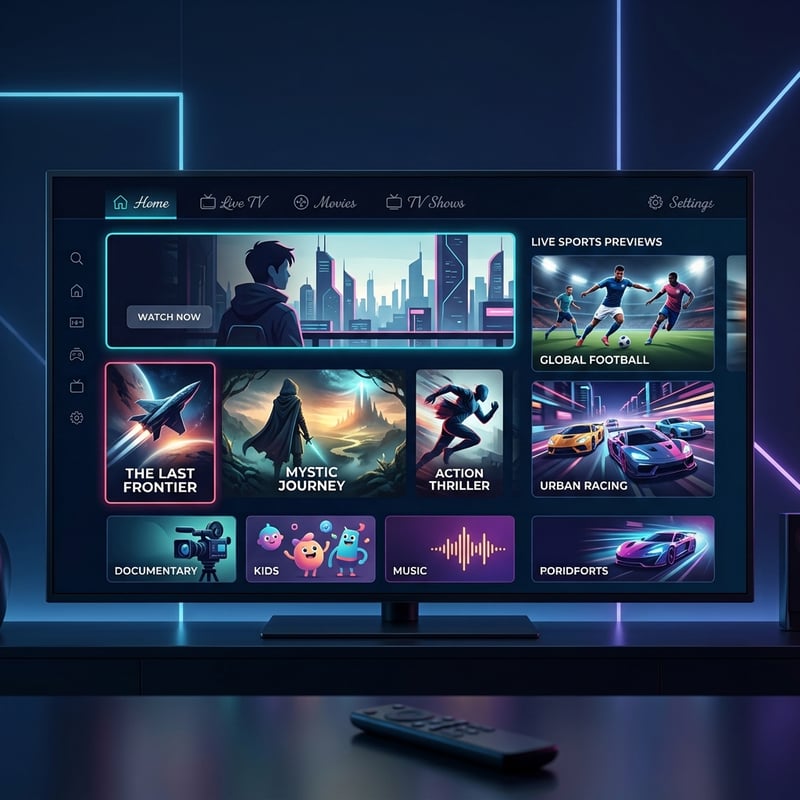
Knowing how to search movie in IPTV turns a frustrating, chaotic library into a genuinely enjoyable experience that rivals and often beats traditional streaming services in sheer content volume. Master the basics covered in this guide and you'll never sit there scrolling aimlessly through thousands of titles again. Check out our full channel list and pricing plans to unlock the complete IPTV experience today.
Frequently Asked Questions
Ready to get started?
Try our service risk-free with a 24-hour free trial.
Related Articles
Discover IPTV PlayTorrio: Your Ultimate Streaming Guide for 2026
An essential guide to IPTV PlayTorrio for optimal streaming.
Discover Apollo IPTV: Your Ultimate Guide to Streaming in 2026
Unlock the potential of Apollo IPTV with our detailed guide.

How to Fix Screen Mirroring Not Working Between Your Phone and Television
A technical troubleshooting guide for resolving screen mirroring failures between smartphones and televisions covering network configuration and protocol compatibility and firmware updates and alternative casting methods.