
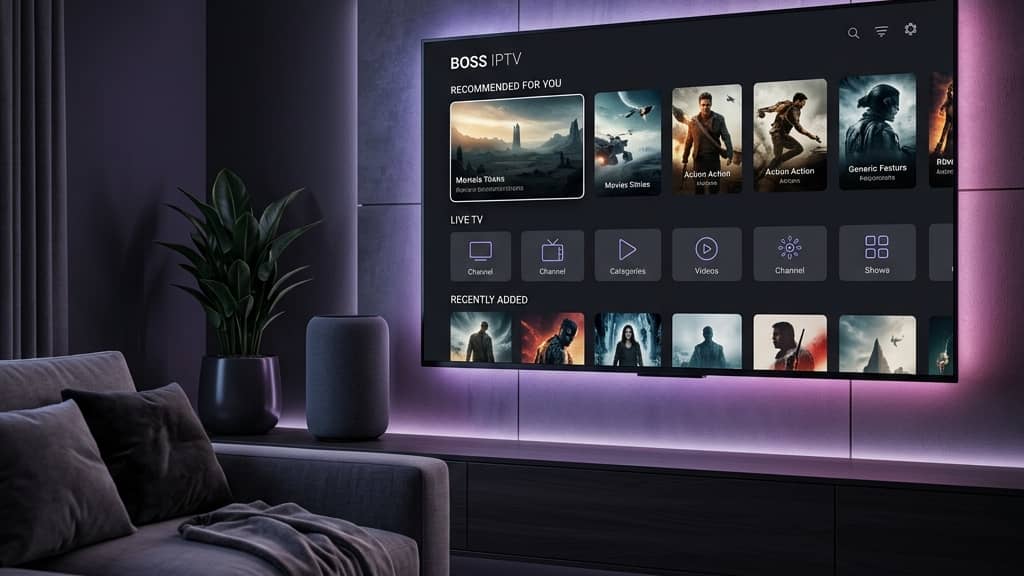
Discover the Best IPTV Providers: Your 2026 Guide

You've been burned before. Maybe it was a cheap IPTV service that froze during the Super Bowl fourth quarter, or a provider whose streams dropped every time you switched channels. Finding the best IPTV providers feels like navigating a minefield — endless promises, shady resellers, and zero accountability when things go sideways. The good news? The IPTV market has matured significantly, and a handful of services have pulled so far ahead of the competition that choosing the right one is now genuinely straightforward — if you know what to look for. This guide cuts through the noise and gives you the real information you need to pick a provider that actually delivers.
Choosing the wrong IPTV provider doesn't just waste money — it ruins your viewing experience at the exact moments that matter most, like playoff games or season finales. Getting this decision right means you're set up for a seamlessly smooth streaming lifestyle for months, potentially years, ahead.
Core Concepts & Need-To-Know Info
- M3U Playlist / M3U URL: This is the file format most IPTV providers use to deliver your channel list. When you sign up, you receive an M3U URL that you paste into apps like TiviMate or IPTV Smarters to load your channels. A poorly structured M3U playlist causes loading errors and missing channels.
- Xtream Codes API: An alternative to M3U, Xtream Codes gives you a server URL, username, and password instead of one long URL. It's generally more stable and is the preferred login method for TiviMate.
- Server uptime: Look for providers advertising 99.9% uptime. Anything below 99% means you're statistically guaranteed to experience downtime during peak viewing hours.
- Channel count vs. channel quality: 20,000 channels sounds impressive, but if half are dead links, it's meaningless. Prioritize providers known for reliable, high-quality streams over raw channel count.
- ISP throttling: Your internet service provider can detect and slow down IPTV traffic. This is one of the top causes of buffering that isn't the provider's fault — something a VPN can fix instantly.
- VOD (Video On Demand): Most top-tier IPTV providers include a VOD library alongside live TV. Check whether VOD content is updated regularly and includes recent releases.
- EPG (Electronic Program Guide): A quality EPG means you see what's on each channel in a TV-guide-style layout. Without it, you're flying blind through hundreds of channels.
- Simultaneous connections: If you have multiple TVs or share a subscription with family, confirm how many devices can stream at the same time.
Step-by-Step Guide: Setting Up the Best IPTV Providers on Any Device
- Step 1: Choose Your Provider and Get Your Credentials:
- After signing up with your chosen IPTV provider, check your email immediately. You'll receive either an M3U URL or Xtream Codes credentials (server URL, username, password). Copy these exactly — a single mistyped character will prevent the service from loading.
- Step 2: Install TiviMate or IPTV Smarters on Your Device:
- On a Firestick, go to Settings, My Fire TV, Developer Options and enable Apps from Unknown Sources. Then open the Downloader app (install it from the Amazon App Store first) and navigate to the TiviMate APK download URL. On Android TV or a Smart TV, search for IPTV Smarters Pro or TiviMate directly in the Google Play Store.
- Step 3: Add Your Playlist to the App:
- Open TiviMate and tap Add Playlist. Select either M3U Playlist and paste your M3U URL, or select Xtream Codes and enter the server URL, username, and password provided by your IPTV service. Tap Next and allow the app to fetch and load your channel list — this typically takes 30 to 90 seconds depending on channel count.
- Step 4: Configure Your EPG (Program Guide):
- Once channels load, go to TiviMate Settings, EPG and either add a separate XMLTV EPG URL provided by your IPTV service or enable the built-in EPG auto-fetch. This populates your guide with show times, titles, and episode descriptions — essential for a cable-replacement experience.
- Step 5: Organize Your Favorites and Test Key Channels:
- Browse your channel list and add your most-watched channels to a Favorites group. Then stress-test the service: load a live sports channel in HD, switch to a 4K channel if available, and open a few VOD titles. This reveals any buffering issues or dead streams before you're committed to a subscription.
- Step 6: Connect a VPN Before You Stream:
- Before your first real viewing session, open your VPN app (ExpressVPN or NordVPN are the top choices for IPTV), connect to a server in your country, then launch your IPTV app. This single step prevents ISP throttling and is often the difference between smooth 4K playback and constant buffering.

Imagine settling in for a big UFC fight, getting through two rounds, and then watching your stream freeze permanently because a stranger using your shared account connected from another country. That's a real scenario that happens constantly with low-quality providers and shared plans. These warnings aren't hypothetical — they're the exact frustrations that bring people back to research better IPTV options in the first place.
Best VPNs to Stop ISP Throttling While Using the Best IPTV Providers
ISP throttling is the silent killer of IPTV quality, and a reliable VPN is your most effective weapon against it. ExpressVPN is consistently the fastest VPN for streaming with servers in 105 countries — its MediaStreamer feature and Lightway protocol make it the top choice for 4K IPTV streaming on Firestick and Android TV. NordVPN offers dedicated streaming servers and is slightly more affordable than ExpressVPN on long-term plans, with the NordLynx protocol delivering excellent speeds with minimal latency critical for live sports. Surfshark is the best budget option for IPTV users, offering unlimited simultaneous connections so you can protect every streaming device in your house on a single subscription. Always connect to a VPN server in your own country first, as connecting to a foreign server adds unnecessary latency and can trigger geo-restrictions on local sports broadcasts. Enable the VPN's kill switch feature so that if your VPN connection drops, your IPTV traffic doesn't suddenly become visible to your ISP.
TiviMate vs. IPTV Smarters: Which App Works Best with the Best IPTV Providers?
Choosing the right player app is just as important as choosing the right provider — a great service can still deliver a frustrating experience through a bad app. TiviMate is widely considered the gold standard for Android-based IPTV: its interface mirrors a traditional cable guide, it supports Xtream Codes and M3U natively, handles large playlists without crashing, and its catch-up TV and recording features in the Premium version are genuinely excellent. IPTV Smarters Pro is the better choice for users who want a more straightforward setup or who access their service through a direct Xtream Codes portal, and it's also available on iOS making it the go-to for iPhone and iPad users. GSE Smart IPTV is worth mentioning for Samsung and LG Smart TV users where TiviMate isn't available through official stores. TiviMate Premium costs approximately $5.99/year — one of the best investments you can make in your IPTV setup, as the free version lacks multi-EPG, catch-up, and recording capabilities.
Network Requirements for 4K IPTV Streaming
Your internet connection is the foundation of your entire streaming experience — even the best IPTV providers can't compensate for an underpowered network. SD streaming requires 5 Mbps, HD (1080p) needs at least 15 to 25 Mbps, and true 4K UHD IPTV requires a consistent 50+ Mbps dedicated to streaming. Wired beats wireless every time: if you're experiencing buffering on Wi-Fi, plug an Ethernet cable directly into your Firestick via an OTG adapter or streaming box, as Wi-Fi interference from neighboring networks and physical obstacles is responsible for a massive percentage of IPTV buffering issues. If you must use Wi-Fi, place your router in the same room as your TV or invest in a Wi-Fi 6 router, since older routers struggle with simultaneous 4K streams. Run a speed test specifically during your usual streaming hours, as many households have fast internet plans that slow dramatically when neighbors are also online in the evenings.
Common Setup Mistakes & How to Fix Them
Even tech-savvy people trip over these setup errors with alarming frequency. Pasting an M3U URL with a space at the end is a common trap — copying a URL from an email often appends an invisible space character, so always click inside the URL field and manually delete any trailing spaces before confirming. Forgetting to refresh the playlist after provider updates means you'll see stale, broken channels if your provider updates their server or channel list and you don't refresh your M3U playlist in TiviMate under Settings, Playlist, Update. Using cellular data to test streams gives a misleading picture of home performance since mobile data has entirely different speed and latency characteristics. Finally, not clearing app cache causes slowdowns and crashes over time — clear TiviMate and IPTV Smarters cache monthly through your device's App Settings.
Troubleshooting Playlist Errors and Buffering
When things go wrong, systematic troubleshooting beats random rebooting every time. A playlist is empty error almost always means your M3U URL has expired or your subscription has lapsed — log into your provider's dashboard and generate a fresh M3U URL, then update it in your app. If channels load but streams buffer constantly, test your internet speed, switch to a wired connection, and then enable your VPN — if buffering stops with the VPN on, ISP throttling was the confirmed culprit. If your EPG shows no guide data, re-enter your EPG URL in settings and trigger a manual refresh, as some providers update their XMLTV feeds daily so outdated EPG URLs cause blank guides. If your app crashes when switching channels rapidly, this is a RAM issue on lower-spec devices like older Firestick models — switch to a Firestick 4K Max or an Nvidia Shield, which handle large M3U playlists without memory problems.

The best IPTV providers in 2025 genuinely deliver a superior television experience compared to cable — more channels, better flexibility, global sports coverage, and massive VOD libraries at a fraction of the price. Pair the right provider with the right app, the right device, and a reliable VPN to neutralize ISP throttling, then check out our full channel list and pricing plans to find the perfect fit for your household.
Frequently Asked Questions
Ready to get started?
Try our service risk-free with a 24-hour free trial.
Related Articles
Is IPTV Safe to Use? Understanding Risks and Benefits
Explore the safety aspects of using IPTV services.

How to Watch PPV on IPTV: The 2026 Live Fight Night Playbook
The complete 2026 sports fan guide to watching live pay-per-view boxing, MMA, and championship events on IPTV with backup server feeds.

TV Schedule Guide App and How to Find What Is On Every Channel in 2026
A comprehensive guide to finding accurate television schedule listings across free broadcast channels, streaming platforms, and enterprise IPTV services in 2026. Reviews the best electronic program guide applications, explains how EPG data systems work, and compares guide tools across different viewing platforms.