
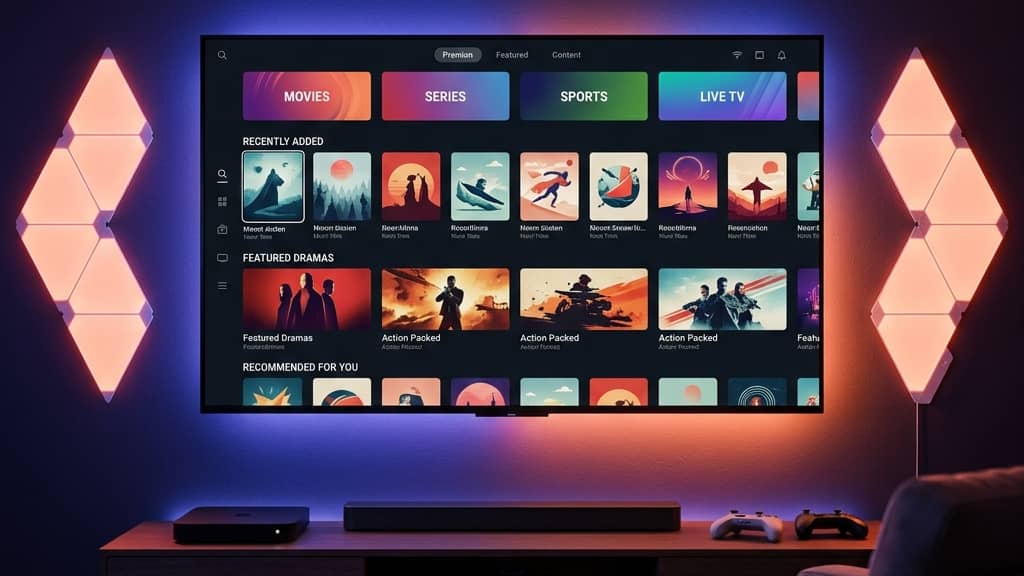
Discover Apollo IPTV: Your Ultimate Guide to Streaming in 2026

You signed up for Apollo IPTV, you've got your login credentials sitting in your inbox, and now you're staring at your Firestick or Smart TV wondering what to do next. Sound familiar? The frustration of having a premium IPTV subscription but not knowing how to configure it properly is one of the most common complaints in the streaming community and it silently kills what should be an incredible entertainment experience. This guide walks you through everything you need to get Apollo IPTV running smoothly, from loading your M3U playlist to eliminating buffering with the right network tweaks and VPN setup.
Getting the setup right isn't just about convenience, it directly determines whether you're watching crystal-clear 4K content or staring at a spinning buffer wheel every ten minutes. A poorly configured IPTV setup wastes your subscription money and your time.
Core Concepts & Need-To-Know Info
- M3U Playlist: This is a text-based URL or file that contains the channel list for your Apollo IPTV subscription. Your provider sends this to you after purchase, and you paste it into your IPTV app to load all your channels.
- Xtream Codes API: A more advanced login method using a server URL, username, and password. It's faster and more reliable than a raw M3U URL and allows for EPG integration.
- EPG (Electronic Program Guide): The on-screen TV guide showing what's currently on and what's coming up. Apollo IPTV usually provides an EPG URL alongside your playlist details.
- VOD (Video On Demand): The movie and TV show library built into your IPTV service, accessible from the same app as your live channels.
- ISP Throttling: Your Internet Service Provider may detect high-bandwidth streaming traffic and slow your connection intentionally. A VPN routes your traffic around this.
- Buffering causes: The most common culprits are slow internet speed, ISP throttling, an overloaded IPTV server, or a device with insufficient processing power.
- Recommended internet speed: At minimum, 25 Mbps for HD streams. For 4K channels, aim for 50 Mbps or higher, with a stable wired or strong Wi-Fi connection.
Step-by-Step Guide
- Step 1: Enable Apps from Unknown Sources:
- Go to your Firestick Home screen, select Settings, then My Fire TV, then Developer Options. Toggle on Apps from Unknown Sources and ADB Debugging. This allows you to install apps that aren't listed in the Amazon Appstore.
- Step 2: Install the Downloader App:
- From the Firestick Home screen, use the search bar to find Downloader and install the free app by AFTVnews. This is your browser and sideload tool, you'll use it to download TiviMate's APK file.
- Step 3: Download TiviMate Companion or APK:
- Open Downloader and type the URL for the TiviMate APK (available at tivimate.com or via the direct APK mirror your Apollo IPTV provider may supply). Once downloaded, select Install and then Open when prompted.
- Step 4: Open TiviMate and Select Add Playlist:
- When TiviMate launches for the first time, it will ask you to add a playlist. Tap Add Playlist and then choose whether you want to enter an M3U URL or use Xtream Codes login. For Apollo IPTV, Xtream Codes is recommended for stability.
- Step 5: Enter Your Apollo IPTV Xtream Codes Credentials:
- Select Xtream Codes as your playlist type. Enter the server URL (provided in your Apollo IPTV welcome email), your username, and your password exactly as given. One typo here breaks everything, copy-paste where possible.
- Step 6: Add Your EPG Source:
- After the channel list loads, go to Settings inside TiviMate, select your playlist, and find the EPG field. Paste the EPG URL from your Apollo IPTV account panel. Set the update interval to every 24 hours so your guide stays current.
- Step 7: Organize Your Channels:
- TiviMate lets you create custom Favorites lists. Navigate to any channel, press and hold the select button, and choose Add to Favorites. Build a Sports, Movies, and News group so you're not scrolling through thousands of channels every time.
- Step 8: Test Playback Across Stream Types:
- Play a live sports channel, an HD movie from VOD, and a 4K channel if your plan includes them. If all three play cleanly without buffering, your Apollo IPTV setup is complete and working correctly.

Imagine sitting down for a Championship Sunday game only to have your stream freeze every thirty seconds because your ISP detected the traffic spike and quietly throttled you to 5 Mbps. These aren't rare scenarios, they happen to thousands of IPTV users every single day, and every single one of them is preventable with the right precautions.
Best VPNs to Stop ISP Throttling With Apollo IPTV
ExpressVPN remains the gold standard for IPTV users. Its MediaStreamer DNS feature and consistently fast servers mean minimal speed loss even on 4K streams. Connect to a server in your home country for the best results with Apollo IPTV. NordVPN offers a massive server network and its NordLynx protocol based on WireGuard delivers some of the fastest VPN speeds available, which is critical for live TV without buffering. Surfshark is the best budget option if you're watching on multiple devices simultaneously, allowing unlimited device connections on a single subscription. Install your chosen VPN directly on your router to protect every device at once, or use the VPN app on your Firestick before opening TiviMate. Always run a speed test with the VPN active before streaming to confirm you still have sufficient bandwidth.
TiviMate vs IPTV Smarters Pro: Which App Works Best for Apollo IPTV?
TiviMate is the premium choice. The paid Premium unlock gives you multi-playlist support, catch-up TV, panel customization, and the cleanest TV-style interface available on Firestick. IPTV Smarters Pro is free and works well as a starting point, with its interface being more smartphone-oriented but handling VOD libraries particularly well. GSE Smart IPTV is worth mentioning as a backup since it often handles edge-case M3U formatting better than either of the other two. For daily use with Apollo IPTV, TiviMate wins on every metric that matters: performance, UI responsiveness, EPG accuracy, and long-term stability.
Fixing Common Apollo IPTV Playlist Errors
Playlist URL Not Found error: This almost always means a typo in your M3U URL or Xtream Codes server address. Double-check that your URL starts with http:// or https:// and that there are no spaces before or after it. Channels load but won't play: This usually means the stream is temporarily down on the server side, or your ISP is blocking IPTV traffic. Try a different channel first to rule out a server issue, then enable your VPN if the problem persists. EPG not showing program info: Your EPG URL may have expired or the data hasn't refreshed. Go into TiviMate settings and force a manual EPG refresh. App crashes when loading large channel lists: This is a RAM issue on older Firestick models. Clear the TiviMate app cache under Firestick Settings > Applications > Manage Installed Applications, and consider enabling the Start with last channel option to avoid reloading the full list on every launch.
Network Requirements for Buffer-Free Apollo IPTV Streaming
Minimum speeds: 10 Mbps for standard HD, 25 Mbps for Full HD 1080p, and 50 Mbps or higher for 4K streams. These are per-stream figures, so multiply if multiple people are streaming simultaneously. Wired beats wireless every time: An Ethernet adapter for your Firestick eliminates the interference and latency variability that comes with Wi-Fi. Router placement and band selection: If you must use Wi-Fi, connect your streaming device to the 5GHz band and place your router in the same room or directly adjacent. QoS settings on your router: Quality of Service lets you prioritize IPTV traffic over other household devices. Log into your router admin panel and set your streaming device's MAC address as the highest priority device.

Apollo IPTV delivers a genuinely premium streaming experience when the setup is done right, with TiviMate handling your playlist, a reliable VPN blocking ISP throttling, and a wired or strong 5GHz Wi-Fi connection in place. Take twenty minutes to configure everything properly once and you won't need to touch it again for months, so check out our full channel list and pricing plans to find the Apollo IPTV subscription that fits your needs.
Frequently Asked Questions
Ready to get started?
Try our service risk-free with a 24-hour free trial.
Related Articles
Discover the Best IPTV Service: Your Complete 2026 Guide
Explore the top IPTV services for seamless streaming.
How Xtream Codes Works for IPTV and Understanding the Portal Login System
A technical explanation of the Xtream Codes panel system used by IPTV providers covering how the portal login architecture works and how subscribers connect through compatible player applications.
Discover the Best Player for IPTV: A Comprehensive Guide
Learn about the best IPTV players for seamless streaming.