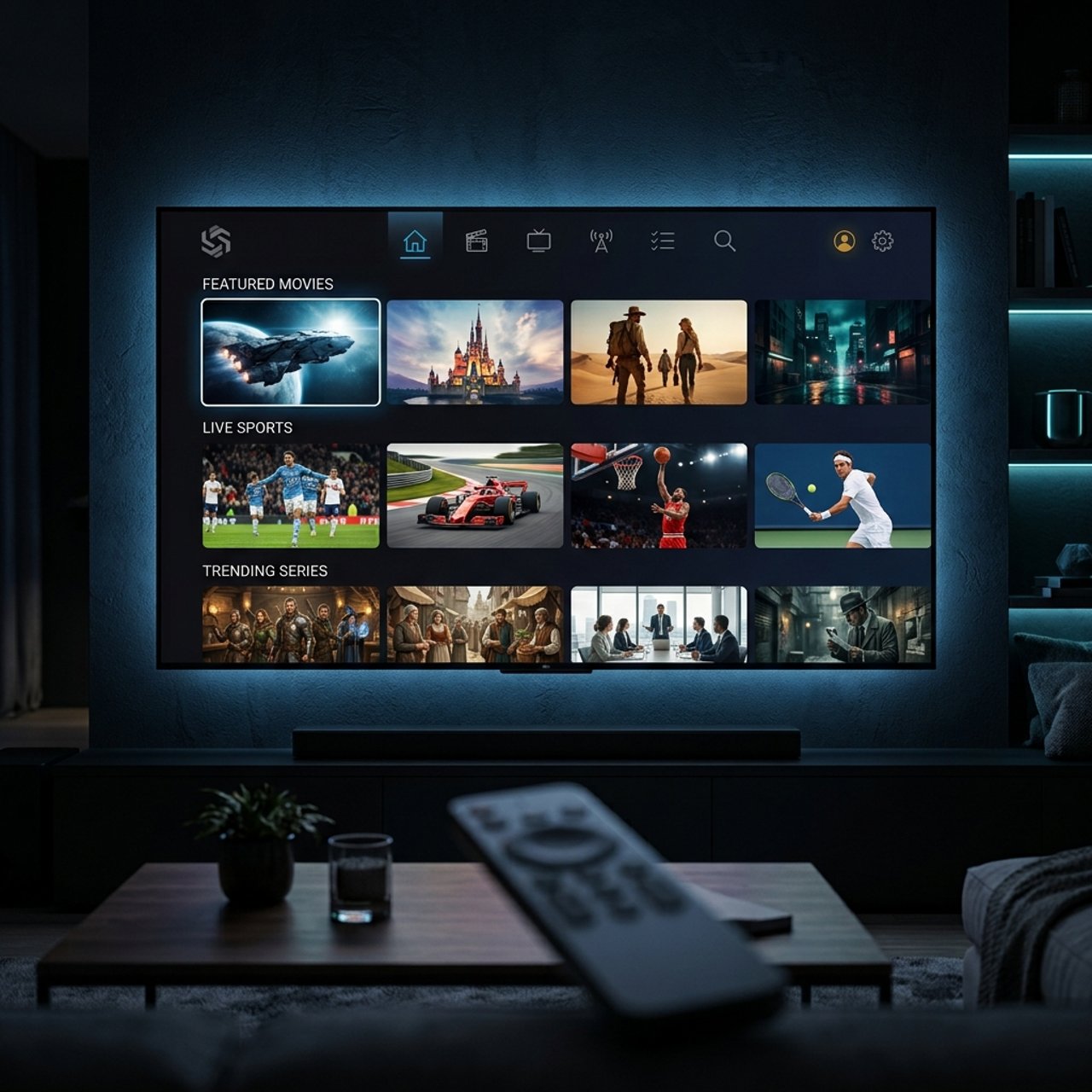
Discover the Best IPTV Service: Your Complete 2026 Guide

You've been burned before — choppy streams during the big game, channels that randomly disappear, or a service that worked great for two weeks and then flatlined. Finding the best IPTV service isn't just about price; it's about reliability, channel count, VOD libraries, and whether the provider can actually hold up when thousands of other subscribers are watching the same live event. This guide cuts through the noise and gives you everything you need to pick a provider that delivers smooth, buffer-free streaming on any device — Firestick, Android TV, Smart TV, or TiviMate.
Solving this problem matters more than most people realize. A poor IPTV choice doesn't just mean one bad night — it means months of frustration, repeated troubleshooting, and money down the drain. Getting this right from the start transforms your entire home entertainment setup into something that genuinely replaces cable without any of the headaches.
Core Concepts & Need-To-Know Info
- M3U Playlist URL: this is the link your IPTV app uses to pull in all channel and VOD data; a quality provider gives you a stable, fast-loading M3U URL that doesn't change randomly.
- Xtream Codes API: a login-based connection method (server URL, username, password) that allows apps like TiviMate and IPTV Smarters to sync your subscription automatically with EPG (Electronic Program Guide) data.
- Server uptime and redundancy: top-tier providers run multiple server clusters so if one goes down, your stream automatically reroutes; look for providers advertising 99.9% uptime.
- Stream quality tiers: reputable services offer SD, HD, Full HD, and 4K streams, with the best channels often duplicated across multiple quality options.
- VOD and catch-up TV: a strong VOD library means thousands of movies and series on demand; catch-up lets you rewind live TV by hours or days.
- Connection limits: most subscriptions allow 1 to 5 simultaneous connections; always check this before buying a family plan.
- ISP throttling risk: your internet provider can detect and slow down IPTV traffic, which is why pairing your service with a VPN is strongly recommended for consistent speeds.
- Trial periods: any legitimate best IPTV service provider will offer a 24- to 48-hour free or low-cost trial before committing to a full subscription.
Step-by-Step Guide: How to Set Up an IPTV Service from Scratch
- Step 1: Test Your Internet Connection:
- Before anything else, run a speed test at fast.com or speedtest.net. You need a minimum of 25 Mbps for HD streaming and 50+ Mbps for 4K. If your connection is borderline, connect your streaming device via Ethernet instead of Wi-Fi — this alone eliminates a huge percentage of buffering complaints.
- Step 2: Choose Your Device and App:
- Decide where you'll watch. Firestick users should install TiviMate or IPTV Smarters Pro via the Downloader app (enable Unknown Sources in Settings → My Fire TV → Developer Options first). Android TV users can grab these directly from the Play Store. Smart TV owners should check for a dedicated app from their provider or use an Android TV box as a middleman.
- Step 3: Sign Up for a Trial:
- Never pay for a full month without testing first. Find a provider offering a 24–48 hour trial. During the trial, specifically test: live sports streams at peak evening hours, a 4K VOD title, and channel-switching speed. If any of these underperform during the trial, they'll only get worse on a paid plan.
- Step 4: Collect Your Credentials:
- Once you subscribe, your provider will email you either an M3U URL or Xtream Codes credentials (a portal URL, username, and password). Copy these exactly — even a single wrong character breaks the connection entirely.
- Step 5: Add Your Playlist to Your App:
- In TiviMate, tap the + icon → Add Playlist → choose M3U Playlist or Xtream Codes → paste your credentials. In IPTV Smarters, go to Add User → Xtream Codes API or M3U URL → enter your details. The app will pull in all channels and VOD content automatically, usually within 60 seconds.
- Step 6: Set Up Your EPG:
- Inside TiviMate, navigate to Settings → Playlists → select your playlist → EPG URL. Paste the EPG link provided by your service. Set auto-refresh to every 24 hours. This gives you a full program guide showing what's on now and what's coming up, just like a real cable guide.
- Step 7: Enable a VPN:
- Install a trusted VPN (ExpressVPN or NordVPN are the top choices for IPTV) directly on your router, or use the Firestick app version. Connect to a server in your country for the lowest latency. This single step prevents ISP throttling and keeps your streams consistent during peak hours.
- Step 8: Organize Your Channels:
- Use TiviMate's favorites and groups feature to pin your most-watched channels to the top. Rename confusing channel labels, hide duplicate or irrelevant channels, and set your default stream quality to HD or Auto so the app picks the best available stream automatically.
These warnings aren't theoretical. Thousands of users each month discover their perfect IPTV service dies the moment they try to watch a major live event — the Super Bowl, Champions League final, or a pay-per-view fight — because the provider's servers simply can't handle the load spike. A provider that performs flawlessly on a Tuesday at 2 PM might be completely unwatchable on a Saturday night. Always stress-test during peak hours before committing long-term.
Best VPNs to Stop ISP Throttling for IPTV
- ExpressVPN: consistently the fastest VPN for streaming, with dedicated servers optimized for video traffic and a router app that protects every device on your network simultaneously. Its Lightway protocol delivers low latency even on 4K streams.
- NordVPN: excellent server coverage, a strict no-logs policy, and Meshnet technology that's useful for multi-device households. NordVPN's SmartPlay feature is specifically designed for streaming traffic and works seamlessly with IPTV apps.
- Surfshark: the best value option for families because it allows unlimited simultaneous connections on one subscription, meaning every Firestick, phone, and Smart TV in your home is covered under one affordable plan.
- When choosing a VPN for IPTV, always prioritize connection speed over price. A slow VPN is worse than no VPN because it adds a second layer of latency on top of any existing stream issues. Test your VPN speed with your IPTV app running before committing to a long-term plan.
Recommended Apps: TiviMate vs. IPTV Smarters Pro
- TiviMate is the gold standard for Firestick and Android TV users who want a polished, cable-TV-like interface. Its EPG guide is clean, channel switching is near-instant, and the favorites system is incredibly well-designed. The premium version ($5.99/year) unlocks multiple playlists, recordings, and catch-up TV — it's worth every cent.
- IPTV Smarters Pro is better for users who want a more feature-rich interface with built-in series and movie sections that look and feel like a proper streaming app. It handles Xtream Codes API connections exceptionally well and displays VOD content in a grid format similar to Netflix.
- GSE Smart IPTV is a strong third option for iOS and macOS users who need cross-platform support, as it works consistently across Apple devices where TiviMate isn't available.
- For most Firestick and Android TV users, start with TiviMate. It's faster, more stable, and its EPG integration is far superior to competitors. Use IPTV Smarters as a backup app when troubleshooting playlist issues.
Common Setup Mistakes and How to Fix Them
- Playlist not loading / Error parsing M3U: this almost always means a copy-paste error in your URL. Open your welcome email on the same device you're configuring the app on, long-press the URL, copy it, and paste it fresh. Avoid manually typing even a single character.
- EPG showing wrong times or missing data: your EPG timezone is mismatched. In TiviMate, go to Settings → EPG → Timezone Offset and adjust until the listed show times match your local time. Also ensure your EPG URL is refreshing every 24 hours.
- Buffering on specific channels but not others: this usually means those specific channels are on a lower-quality server cluster. Switch to an alternative stream (most providers offer backup streams labeled with a 2 or B suffix in the channel name) or contact support to report the channel issue.
- App crashes on startup: clear the app cache (Settings → Applications → Manage Installed Applications → select app → Clear Cache) and restart your device. If the problem persists, uninstall and reinstall the app fresh.
Network Requirements for 4K IPTV Streaming
- Minimum speeds by quality tier: SD requires 5 Mbps, HD requires 15–25 Mbps, Full HD needs 25–40 Mbps, and true 4K IPTV streams need 50–100 Mbps with low jitter (under 20ms).
- Wired vs. wireless: A Cat6 Ethernet cable from your router to your streaming device eliminates the interference, signal drop, and congestion issues that Wi-Fi introduces. If running a cable isn't possible, use a powerline adapter kit as a middle-ground solution.
- Router quality matters enormously: A budget router can't handle multiple simultaneous 4K streams even on a fast internet plan. Routers with MU-MIMO and QoS (Quality of Service) settings — like the ASUS AX series or TP-Link Archer — let you prioritize IPTV traffic over other household devices.
- DNS optimization: Switching your device's DNS to 1.1.1.1 (Cloudflare) or 8.8.8.8 (Google) instead of your ISP's default DNS can noticeably improve initial stream load times and reduce channel-switching lag.
Troubleshooting: Fixing Playlist Errors and Stream Issues
- Channels showing as unavailable or offline: first check your provider's status page or Telegram channel (most good providers maintain one). If it's a server-side issue, it will resolve itself. If only certain channels are affected, switch to backup streams or report the issue directly to support.
- Authentication errors in TiviMate or Smarters: your subscription may have expired, your IP may be blocked for too many failed login attempts, or your provider's portal server may be temporarily down. Wait 10 minutes and try reconnecting before contacting support.
- Pixelation and artifacts on HD streams: this usually indicates packet loss rather than a speed problem. Run a packet loss test at packetlosstest.com. If you're seeing 2% or more packet loss, your connection is unstable. Try switching DNS servers and rebooting your router, or contact your ISP.
- VOD content loading slowly or not at all: VOD servers are often separate from live TV servers and can have different performance characteristics. If live TV works fine but VOD is slow, try clearing the app cache or switching to a different VOD stream quality in the player settings.
Ultimately, answering the question of what is the best IPTV service comes down to one thing: testing before committing. No amount of reviews, comparison articles, or Reddit recommendations replaces actually running a service through your real network, on your real device, during the actual hours you plan to watch. Use the framework in this guide to evaluate any provider scientifically, protect your streams with a quality VPN, set up TiviMate the right way, and you'll have a streaming setup that rivals — and honestly beats — anything cable or satellite can offer in 2025. Check out our full channel list and pricing plans to find the perfect provider for your needs today.
Frequently Asked Questions
Ready to get started?
Try our service risk-free with a 24-hour free trial.
Related Articles
How to Install IPTV on Amazon Fire Stick: A Complete Guide
Step-by-step guide to install IPTV on Fire Stick.
How to Use IPTV Smarters Pro on Samsung TV: A Step-by-Step Guide
Master IPTV Smarters Pro on your Samsung TV.
How to Choose the Best OTT IPTV Provider for You
Learn how to select the right OTT IPTV provider.