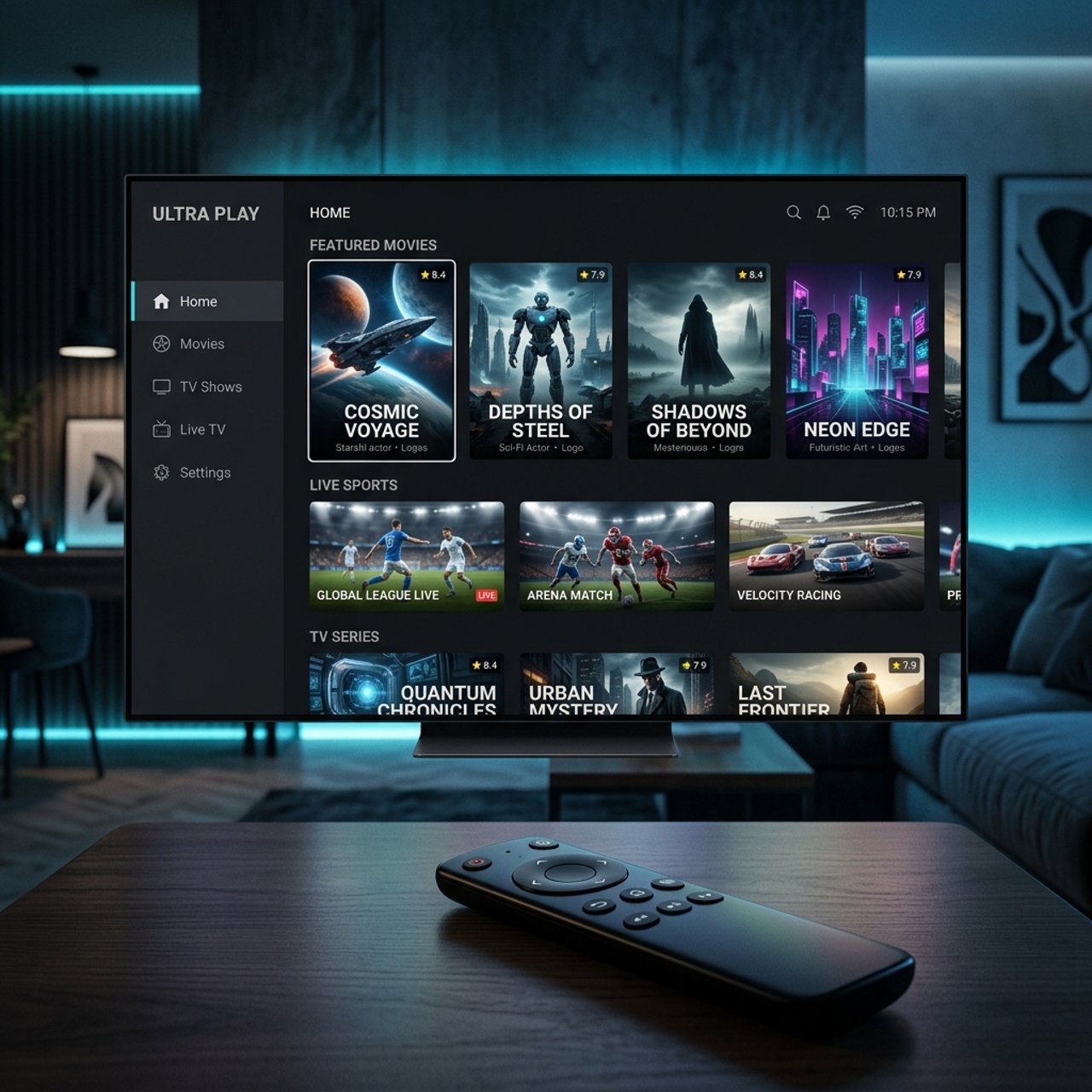
How to Install IPTV on Amazon Fire Stick: A Complete Guide

Tired of paying $150+ a month for cable channels you never watch? Millions of cord-cutters have already discovered that knowing how to install IPTV on Amazon Fire Stick is the single most powerful move you can make to reclaim full control of your entertainment — live sports, movies, international channels, and VOD libraries all in one place. The problem is that most guides skip the critical steps, leave you staring at a buffering wheel, or worse, get your app flagged and removed. This guide covers every step, every setting, and every warning you need to get IPTV running perfectly on your Firestick today.
Getting this setup right the first time isn't just about convenience — it directly determines whether you get flawless HD streaming or endless buffering frustration. A misconfigured Firestick or a poorly optimized app will tank your streaming experience even with a premium IPTV subscription, so following the correct process from start to finish is absolutely essential.
Core Concepts & Need-To-Know Info
- M3U Playlist / M3U URL: This is a text-based file or web link your IPTV provider gives you. It contains all the channel addresses your app uses to stream content. Guard this URL carefully — it's tied to your subscription
- Xtream Codes / API: An alternative login method some providers use. Instead of an M3U URL, you get a server URL, username, and password to enter into your app
- EPG (Electronic Program Guide): The on-screen TV guide that shows what's currently airing and what's coming up, similar to a traditional cable guide
- VOD (Video on Demand): The movies and TV series section of your IPTV service, separate from live channels
- Downloader App: A free sideloading tool available on the Amazon App Store that lets you install apps not officially listed on Amazon (this is how TiviMate and IPTV Smarters get onto your Firestick)
- ISP Throttling: Your internet service provider can detect and deliberately slow down streaming traffic, causing buffering even on fast connections
- VPN: A Virtual Private Network encrypts your traffic so your ISP can't throttle your IPTV streams and adds a layer of privacy
- Minimum recommended internet speed: At least 10 Mbps for HD streaming and 25+ Mbps for stable 4K content
Step-by-Step Guide
- Step 1: Enable Apps from Unknown Sources:
- From your Firestick home screen, navigate to Settings (the gear icon at the top). Scroll right and select My Fire TV, then tap Developer Options. Toggle on Install Unknown Apps. If you're on an older firmware, this option may appear as Apps from Unknown Sources — switch it to ON. This single setting is the gateway that allows sideloaded IPTV apps to run on your device.
- Step 2: Download and Install the Downloader App:
- Press the Home button and use the search function (magnifying glass icon) to search for Downloader. Select the orange and white Downloader app by AFTVnews and click Download. Once installed, open it and enable the browser option inside Downloader's settings if prompted. This app acts as your installation vehicle for any IPTV app not found in the Amazon App Store.
- Step 3: Install Your IPTV Player App:
- Open the Downloader app. In the URL bar, type the direct download link for your preferred IPTV player. For TiviMate, navigate to the official TiviMate companion page and use the APK download URL. For IPTV Smarters Pro, use the official APK URL from the Smarters website. Tap Go, wait for the file to download, then tap Install when prompted. Once installed, tap Open to launch the app immediately.
- Step 4: Add Your IPTV Subscription:
- Inside your IPTV player (using TiviMate as the example), tap Add Playlist on the welcome screen. Choose between M3U URL or Xtream Codes depending on what your provider sent you. If using M3U, paste your full M3U URL exactly as provided — one wrong character will break it. If using Xtream Codes, enter the server URL, your username, and your password in the designated fields. Tap Next to load your channel list.
- Step 5: Configure Your EPG (TV Guide):
- After your playlist loads, go to Settings, then EPG in TiviMate. Enter the EPG URL your IPTV provider supplied (usually a separate link ending in .xml or .gz). Set the update frequency to every 24 hours. This populates your on-screen guide with program names, descriptions, and schedules so you know exactly what's airing on every channel.
- Step 6: Organize Your Channel Groups:
- Go to Settings, then Playlist and tap Channel Groups. Hide any region or language groups you won't use to keep your interface clean and reduce load time. Pin your most-watched groups — like sports, news, or movies — to the top of the list for instant access. This step is often skipped by beginners and makes a massive difference in daily usability.
- Step 7: Test Your Streams and Check Quality:
- Navigate to a live sports channel or a busy HD channel and let it play for 60 seconds. Watch for buffering, freezing, or pixelation. If the stream plays without interruption, your setup is working correctly. If you see buffering, note the time and channel — this will help you diagnose whether the issue is your internet connection, the specific server, or ISP throttling.
Imagine this: you've finally got everything set up perfectly, you sit down for a major live soccer match, and halfway through the first half your stream starts buffering every 30 seconds. In most cases, this isn't your IPTV provider's fault — it's ISP throttling kicking in at peak evening hours. Connecting to a VPN before you start streaming eliminates this problem entirely by masking your traffic type. Similarly, if your Firestick automatically updated overnight and reverted your Unknown Sources setting, your IPTV app may refuse to update or reinstall until you re-enable it — always check this setting after a major Firestick firmware update.
Best VPNs to Stop ISP Throttling on Firestick
ISP throttling is one of the most frustrating and invisible problems IPTV users face. Your internet speed test might show 100 Mbps, but your streams still buffer because your ISP is selectively slowing down streaming traffic. A VPN solves this immediately.
- ExpressVPN: The gold standard for Firestick users. It has a native Amazon App Store app, meaning no sideloading required. Its MediaStreamer feature and consistently fast servers make it the top choice for 4K IPTV streams
- NordVPN: Offers specialized servers optimized for streaming. The NordLynx protocol delivers exceptional speeds that barely impact your base connection, ideal for high-bitrate live sports channels
- Surfshark: The best budget option with unlimited simultaneous device connections. Excellent for households with multiple Firestick devices all running IPTV at the same time
- IPVanish: Popular specifically in the IPTV community because it has a dedicated Firestick app and strong no-logs policies that matter for streaming privacy
- Always connect to a VPN server in the same country as your IPTV server for the fastest possible speeds. Connecting to a geographically distant server adds unnecessary latency to every stream request
TiviMate vs IPTV Smarters: Which App Should You Use?
Choosing the right player is just as important as knowing how to install IPTV on Amazon Fire Stick in the first place. The app is your entire interface — get it wrong and even a great subscription feels painful to use.
- TiviMate is widely considered the best IPTV player for Firestick users. Its interface mimics a traditional cable TV guide, making it approachable for anyone switching from cable. The premium version ($5.99/year) unlocks multiple playlists, recordings, and catch-up TV features
- IPTV Smarters Pro is the better choice if your provider specifically recommends it or if you're using Xtream Codes login. It has a slightly steeper learning curve but offers robust multi-screen and parental control features
- GSE Smart IPTV is a solid third option for users who need advanced EPG customization and support for a wide variety of playlist formats including JSON and custom EPG sources
- TiviMate wins for ease of use and daily navigation. Smarters wins for provider compatibility and advanced account management. Most casual cord-cutters should start with TiviMate
Network Requirements for Stable 4K Streaming
Your internet connection is the foundation everything else sits on. Even the best IPTV subscription and app setup will fail without adequate bandwidth and a stable connection.
- Minimum for HD (1080p): 10 Mbps dedicated to the Firestick
- Minimum for 4K HDR streaming: 25 Mbps dedicated, with 50+ Mbps recommended for households with multiple concurrent streams
- Wired Ethernet connection is always more reliable than Wi-Fi. Use a USB-to-Ethernet adapter for your Firestick (compatible adapters are available for under $15) to eliminate wireless interference entirely
- Place your router closer to your Firestick if you must use Wi-Fi, or invest in a Wi-Fi 6 router to handle the bandwidth demands of multiple 4K streams simultaneously
- Reboot your router weekly — routers accumulate memory bloat over time and a weekly restart keeps your network running at peak performance for IPTV streaming
Troubleshooting: Fixing the Most Common IPTV Errors on Firestick
- Playlist not loaded error: This almost always means your M3U URL has a typo or your subscription has expired. Copy the URL directly from your provider's email and paste it rather than typing it manually. Contact your provider to confirm your subscription status
- Channels load but video is black: This usually indicates a stream that's offline or your VPN is connecting to an incompatible server location. Try switching to a different VPN server location or disabling the VPN temporarily to diagnose the issue
- Constant buffering on specific channels: Mark which channels buffer and which don't. If it's only premium sports channels, the streams are high-bitrate and your connection may not be meeting the demand. Enable the buffer size setting in TiviMate (Settings, then Player, then Buffer Size) and increase it from default
- App crashes after Firestick update: Go to Settings, then Applications, then Manage Installed Applications, find your IPTV app, and tap Clear Cache first. If that doesn't fix it, clear data and re-enter your playlist details
- EPG not loading or showing wrong times: Verify the EPG URL with your provider, check your Firestick's time zone setting (Settings, then Device, then Time Zone), and manually trigger an EPG refresh inside your app's settings
Common Setup Mistakes and How to Fix Them
- Installing from unofficial third-party APK sites: Always download APKs from the official developer's website or a verified source. Third-party APK sites often bundle malware or outdated versions with broken features
- Skipping the EPG setup: Without an EPG, you're navigating channels completely blind. It takes five minutes to configure and completely transforms the usability of your IPTV setup
- Not updating the app regularly: IPTV players release updates that fix streaming bugs, improve codec support, and add compatibility with new M3U formats. Check for updates monthly through the Downloader app
- Using the same M3U URL on multiple devices simultaneously: Most IPTV providers limit simultaneous connections (usually 1–3). Exceeding this limit causes streams to freeze or kick you off mid-watch
- Ignoring Firestick storage management: The Firestick has limited internal storage. Install only the apps you actively use and clear cache from your IPTV app monthly to prevent slowdowns
Mastering how to install IPTV on Amazon Fire Stick is genuinely one of the best investments of 30 minutes you'll make as a cord-cutter — once it's done correctly, with the right app, a solid VPN, a properly configured EPG, and your network optimized, you get a streaming experience that beats traditional cable in every measurable way at a fraction of the cost. Follow every step in this guide, take the warnings seriously, apply the pro tips, and you'll be streaming live sports, movies, and international channels in crystal-clear HD within the hour — check out our full channel list and pricing plans to get started today.
Frequently Asked Questions
Ready to get started?
Try our service risk-free with a 24-hour free trial.
Related Articles
Explore the Best IPTV Services of 2026: A Complete Guide
Review of the best IPTV services for 2026.
Discover the Best IPTV Services for 2026: A Complete Guide
Uncover the best IPTV services and apps for streaming.
Discover the Benefits of the Forest IPTV Free Trial Today!
Get the most out of the Forest IPTV free trial and start streaming now.