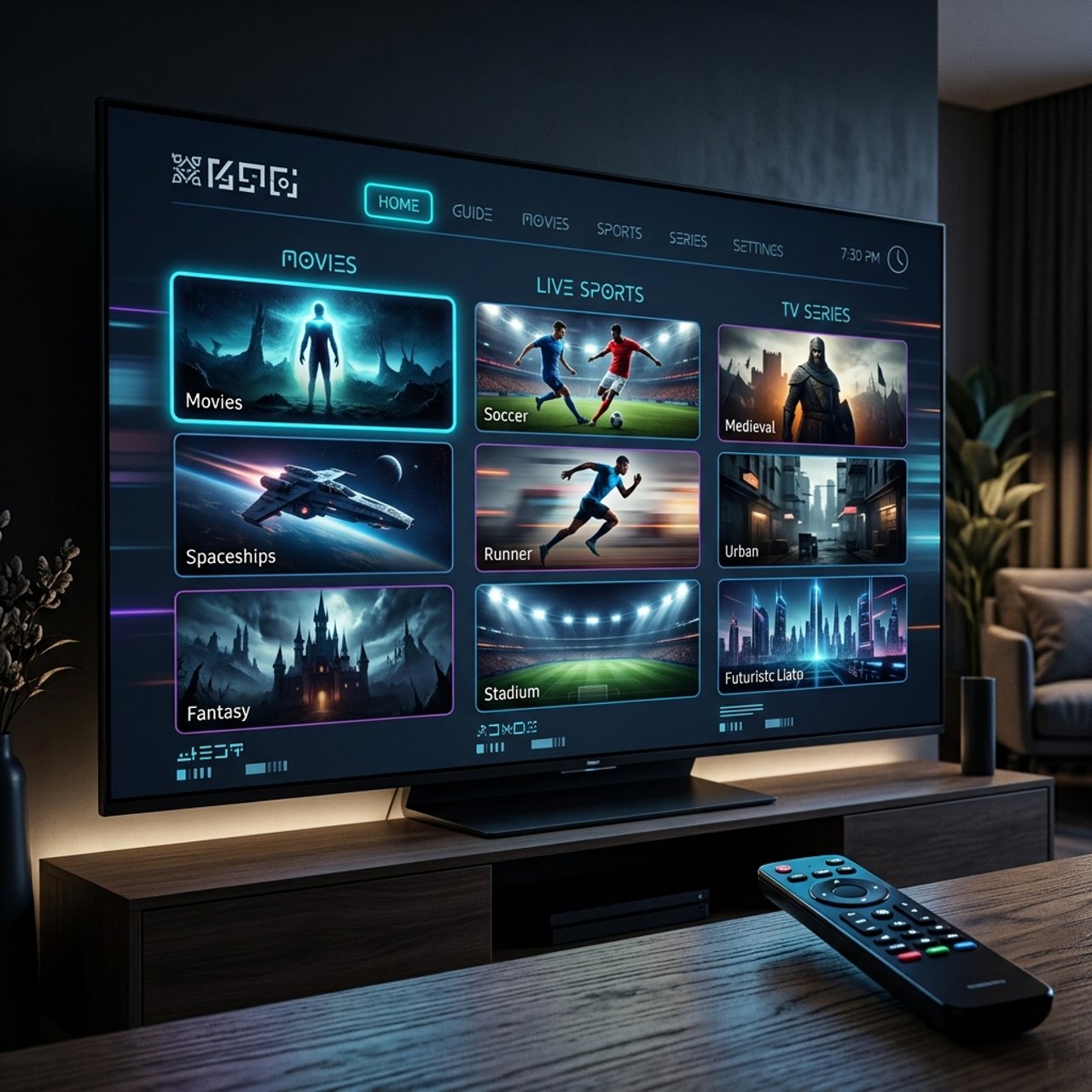
Explore the Best IPTV Services of 2026: A Complete Guide

Paying $150+ a month for cable while half the channels collect digital dust is the kind of financial self-harm most people don't realize they're committing until they discover IPTV. If you've been dealing with frozen streams, apps that crash mid-match, or a setup so complicated it required a YouTube degree just to watch football, this guide is exactly what you've been searching for. The best IPTV service can replace your entire cable package for a fraction of the cost, but only if you set it up correctly, choose the right provider, and know how to dodge the pitfalls that ruin the experience for most new users.
Solving your streaming setup the right way isn't just about convenience, it's about building a reliable system that doesn't collapse when you're 10 minutes into a Champions League final. When your M3U playlist is properly configured, your network is optimized, and your VPN is running quietly in the background, IPTV transforms from a frustrating experiment into the best entertainment decision you've ever made.
Core Concepts & Need-To-Know Info
- M3U Playlist / M3U URL: A text file or web link that contains all your channel data. Your IPTV provider gives you this URL after purchase, and you paste it into your app to load all channels and VOD content.
- Xtream Codes API: An alternative connection method using a server URL, username, and password. Many premium providers support this format, and apps like TiviMate handle it exceptionally well.
- EPG (Electronic Program Guide): The on-screen TV guide showing what's playing now and next. A good IPTV service includes an EPG URL alongside your M3U link.
- ISP Throttling: Your internet provider can detect and intentionally slow down streaming traffic. This is one of the top reasons for buffering even on fast connections.
- VPN: A Virtual Private Network encrypts your traffic and hides it from your ISP, effectively bypassing throttling and protecting your privacy.
- Buffer/Cache Settings: Most IPTV players let you increase the buffer size, which pre-loads more video data and dramatically reduces mid-stream freezing.
- Minimum Speed Requirements: For SD streaming, 10 Mbps is enough. HD needs 25 Mbps, and 4K requires 50+ Mbps with a stable, low-latency connection.
Step-by-Step Guide: Setting Up the Best IPTV Service on a Firestick
- Step 1: Enable Apps from Unknown Sources:
- Go to your Firestick home screen, click the hamburger menu, select Settings, then My Fire TV, then Developer Options. Toggle on Apps from Unknown Sources and ADB Debugging. This unlocks the ability to install third-party apps that Amazon doesn't officially list.
- Step 2: Install the Downloader App:
- From the Firestick home screen, use the search bar to find Downloader by AFTVnews. Install it, it's free and available directly from the Amazon App Store. This app lets you sideload APKs like TiviMate onto your device.
- Step 3: Download TiviMate APK:
- Open Downloader and type the URL https://tivimate.com in the browser bar or use a direct APK link from a trusted source like APKPure. Once downloaded, click Install and then Done (not Open yet).
- Step 4: Install TiviMate Companion on Your Phone (Optional but Recommended):
- Download TiviMate Companion from the Google Play Store on your Android phone. This lets you manage settings remotely and makes typing your M3U URL far easier than using a remote control.
- Step 5: Open TiviMate and Add Your Playlist:
- Launch TiviMate on your Firestick. Select Add Playlist, then choose either M3U Playlist (paste your M3U URL) or Xtream Codes (enter your server URL, username, and password provided by your IPTV service). Click Next and let the app load your channels, this can take 1-3 minutes depending on playlist size.
- Step 6: Set Up Your EPG:
- Once your playlist loads, go to Settings, then EPG. Enter the EPG URL your provider gave you (often included in your welcome email). Set the refresh interval to every 24 hours so your program guide stays current.
- Step 7: Adjust Buffer Settings:
- Inside TiviMate, go to Settings, then Playback, then Player Settings. Increase the buffer size to at least 3,000ms (3 seconds). This single setting eliminates most minor buffering caused by network fluctuations.
- Step 8: Test Your Channels:
- Browse to a live sports or news channel and let it play for 2-3 minutes. Check for stuttering or pixelation. If the stream is smooth, your setup is complete. If you see issues, jump to the troubleshooting section below.
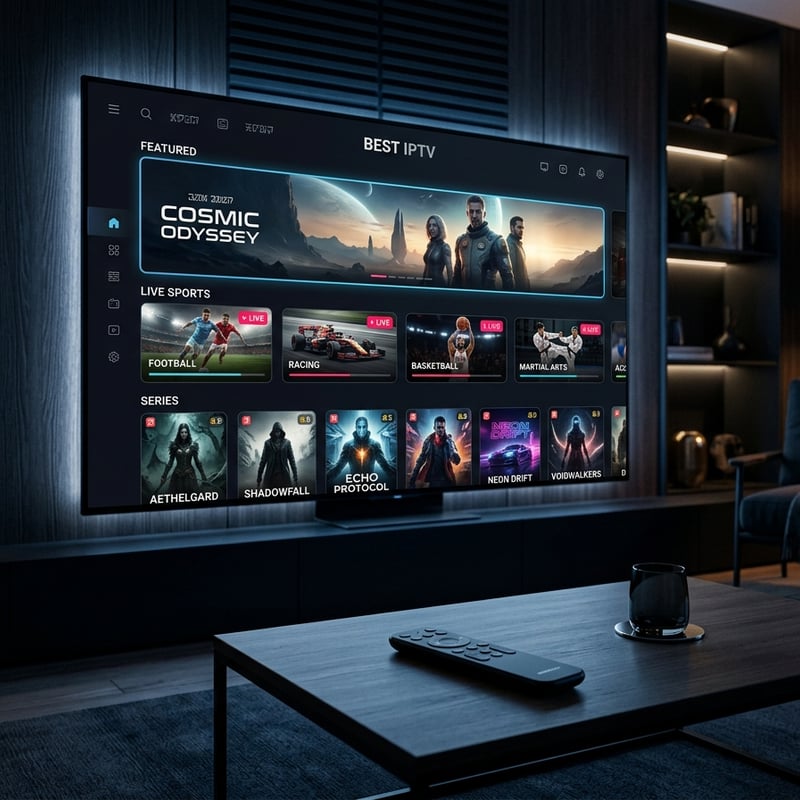
Imagine sitting down for a pay-per-view boxing match you've been hyping all week, you've got friends over, drinks poured, and the stream freezes at the opening bell because your ISP detected the traffic spike and throttled you down to dial-up speeds. That's not a hypothetical; it happens to IPTV users without VPN protection every single weekend. The warnings above aren't just cautionary, they're battle-tested lessons from the streaming community.
Best VPNs to Stop ISP Throttling on IPTV
Choosing the right VPN is the single most impactful upgrade you can make after subscribing to the best IPTV service. These are the top performers specifically tested for IPTV streaming:
- ExpressVPN: Consistently the fastest VPN for streaming with servers optimized for media traffic. The MediaStreamer DNS feature also works on devices that can't run a VPN app natively, like older Smart TVs.
- NordVPN: Excellent server coverage globally, with NordLynx protocol delivering near-native speeds. Their 6-simultaneous-device limit means your Firestick, phone, and tablet are all covered under one plan.
- Surfshark: The best value VPN for IPTV households because it allows unlimited simultaneous connections. If your whole family is streaming, this is the one.
- IPVanish: A favorite in the Firestick community because it has a native Fire TV app available directly from the Amazon App Store, no sideloading required.
Always connect your VPN to a server in the same country whose channels you're watching. Connecting to a US server to watch US sports channels, for example, reduces latency and maximizes stream stability.
TiviMate vs. IPTV Smarters: Which App Wins?
Both apps are excellent, but they serve different types of users. Here's an honest breakdown:
- TiviMate is the gold standard for serious IPTV users. Its EPG is clean and snappy, buffer settings are highly configurable, and the UI feels like a premium cable guide. The free version supports one playlist; TiviMate Premium ($4.99/year) unlocks multiple playlists, catch-up TV, and recording features. If you're on a Firestick or Android TV box, TiviMate is the winner.
- IPTV Smarters Pro is more beginner-friendly and works on a wider range of devices including iOS. It supports both M3U and Xtream Codes login, has built-in parental controls, and doesn't require a separate companion app for management. It's the better choice for iPhone/iPad users or for quick setup without tinkering.
- GSE Smart IPTV is a solid middle-ground option, particularly strong on Apple devices. It handles large M3U playlists (50,000+ channels) without crashing, which some other players struggle with.
- For best overall experience on Firestick, the verdict is TiviMate, the buffer controls and EPG integration alone justify the minimal subscription cost.
Network Requirements for 4K IPTV Streaming
Your internet speed is the foundation everything else is built on. These are the hard requirements for each streaming quality tier:
- SD (480p): 5-10 Mbps stable, even older internet connections handle this comfortably.
- HD (720p/1080p): 20-30 Mbps stable, the sweet spot for most IPTV channels. Most providers broadcast their premium channels in 1080p.
- 4K/UHD: 50-100 Mbps stable with low latency (under 30ms ping). If your connection fluctuates between 40-80 Mbps, expect occasional buffering on 4K streams.
- Wi-Fi vs. Ethernet: A wired Ethernet connection is always superior for IPTV. If your Firestick is across the room from your router, use a powerline adapter or a Wi-Fi 6 access point rather than relying on congested 2.4GHz Wi-Fi.
- Router placement matters more than most people realize: walls, microwaves, and neighboring Wi-Fi networks all degrade signal. Position your router elevated and central, and use the 5GHz band for your streaming device.
Troubleshooting: Fixing Common IPTV Playlist Errors
When your streams aren't loading or your playlist shows blank channels, work through these fixes systematically:
- Authentication Failed error: Your M3U URL or Xtream Codes credentials are incorrect. Copy-paste directly from your provider's email, don't retype manually. Check for trailing spaces.
- Channels load but won't play: This is almost always an ISP throttling issue or a VPN server problem. Switch your VPN to a different server location and retry.
- EPG showing wrong times or no data: Your EPG URL may have expired or changed. Contact your provider for a fresh EPG link and manually force a refresh inside TiviMate settings.
- App crashes when loading large playlists: Clear TiviMate's cache (Settings, then Apps, then TiviMate, then Clear Cache), restart your Firestick, and reload the playlist. Also try reducing your playlist to a single group or category initially.
- Buffering on specific channels only: Some channels are simply hosted on weaker servers. This is a provider-side issue. Your best option is to contact support or switch to a backup stream if your provider offers one (many do, labeled OTT or Backup).
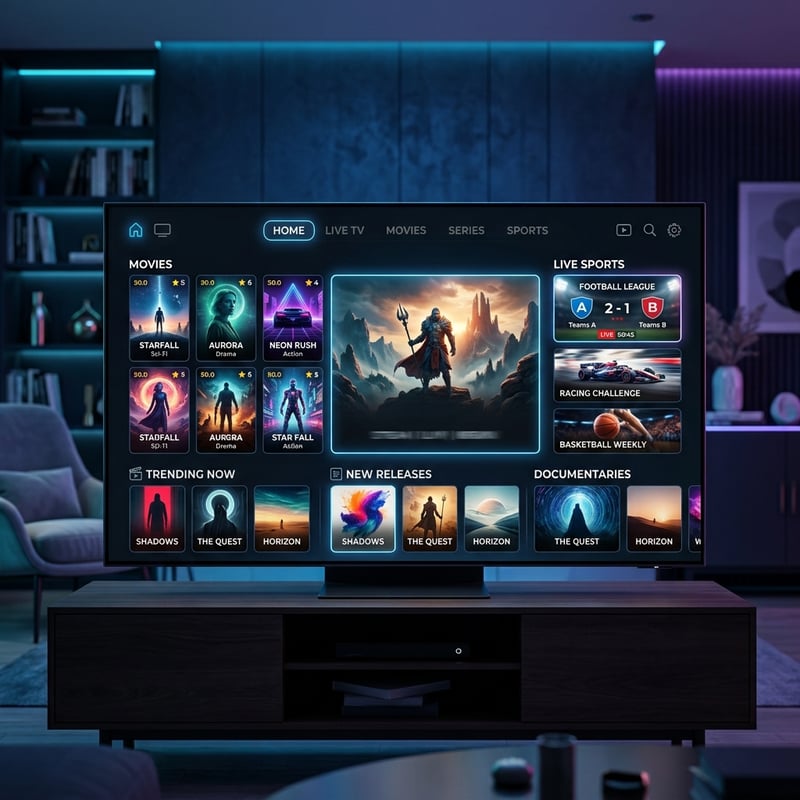
Finding the best IPTV service isn't a one-size-fits-all decision, it's about matching the right provider to your viewing habits, pairing it with the right app for your hardware, and building a network setup that doesn't become the weakest link in your streaming chain. The users who get frustrated and give up on IPTV are almost always those who skipped the setup fundamentals covered in this guide, so take the time to configure your buffer settings, lock down a quality VPN, and choose a provider that offers a real trial period, then check out our full channel list and pricing plans to find the perfect fit for your household.
Frequently Asked Questions
Ready to get started?
Try our service risk-free with a 24-hour free trial.
Related Articles
How to Change Your DNS Settings for Faster Internet Browsing and Streaming
A technical guide to understanding and changing DNS settings for faster internet performance covering how DNS resolution works and how to configure public DNS servers on routers and individual devices.
TV Antenna Guide for Cord Cutting and How to Choose the Best Model 2026
A comprehensive technical guide to selecting, installing, and optimizing digital television antennas for free over-the-air broadcast reception. Compares indoor and outdoor models, explains signal propagation fundamentals, and provides detailed installation guidance for maximum channel acquisition.
Discover the Best IPTV Providers of 2026: Your Ultimate Guide
Uncover the best IPTV providers for seamless streaming.