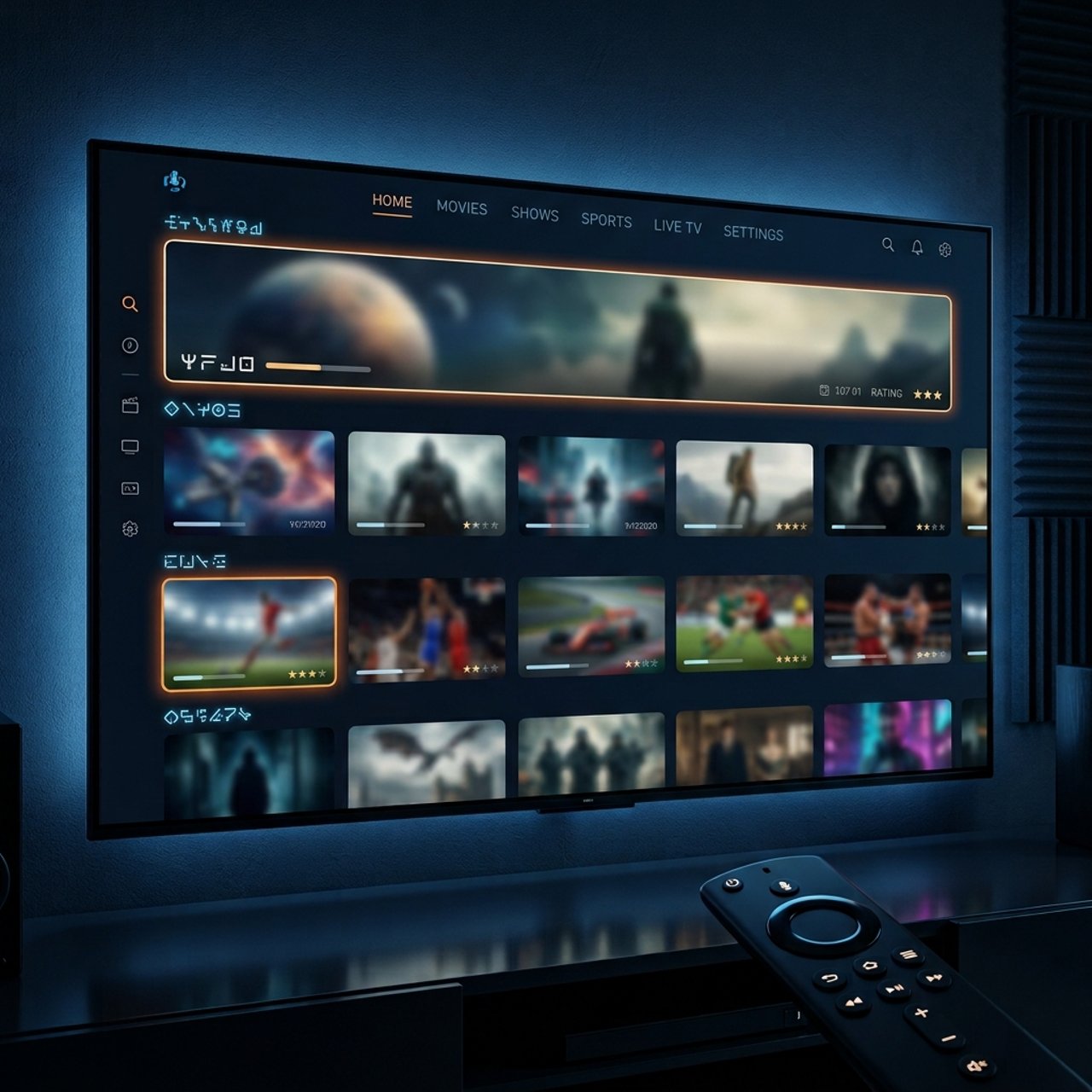
How to Choose the Best OTT IPTV Provider for You

Tired of paying sky-high cable bills for channels you never watch? Or maybe you've already jumped into the world of IPTV but ended up with a service that buffers every five minutes, drops channels during the big game, or just disappears one day without warning. Choosing the wrong OTT IPTV provider is one of the most frustrating and expensive mistakes a cord-cutter can make. This guide cuts through all the noise and gives you a clear, practical framework for how to choose an OTT IPTV provider that actually delivers on its promises, whether you're streaming on a Firestick, Android TV box, Smart TV, or using TiviMate with an Xtream Codes connection.
Choosing the right IPTV provider isn't just about price, it's about reliability, content quality, and whether the service will still be running six months from now. A provider with rock-solid uptime and responsive support transforms your entire home entertainment experience, while a bad one will have you constantly troubleshooting freezes and re-entering M3U playlist URLs every other week.
Core Concepts & Need-To-Know Info
- OTT (Over-The-Top): Means the service is delivered entirely over the internet, bypassing traditional cable or satellite infrastructure.
- M3U Playlist URL: A text-based file link your IPTV app uses to load channels. A quality provider gives you a stable, fast M3U URL that doesn't go dead.
- Xtream Codes API: The most popular connection method, you get a server URL, username, and password to enter into apps like TiviMate or IPTV Smarters.
- VOD (Video On Demand): Refers to the movie and TV show library offered alongside live channels. Quality varies wildly between providers.
- EPG (Electronic Program Guide): The TV guide overlay that shows what's on now and what's coming next, essential for a cable-like experience.
- Concurrent connections: How many devices can stream simultaneously under one subscription. Most providers offer 1 to 4 connections.
- Server location matters: A provider with servers closest to your region will deliver lower latency and fewer buffering events.
- ISP throttling: When your internet service provider detects streaming traffic and deliberately slows it down. A good VPN solves this.
Step-by-Step Guide
- Step 1: Define Your Must-Have Content:
- Before opening any browser, write down exactly what you need. Do you want live NFL, NBA, or Premier League? Do you need local channels in your region? Are international channels (Spanish, Arabic, Hindi) important? This list becomes your filter, any provider that can't deliver these specifics gets crossed off immediately.
- Step 2: Search for Providers With a Free Trial:
- Reputable providers will always offer a 24 to 48-hour free trial or a 7-day money-back guarantee. Never pay full price upfront without testing. During the trial, specifically test the channels you care most about during peak evening hours (7 PM to 10 PM in your timezone), which is when servers get hammered.
- Step 3: Test Compatibility With Your Devices:
- Install the provider's M3U URL or Xtream Codes credentials into TiviMate, IPTV Smarters Pro, or GSE Smart IPTV on your Firestick or Android TV box. A quality provider's stream should load within 2 to 3 seconds. If it takes longer, their server infrastructure is already struggling.
- Step 4: Evaluate Stream Quality Settings:
- During your trial, check whether the provider offers multiple quality tiers, typically SD, HD, FHD, and 4K streams. Look for providers that offer at least 1080p FHD on their main sports and entertainment channels. If 4K is important to you, confirm those streams are true 4K and not upscaled HD.
- Step 5: Check the VOD and Catch-Up Library:
- Navigate to the VOD section and search for recent movies and current TV seasons. A strong provider will have thousands of titles updated weekly, with working playback. Dead or missing VOD content is a red flag about the provider's overall maintenance standards.
- Step 6: Test Customer Support Responsiveness:
- Send a support message or use their live chat before you commit to a paid plan. How fast do they respond? Do they actually answer your technical question or give you a canned response? A provider with slow or evasive support will leave you hanging when something breaks on a Sunday afternoon.
- Step 7: Verify Payment and Subscription Flexibility:
- Check whether they accept PayPal, crypto, or credit card. Avoid providers that only take gift cards or wire transfers, these are often scam operations. Look for monthly billing options so you're not locked in for a year with a subpar service.
- Step 8: Read Real Community Reviews:
- Search Reddit communities (r/IPTV), Trustpilot, and IPTV-specific forums for unfiltered reviews. Look for patterns, consistent complaints about downtime, missing channels, or poor customer service are deal-breakers. Consistent praise for uptime and support is a strong green light.
ISP throttling is a real problem that many new IPTV users don't anticipate. Your internet provider can detect the streaming protocol used by IPTV services and deliberately slow your connection, making even a high-quality provider look terrible. The solution is pairing a solid provider with a reliable VPN, but only a paid one with no bandwidth caps.
Best VPNs to Stop ISP Throttling With Your IPTV Service
ISP throttling can ruin any IPTV experience regardless of how good your provider is. A VPN encrypts your traffic so your ISP can't identify it as streaming data and can't throttle it. ExpressVPN is the fastest option for IPTV streaming. Its Lightway protocol maintains high speeds even during peak hours, and it works flawlessly on Firestick with a native app. NordVPN offers a strong balance of speed and security. Its SmartPlay DNS feature is specifically designed for streaming and reduces buffering significantly. Surfshark is the best budget option, offering unlimited simultaneous connections, ideal if you're streaming on multiple devices under one subscription. Always connect your VPN to a server in your own country or the provider's server region for the lowest latency. Enable the VPN's split-tunneling feature to route only your IPTV app through the VPN tunnel, keeping other apps on your regular connection for optimal speeds.
Common Setup Mistakes and How To Fix Them
Even with a great provider, poor setup kills the experience. Wrong Xtream Codes format: Many users enter the portal URL instead of the server URL. Your server URL should look like http://yourprovider.com:port, not the login page address. App not refreshing the playlist: TiviMate and IPTV Smarters cache your playlist. If channels are missing or not loading, go into the playlist settings and force a manual refresh. Buffering only on certain channels: This usually means those specific channels are on an overloaded server. Contact support and ask for an alternative stream link. EPG not populating: Make sure you've entered the EPG URL separately in your app settings. Your provider should give you a dedicated EPG URL alongside your M3U URL. Firestick overheating and crashing streams: The Amazon Firestick 4K Max handles IPTV much better than older models. If you're on a first-gen Firestick, hardware limitations may be causing crashes.
Recommended Apps: TiviMate vs IPTV Smarters
Choosing the right app is nearly as important as choosing the right provider when you're figuring out how to choose an OTT IPTV provider. TiviMate is the gold standard for Firestick and Android TV boxes. Its interface is cable-TV clean, EPG integration is seamless, and it supports multiple playlists simultaneously. The premium version ($5.99/year) unlocks recording, multiple profiles, and custom channel groups. IPTV Smarters Pro is the best choice for beginners. It's free, intuitive, and works on almost every platform including iOS, which TiviMate doesn't support. GSE Smart IPTV is a solid alternative if you need advanced M3U management with custom EPG imports and support for external players like MX Player. For 4K streaming, TiviMate paired with an NVIDIA Shield or Firestick 4K Max delivers the best visual performance and the smoothest frame rates. Avoid generic free IPTV apps from unknown developers, many contain adware, and some have been caught harvesting login credentials.
Network Requirements for Smooth IPTV Streaming
Your internet connection is the backbone of your entire streaming setup. Even the best provider can't overcome a weak network. Minimum speed for HD streaming: 10 Mbps dedicated to the IPTV device. Shared with other household devices, you want at least 25 Mbps overall. For 4K streaming: You need a sustained 25 Mbps minimum per stream. Anything less results in constant buffering or automatic quality downscaling. Wired Ethernet always beats Wi-Fi for IPTV stability. A simple Ethernet adapter for your Firestick (around $10) eliminates most buffering issues caused by Wi-Fi interference. If you must use Wi-Fi, keep your streaming device on the 5GHz band and within clear line-of-sight to the router. Enable QoS (Quality of Service) in your router settings to prioritize streaming traffic over other devices on the network.
Troubleshooting: Fixing Playlist Errors and Playback Issues
When something breaks, systematic troubleshooting saves time and frustration. Playlist failed to load error: First, verify your M3U URL or Xtream Codes credentials are copied correctly. Then check if the provider's server is down by asking in their Telegram support group or checking their status page. Channels load but immediately buffer: Run a speed test on the streaming device itself. If speeds look good, the issue is the provider's server under load. Try switching to an alternate stream or contact support. App crashes on launch: Clear the app cache and data on your Firestick (Settings, Applications, Manage Installed Applications, select your app, Clear Cache and Clear Data). Restart the device and re-enter your credentials. Black screen on specific channels: These channels may be geo-restricted. Switching your VPN server location can unlock them. Audio out of sync: This is usually a codec issue. Switch your player to use an external player like MX Player or VLC within your IPTV app settings.
Knowing how to choose an OTT IPTV provider comes down to one principle: test before you pay, and pay attention to the details that matter, server stability, trial availability, app compatibility, and real user reviews. Take your time with the trial period, push the service to its limits during peak hours, and make your decision based on real-world performance rather than marketing promises, then check out our channel list and pricing plans to find the perfect fit for your home.
Frequently Asked Questions
Ready to get started?
Try our service risk-free with a 24-hour free trial.
Related Articles
Discover the BestBuy IPTV Trial: Everything You Need to Know
Uncover the details of the BestBuy IPTV trial subscription.
Understanding the SDI IPTV Encoder: A Comprehensive Guide
Explore the SDI IPTV encoder for better streaming.
Unlock Streaming with HDMI to IPTV Converter: A Complete Guide
Learn how HDMI to IPTV converters can improve your streaming setup.