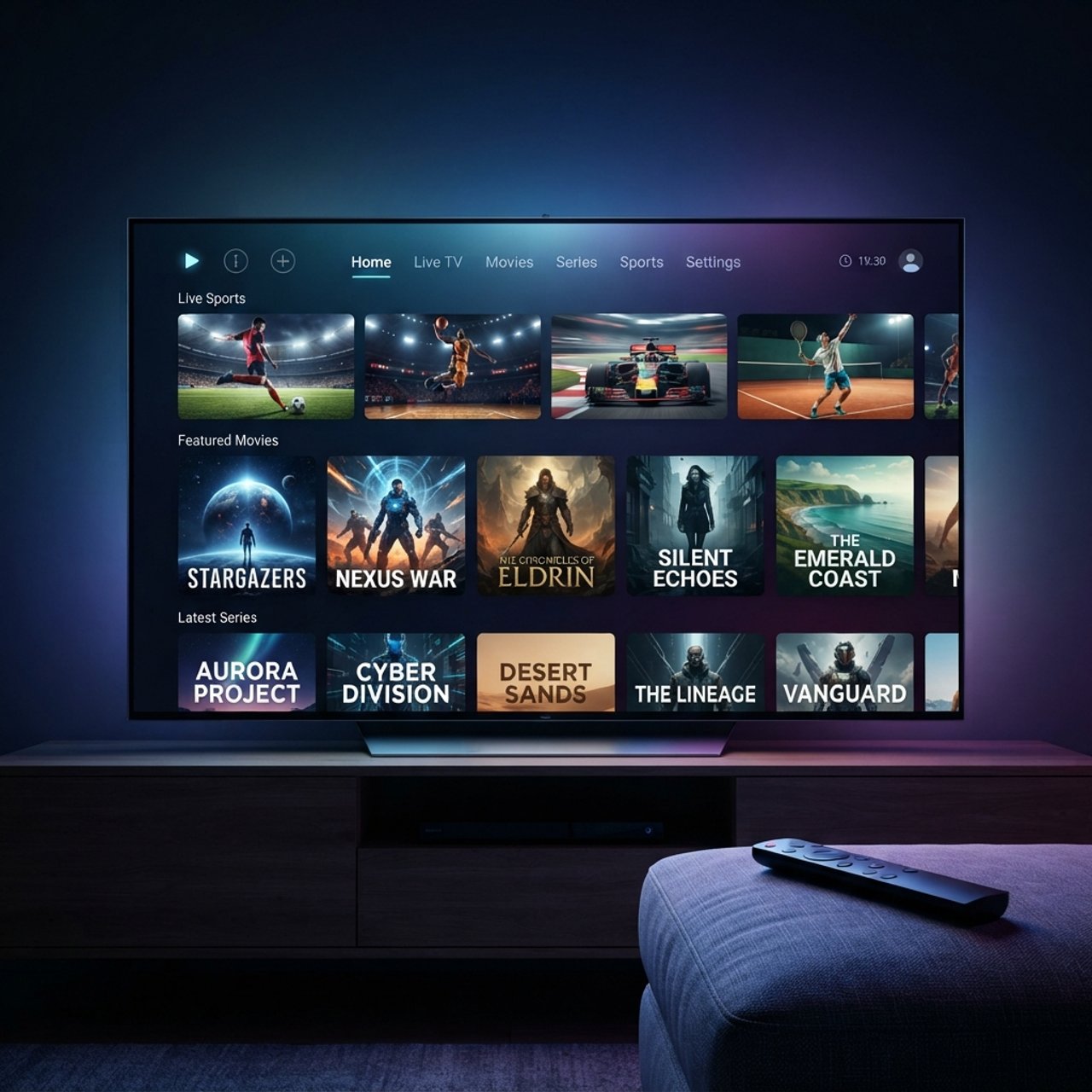
Understanding the SDI IPTV Encoder: A Comprehensive Guide

If you've ever tried to broadcast professional-quality video over an IP network and ended up with degraded signal, sync errors, or a pixelated mess on the receiving end, you already know the frustration. An SDI IPTV encoder is the piece of hardware that sits between your professional camera or broadcast feed and your streaming infrastructure — and when it's configured correctly, it transforms raw SDI signals into clean, reliable IPTV streams that can be delivered to thousands of devices simultaneously. Get it wrong, and you're looking at buffering, audio drift, and channels that simply won't load.
This guide breaks down everything you need to know about selecting, setting up, and optimizing an SDI IPTV encoder — from the physical connections to the network configuration, codec settings, and troubleshooting the gremlins that always seem to show up at the worst possible time. Without a properly configured SDI IPTV encoder at the source, every downstream component — your middleware, your CDN, your subscribers' devices — is fighting an uphill battle.
Core Concepts & Need-To-Know Info
- SDI (Serial Digital Interface): Carries uncompressed, unencrypted digital video — 3G-SDI handles up to 1080p60, 12G-SDI handles 4K UHD
- The encoder's job: Compress that raw SDI signal into H.264 or H.265 (HEVC) and package it into a transport stream (MPEG-TS) or HLS for IP delivery
- H.265 vs H.264: H.265 delivers the same visual quality at roughly half the bitrate, critical for 4K streams or bandwidth-limited networks
- MPEG-TS over UDP: The standard for IPTV headends; HLS is better for OTT delivery to web browsers and mobile devices
- Xtream Codes API: Lets your encoder's output feed directly into a middleware panel, auto-generating M3U playlist URLs for subscribers
- Bitrate targets: For 1080p H.264, target 4-8 Mbps; for 1080p H.265, 2-4 Mbps; for 4K H.265, 8-15 Mbps
- Latency modes: Most encoders offer ultra-low latency (under 1 second, ideal for live sports) and standard latency (3-5 seconds, better for stability)
- Audio encoding: Use AAC for HLS streams and AC3/MPEG Audio for MPEG-TS; mismatched audio codecs are a leading cause of silent streams
Step-by-Step Guide
- Step 1: Physical Connection:
- Connect your SDI source (camera, satellite receiver, or video router) to the SDI IN port on your encoder using a properly terminated 75-ohm BNC cable. For 3G-SDI sources running 1080p, a standard SDI cable under 100 meters is fine. For longer runs, use a distribution amplifier. Confirm the signal lock LED on the encoder turns green — no green light means no signal and everything downstream fails.
- Step 2: Connect to Your Network:
- Plug the encoder's Ethernet port directly into a managed switch using a Cat6 cable. Avoid Wi-Fi at the encoder stage entirely — even brief wireless interference causes GOP errors in the encoded stream. Assign a static IP address to the encoder either through its web interface or your DHCP reservation table. Write this IP down; you'll need it constantly.
- Step 3: Access the Web Interface:
- Open a browser on a PC connected to the same network segment. Type the encoder's static IP into the address bar (e.g., 192.168.1.100). Log in with the default credentials (typically admin/admin — change these immediately after first login). You'll land on the dashboard showing input signal status, encoding parameters, and output settings.
- Step 4: Configure Video Encoding Settings:
- Navigate to the Video Encode section. Set the codec to H.265 for bandwidth efficiency or H.264 for maximum compatibility. Set the resolution to match your input (1080p, 720p, etc.) — never upscale at the encoder. Use CBR (Constant Bit Rate) for IPTV headend delivery for predictable bandwidth. Set the frame rate to match the source exactly (25fps for PAL, 29.97 or 30fps for NTSC). Set the GOP size to 2x the frame rate (e.g., GOP 60 for 30fps).
- Step 5: Configure Audio Settings:
- Go to the Audio Encode tab. Select AAC-LC at 128 kbps for HLS output, or MPEG Audio Layer 2 at 192 kbps for MPEG-TS. Set the sample rate to 48 kHz (broadcast standard). If your SDI source carries embedded audio, select SDI Embedded Audio as the source. If using an external audio input, select the appropriate analog or AES/EBU input.
- Step 6: Configure the Output Stream:
- Navigate to Stream Output or Protocol settings. For a local IPTV headend, select MPEG-TS over UDP and enter the multicast address (e.g., 239.1.1.1) and port (e.g., 1234). For internet delivery or OTT, select RTMP or HLS. For direct integration with an Xtream Codes panel or middleware, use the RTMP push URL and stream key provided by your panel. Enable SMPTE 2022 FEC if your encoder supports it — this adds forward error correction to the UDP stream, dramatically reducing packet loss artifacts.
- Step 7: Set the Stream URL in Your M3U Playlist:
- Once the encoder is outputting, your stream URL will follow a format like udp://@239.1.1.1:1234 for multicast, or the RTMP/HLS URL provided by your middleware. Add this URL to your M3U playlist file. Test it immediately in VLC on a PC before connecting any subscriber devices — VLC's media information window shows codec, bitrate, and any packet loss in real time.
- Step 8: Test on End-User Devices:
- Load your M3U URL into TiviMate or IPTV Smarters on a Firestick or Android TV. Confirm video and audio are in sync, the image is sharp, and there's no macro-blocking. Run the stream for at least 10 minutes before calling it stable — many encoder misconfigurations only surface after a few minutes when buffers fill.
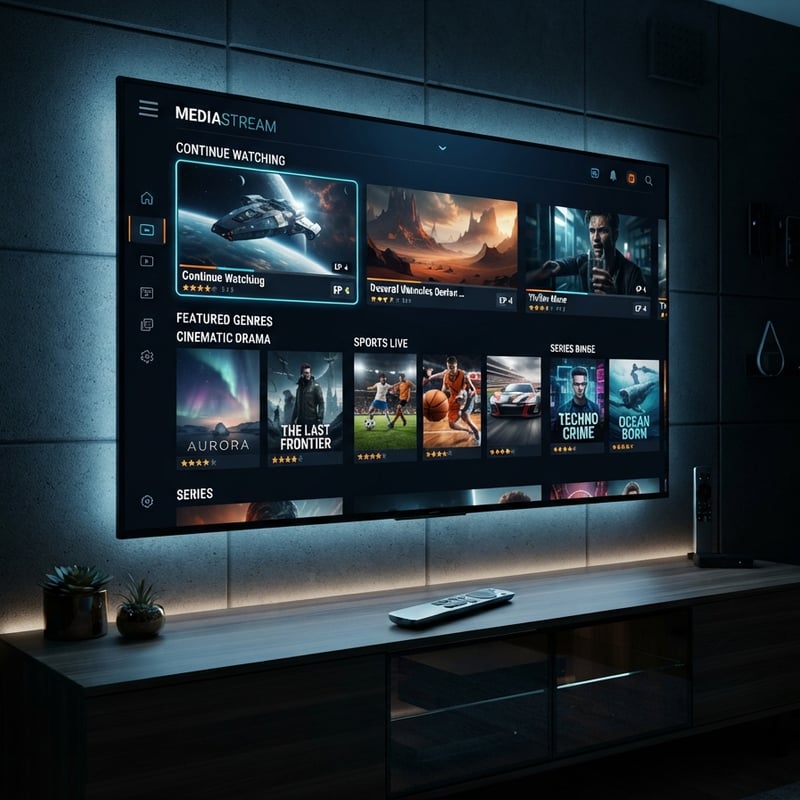
A real-world scenario: a hotel IPTV operator configured a beautiful 1080p H.265 stream at 3 Mbps, but left the encoder on its default variable frame rate setting. Every time a guest switched channels, the stream took 8-12 seconds to stabilize because the middleware couldn't handle the VFR timing. Switching to CFR (Constant Frame Rate) fixed it in under a minute. These small settings have enormous downstream consequences.
Best VPNs to Prevent ISP Throttling on IPTV Streams
ISP throttling is a real and growing problem for IPTV distribution, particularly for operators delivering streams over the public internet. Even if your SDI IPTV encoder is outputting a pristine stream, throttling between your server and the end viewer kills quality. ExpressVPN is consistently the fastest option for IPTV, with servers optimized for streaming and minimal latency impact, and it works seamlessly on Firestick and Android TV. NordVPN offers dedicated IPs which are valuable for IPTV operators who need a stable, unblocked delivery IP, and its NordLynx protocol adds speed without sacrificing security. Surfshark's unlimited simultaneous connections make it cost-effective for families or small subscriber groups. Always advise subscribers to connect the VPN before opening their IPTV app, and for operators, a VPS-level VPN tunnel between your encoder and your streaming server adds an encryption layer that prevents upstream ISPs from throttling your distribution.
Common Setup Mistakes and How to Fix Them
If your stream plays but there's no audio, this is almost always a codec mismatch — check that the audio codec in your encoder matches what the IPTV player expects and switch encoder audio to AAC-LC. If video freezes every 30-60 seconds, this is a bitrate vs. available bandwidth conflict — either lower the encoder bitrate or increase network capacity, and also check that your managed switch has IGMP Snooping enabled for multicast streams. If the stream works on VLC but not on TiviMate or Smarters, the stream container format is likely incompatible — TiviMate prefers HLS or MPEG-TS, so switch the encoder output accordingly. If image quality is poor despite a high bitrate, check the GOP size and verify the encoder's input resolution lock, as some units default to 720p output even when receiving 1080p SDI.
Recommended Apps: TiviMate vs IPTV Smarters for SDI-Encoded Streams
Both apps receive streams from your SDI IPTV encoder via M3U playlist or Xtream Codes API, but they behave differently. TiviMate is the gold standard for Firestick and Android TV — it handles large channel lists without lag, supports EPG from XMLTV sources, and its adjustable buffer size is critical for higher-bitrate SDI-encoded streams. IPTV Smarters Pro is better for operators who need a branded white-label app with built-in Xtream Codes panel integration and subscriber management. GSE Smart IPTV is useful as a backup player for diagnosing stream issues because it displays codec information and packet statistics in real time. For 4K H.265 streams from your SDI encoder, TiviMate's hardware decoding mode is essential — software decoding of 4K H.265 will cause dropped frames on all but the most powerful Android TV boxes.
Network Requirements for Delivering SDI-Encoded Streams at Scale
Your encoder outputs a clean stream, but the network between the encoder and your viewers is where quality goes to die without proper planning. You need a minimum 10 Mbps symmetric upload at the encoder location per 1080p H.264 stream at 6-8 Mbps, since headroom matters. For multicast delivery on a LAN, enable IGMP Snooping on all managed switches to prevent multicast flooding the entire network. For internet delivery, use a CDN or a dedicated streaming server with at least 1 Gbps bandwidth capacity if you're serving more than 50 simultaneous viewers. QoS rules should prioritize IPTV traffic (UDP/RTP) over general internet traffic, and latency from encoder to viewer should stay under 5 seconds for live sports to avoid second-screen spoiler problems.
Troubleshooting: Fixing Playlist and Stream Errors
If your M3U playlist URL is not loading, verify the encoder's web server is running and accessible from the player's network, and check firewall rules on port 80 and 443. A stream not found error in TiviMate usually means the encoder restarted and changed its output port — always use static IPs and consistent port numbers. Audio/video sync drift over time is a PTS (Presentation Time Stamp) error from the encoder; update the encoder firmware and enable PTS correction in the encoder's advanced settings. Macro-blocking on fast motion means you should increase the bitrate by 20% and reduce the GOP size, and if the problem persists, the encoder hardware is undersized for the resolution. If the stream drops exactly every 6 hours, this is almost always a DHCP lease renewal causing a brief IP change on the encoder — fix it with a static IP assignment at the router level.
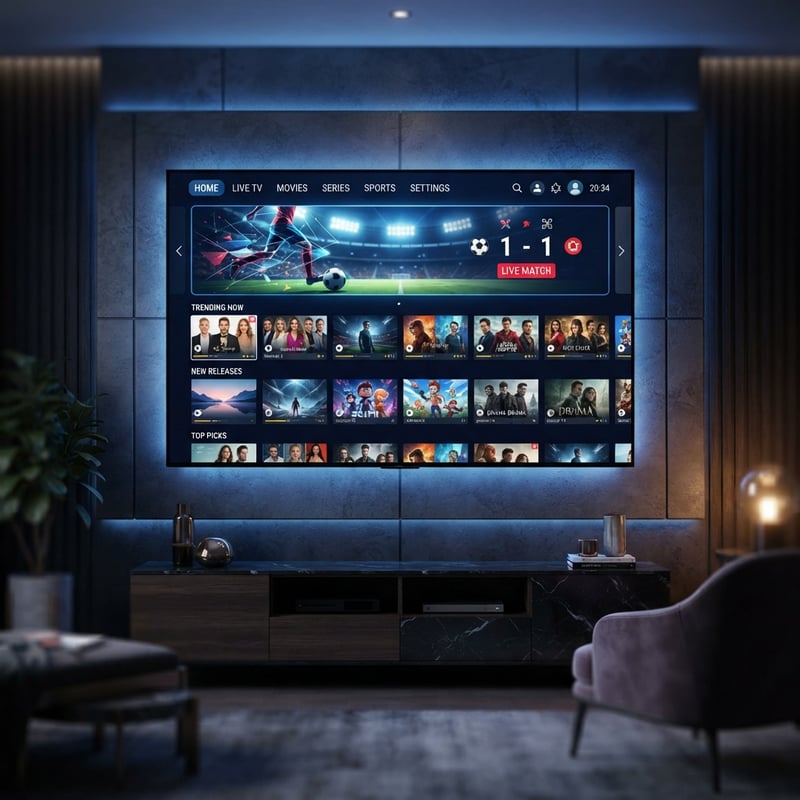
Getting your SDI IPTV encoder configured correctly the first time eliminates the most common headaches in professional IPTV deployment — from the physical SDI connection through codec settings, network configuration, and subscriber-facing app integration, every step in this guide is based on real-world deployment experience. Take the time to lock in these settings properly, document your configuration, and monitor your stream continuously, then explore our full channel list and pricing plans to see how a professionally encoded IPTV infrastructure can serve your subscribers reliably around the clock.
Frequently Asked Questions
Ready to get started?
Try our service risk-free with a 24-hour free trial.
Related Articles
IPTV Multicast Explained and How One Stream Serves Thousands of Viewers
A technical deep dive into IP multicast streaming architecture covering how multicast groups deliver live television efficiently across managed networks and how it compares to unicast delivery for IPTV deployments.

Unlock the Best IPTV Subscription for Firestick Users
Explore the best IPTV subscriptions for Firestick.

What is IPTV VLAN? Understanding Its Role in Streaming Services
Learn about IPTV VLAN and its impact on streaming.