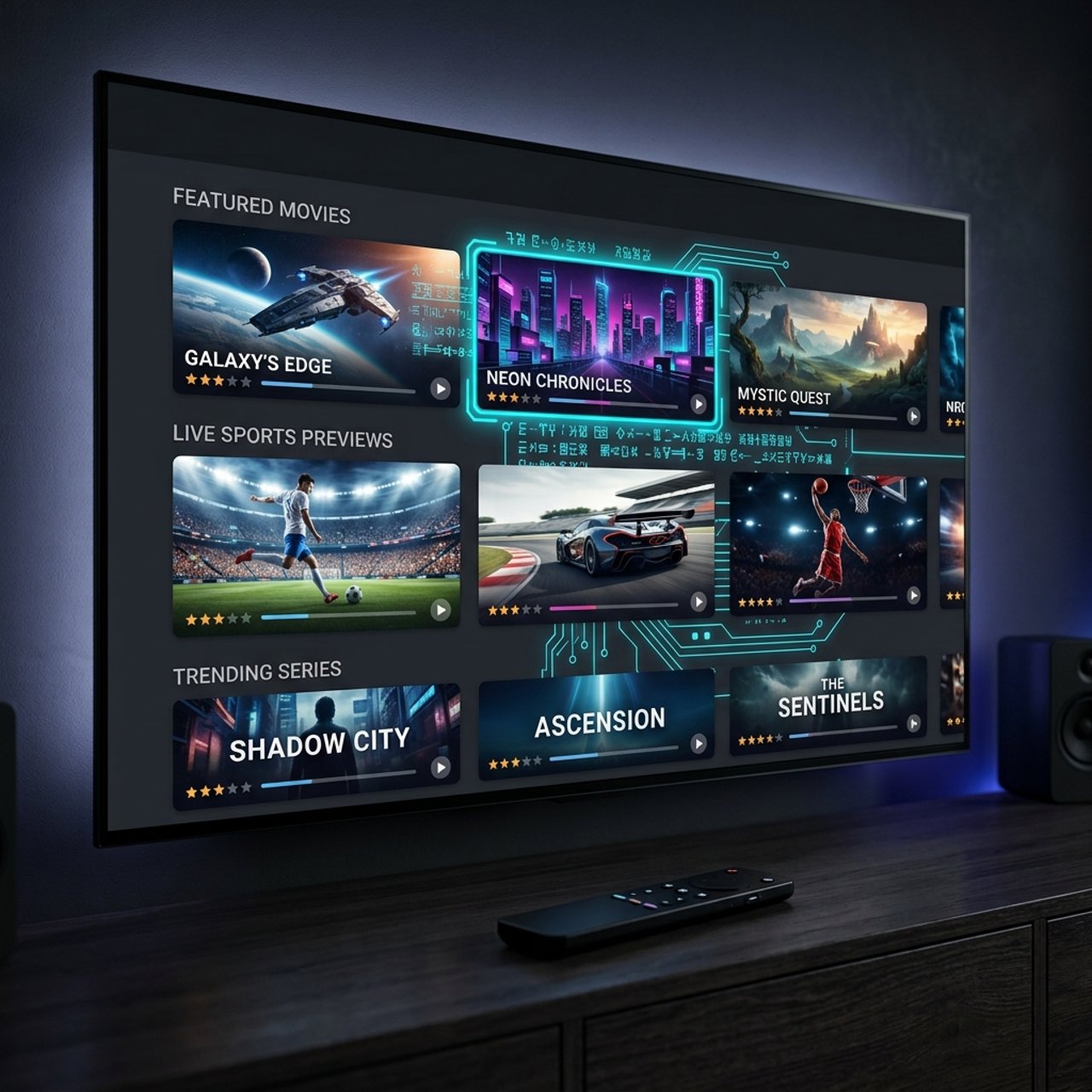
Discover the Best Player for IPTV: A Comprehensive Guide

You've got your IPTV subscription, your M3U playlist URL is ready, and you're sitting in front of your TV expecting a seamless streaming experience — then reality hits. The app crashes, channels won't load, or the interface is so clunky you spend more time navigating menus than actually watching anything. Finding the best player for IPTV is the single most important decision you'll make after choosing your subscription, and most people get it wrong the first time.
Choosing the wrong IPTV player is like buying a sports car and filling it with the wrong fuel — your subscription might be excellent, but a bad app will make it perform terribly. A great player handles reconnection logic, buffer management, and EPG syncing automatically, so you can focus entirely on watching rather than troubleshooting.
Core Concepts & Need-To-Know Info
- M3U Playlist: a text-based file or URL that contains a list of all your IPTV channels; every quality IPTV player accepts this format
- Xtream Codes API: an alternative login method using a server URL, username, and password; it's more stable than M3U and allows servers to push updates automatically
- EPG (Electronic Program Guide): the TV guide overlay that shows current and upcoming programming; requires a separate EPG URL or is built into the Xtream Codes feed
- VOD (Video on Demand): your movies and TV series library bundled with most IPTV subscriptions; not all players display VOD cleanly
- Buffer size settings: adjustable memory allocation in the player that reduces freezing on slower connections
- Hardware decoding: uses your device's GPU to decode video streams instead of the processor, which significantly improves performance on 4K content
- ISP throttling: your internet provider intentionally slowing down streaming traffic; a VPN paired with a good player can work around this
Step-by-Step Guide
- Step 1: Choose Your Player Based on Device:
- Before downloading anything, match the player to your hardware. TiviMate is the gold standard for Firestick and Android TV. IPTV Smarters Pro works across iOS, Android, Smart TVs, and Windows. GSE Smart IPTV is ideal for Apple TV and iPhone users. Pick based on where you're watching most.
- Step 2: Enable Downloader on Firestick (if applicable):
- Navigate to Settings, My Fire TV, Developer Options, then turn on Apps from Unknown Sources and ADB Debugging. This allows you to sideload TiviMate or any APK-based IPTV player that isn't directly in the Amazon App Store.
- Step 3: Install Your Chosen IPTV Player:
- For TiviMate: open the Amazon App Store and search TiviMate. For IPTV Smarters Pro: search directly in the Google Play Store, Apple App Store, or use the Downloader app on Firestick with the direct APK URL from the official site.
- Step 4: Open the App and Select Your Connection Method:
- Launch the player and choose between Add Playlist via M3U URL or Add via Xtream Codes. If your IPTV provider gave you a server URL, username, and password — use Xtream Codes. If they gave you a long .m3u link — paste that directly. Xtream Codes is the more reliable choice when available.
- Step 5: Enter Your IPTV Provider Credentials:
- Type your M3U URL carefully — a single wrong character breaks the entire playlist. If using Xtream Codes, enter the server address exactly as provided (including http:// and the port number), then your username and password. Hit Add Playlist and allow 30 to 60 seconds for channels to load.
- Step 6: Configure EPG Settings:
- Once your channels load, go into the app settings and find the EPG or Program Guide section. Either enter the EPG URL provided by your IPTV service or enable automatic EPG fetching if you're using Xtream Codes. Set EPG to refresh every 24 hours.
- Step 7: Adjust Player Settings for Best Performance:
- Go to player settings and enable hardware decoding. Increase buffer size to at least 10 seconds if your connection is under 50 Mbps. Set reconnect attempts to automatic. These three changes alone eliminate the majority of playback issues reported by new IPTV users.
- Step 8: Organize Your Channel List:
- Use the app's group or category filter to sort channels. Create custom favorites lists for your most-watched channels so you never have to scroll through thousands of channels to find the news or live sports.
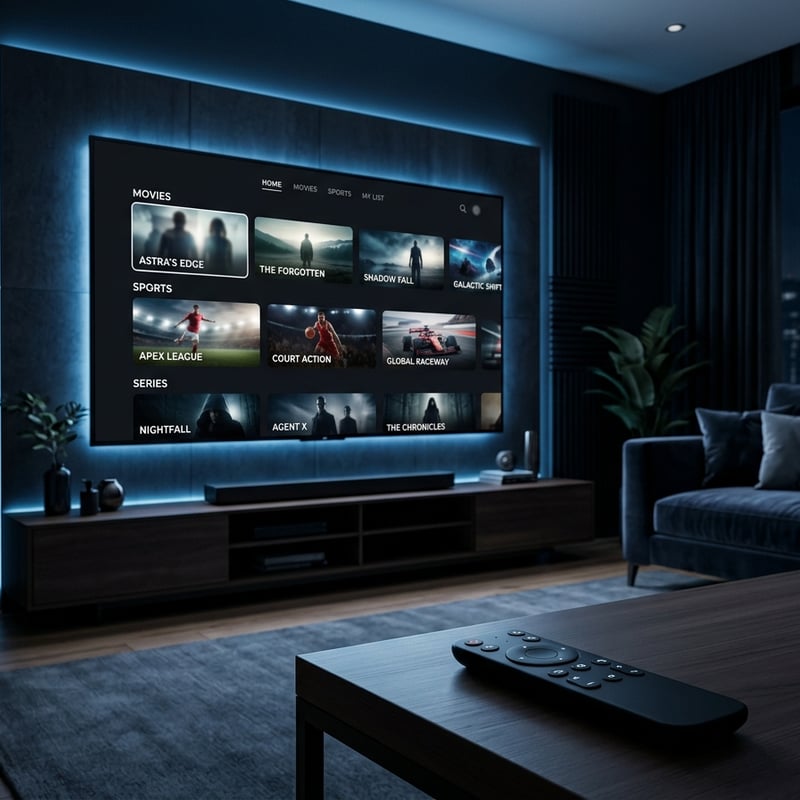
Real-world example: a user with a 200 Mbps fiber connection reported constant buffering on 4K channels — the culprit was their ISP throttling streaming traffic after 8 PM on weekdays. Adding a reputable paid VPN like ExpressVPN or NordVPN completely resolved it. Another common scenario is someone typing their M3U URL manually and making a single character mistake, then assuming their IPTV subscription is broken when the app simply can't locate the playlist. Always copy and paste credentials directly from your provider's welcome email.
TiviMate vs IPTV Smarters Pro: Which Is Actually Better?
This is the most debated question in the IPTV community, and the honest answer is that they serve slightly different users. TiviMate is the best IPTV player for Firestick and Android TV, full stop. Its interface mimics a premium cable TV experience, the EPG is flawlessly integrated, and the performance on Fire TV hardware is noticeably smoother than any competitor. The premium version at roughly $5 per year unlocks multiple playlist support, recording capabilities, and advanced playback controls. If you're on a Fire TV device, TiviMate wins without question. IPTV Smarters Pro is the better cross-platform option. It runs on iOS, Android phones, Smart TVs, Windows, and Mac, making it the go-to choice for users who switch between devices. Setup is straightforward, VOD navigation is clean, and it supports both M3U and Xtream Codes connections out of the box. GSE Smart IPTV rounds out the top three and is particularly popular among Apple TV and iPhone users who need solid M3U playlist management with a customizable interface.
Best VPNs to Stop ISP Throttling on IPTV
- ExpressVPN: fastest speeds, MediaStreamer DNS feature, dedicated Fire TV app, and consistent performance on 4K IPTV streams
- NordVPN: excellent server coverage, SmartPlay technology bypasses throttling effectively, and a solid Android TV app for direct device installation
- Surfshark: best value for IPTV users who need unlimited simultaneous connections across all home devices
- IPVanish: specifically popular in the IPTV community due to its Firestick-native app and SOCKS5 proxy support for advanced users
Network Requirements for Smooth IPTV Playback
- Standard Definition (SD) channels: minimum 5 Mbps download speed
- High Definition (HD) channels: minimum 15 Mbps download speed
- 4K Ultra HD channels: minimum 25 to 40 Mbps dedicated to the streaming device
- Wired Ethernet over Wi-Fi: a direct LAN connection to your Firestick or Android TV box eliminates packet loss that causes random freezing
- Router placement matters: if you must use Wi-Fi, ensure your streaming device is within clear line-of-sight of your router and operating on the 5 GHz band, not 2.4 GHz
- Avoid network congestion: if multiple household members stream, game, or video call simultaneously, your IPTV stream will suffer; a Quality of Service (QoS) setting on your router can prioritize streaming traffic
Common Setup Mistakes and How to Fix Them
- Wrong server port in Xtream Codes: if your provider's URL is http://server.example.com:8080, the port is 8080; leaving it out entirely causes connection failures
- EPG not loading: usually caused by entering the EPG URL in the wrong field or not allowing enough time for the initial sync; wait 5 minutes after first setup before judging EPG performance
- Channels load but won't play: almost always a hardware decoding incompatibility; toggle hardware decoding off in player settings, then back on, and test with both settings to find what works on your specific device
- App crashes on startup: clear the app cache via Settings, Apps, Storage, Clear Cache, then restart the device before relaunching
- Missing VOD library: if VOD isn't showing, check that your Xtream Codes credentials include VOD permissions; some lower-tier IPTV subscriptions are live channels only
Troubleshooting Playlist Errors
Playlist errors are frustrating but almost always fixable with a systematic approach. When your M3U playlist fails to load, start by testing the URL in a web browser on your phone or computer. If the URL downloads a file or displays channel data, the link is valid and the problem is in your player configuration. If the browser shows an error, contact your IPTV provider — the server may be down or your subscription may have lapsed. For Xtream Codes connection failures, verify that you haven't accidentally added a trailing space after your username or password — a common clipboard paste issue that's nearly invisible but completely breaks authentication. If channels load but specific ones buffer while others play fine, the issue is server-side on those particular streams. Switch to a backup stream URL for that channel if your player offers one, or report the dead channels to your provider.
The answer to what is the best player for IPTV ultimately comes down to your primary device and how much customization you want — TiviMate dominates on Android TV and Firestick, IPTV Smarters Pro wins for multi-device households, and GSE Smart IPTV is the top pick for Apple ecosystem users. Pair any of these with a quality paid VPN, a solid wired network connection where possible, and properly configured buffer settings, then check out our full channel list and pricing plans to complete your perfect IPTV setup.
Frequently Asked Questions
Ready to get started?
Try our service risk-free with a 24-hour free trial.
Related Articles

Discover the Best IPTV USA Options for 2026: Your Complete Guide
Find the best IPTV USA services and tips for 2026.
Best IPTV for Sports: Watch Every Live Game in 4K Without Cable (2026)
Complete 2026 guide to choosing the best IPTV service for live sports, optimizing for zero-lag 4K match streaming, and eliminating peak-hour buffering.
How to Download IPTV Smarters Pro on Samsung TV: A Step-by-Step Guide
Step-by-step guide to download IPTV Smarters on Samsung TV.