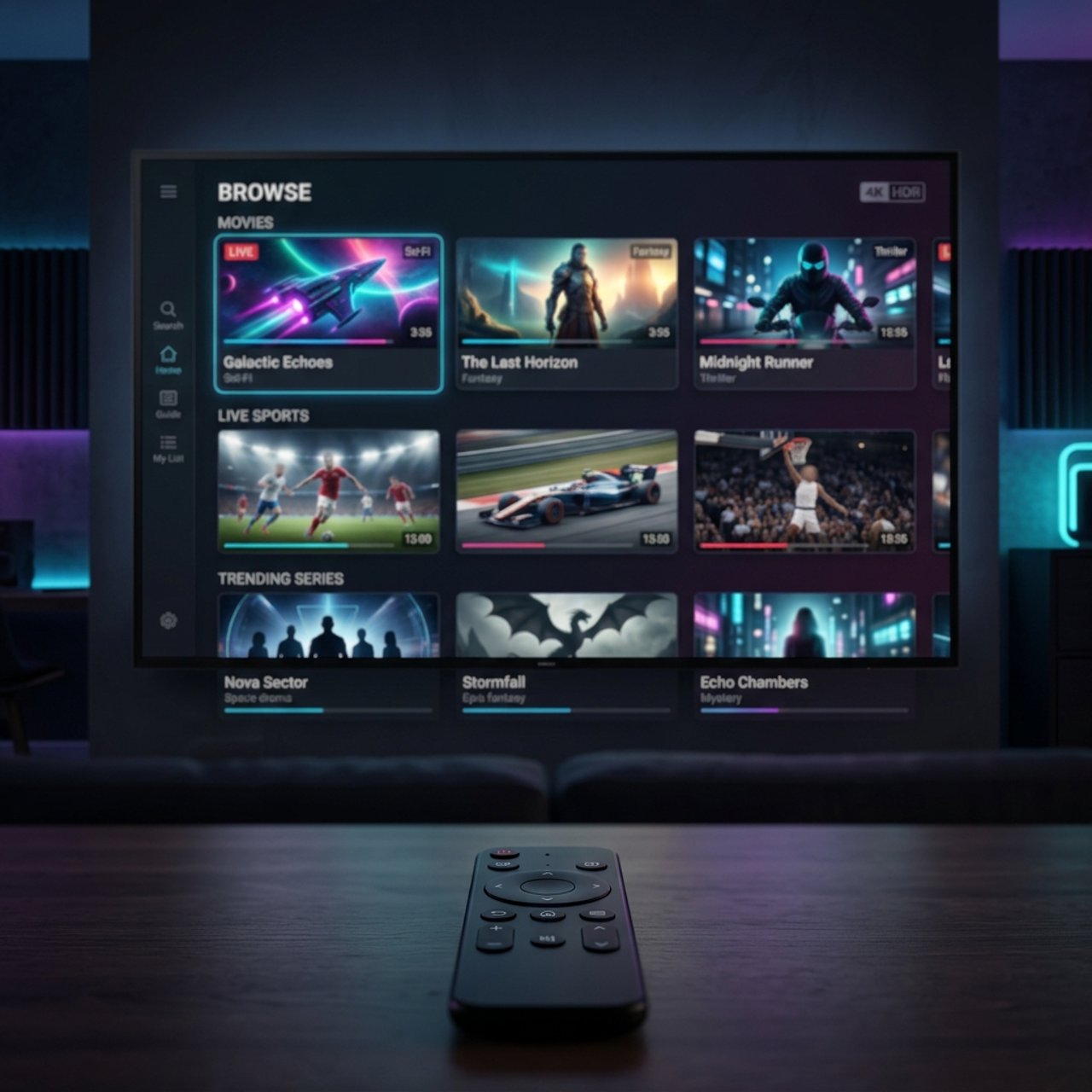
Discover the Best Stream Format for IPTV: 2026 Insights

Choosing the wrong stream format for your IPTV setup is one of the most overlooked reasons people deal with constant buffering, broken playback, and channels that simply refuse to load. You've got a solid internet connection, a reliable IPTV subscription, and yet something still feels off — choppy video, audio sync issues, or streams that drop every 20 minutes. Nine times out of ten, the culprit isn't your provider or your hardware. It's the stream format you're using. Understanding what is the best stream format for IPTV and how to match it to your device and network can completely transform your streaming experience overnight.
Getting your stream format right isn't just a technical nicety — it's the foundation of a stable, enjoyable IPTV experience. A mismatched format can cause your player to work twice as hard decoding video, which leads to overheating on devices like the Firestick, stuttering during live sports, and even full app crashes during peak hours.
Core Concepts & Need-To-Know Info
- M3U / M3U8: A playlist file format that contains a list of stream URLs. Your IPTV provider sends you an M3U URL, and your player reads it to pull channel streams. M3U8 is the HLS (HTTP Live Streaming) variant, widely used for adaptive bitrate streaming.
- Xtream Codes API: Not a stream format itself, but a delivery method. Providers using Xtream Codes send streams in either HLS or MPEG-TS format depending on server configuration.
- HLS (HTTP Live Streaming): Breaks the stream into small chunks delivered over HTTP. Highly compatible, works well on mobile and Smart TVs, and handles network fluctuations better.
- MPEG-TS (MPEG Transport Stream): A continuous stream format originally designed for broadcast TV. Lower latency than HLS, excellent for live TV, but less forgiving on unstable connections.
- RTMP (Real-Time Messaging Protocol): An older protocol originally developed by Adobe. Still used by some providers but largely being phased out due to compatibility issues with modern hardware.
- Codec vs. Format: The container format (HLS, MPEG-TS) is separate from the codec (H.264, H.265/HEVC). A stream can be HLS-wrapped H.265, for example. Both need to be supported by your player and device.
- Adaptive Bitrate (ABR): Formats like HLS support ABR, which automatically adjusts stream quality based on your current connection speed, reducing buffering intelligently.
Step-by-Step Guide
- Step 1: Identify Your Device's Supported Formats:
- Go to your IPTV player's settings — whether that's TiviMate, IPTV Smarters Pro, or GSE Smart IPTV — and find the decoder or stream settings section. On a Firestick, open TiviMate, tap the gear icon, then navigate to Player Settings. You'll see options for software decoder and hardware decoder. Hardware decoding supports H.264 and H.265 natively on most modern Firesticks.
- Step 2: Contact Your IPTV Provider for Format Options:
- Most providers offer streams in both HLS (M3U8) and MPEG-TS. Send your provider a message asking specifically: "Do you support MPEG-TS streams or only HLS?" Many providers using Xtream Codes can switch your stream output on the backend. Getting MPEG-TS instead of HLS can cut latency noticeably on live sports.
- Step 3: Load Your M3U Playlist or Xtream Codes Credentials:
- In TiviMate, go to Add Playlist, then select either M3U URL or Xtream Codes. If using M3U, paste the full URL your provider gave you — including the output format parameter if visible (e.g., &output=ts for MPEG-TS or &output=m3u8 for HLS). Don't add spaces or alter any characters in the URL.
- Step 4: Set the Stream Format in the Player:
- Inside TiviMate's stream settings, you can force streams to open with a specific player. Set this to use the built-in player first. If streams stutter, switch to an external player like MX Player or VLC. For MPEG-TS streams specifically, MX Player with hardware decoding enabled tends to outperform the built-in player on Firestick 4K devices.
- Step 5: Test With a High-Demand Channel:
- Switch to a live sports or news channel streaming in 1080p or 4K. Let it play for 3 to 5 minutes without touching anything. If the stream is smooth with no buffering wheel, your format and player combination is working. If you see buffering within the first 60 seconds, go back and try switching from HLS to MPEG-TS or vice versa.
- Step 6: Fine-Tune Buffer Size and Cache Settings:
- In TiviMate, go to Settings, then Playback, and look for Buffer Size. Increase this to 10–15 seconds for live TV. For VOD content, a smaller buffer of 5 seconds is usually sufficient. This setting interacts directly with whichever stream format you're using and prevents micro-buffering on congested networks.

Imagine sitting down to watch a crucial Champions League match, and the stream keeps buffering every 90 seconds — not because your internet is slow, but because your player is trying to software-decode an H.265 MPEG-TS stream on an older Firestick Lite that lacks the processing power. These mismatches happen constantly, and most people never figure out the real cause. Similarly, a free VPN running in the background while you're streaming HLS content can reduce your effective bandwidth by 40–60%, turning a perfectly good stream format into a buffering nightmare.
Best VPNs to Stop ISP Throttling While Streaming IPTV
- ExpressVPN: Consistently the top choice for IPTV users. Lightweight protocol (Lightway) adds minimal latency and effectively hides streaming traffic from ISP inspection tools. Works seamlessly on Firestick via the native app.
- NordVPN: NordLynx protocol delivers near-native speeds. Their obfuscated servers are particularly useful if your ISP uses deep packet inspection to detect and throttle HLS streams.
- Surfshark: Budget-friendly without sacrificing performance. Supports unlimited simultaneous connections, so you can protect every streaming device in your home on one subscription.
- Always connect to a server close to your IPTV server's region — connecting to a server in the same country as your provider reduces the VPN-introduced latency significantly.
- Enable the VPN kill switch on any VPN you use — this ensures your real IP never leaks if the VPN drops, which matters for both privacy and stream stability.
HLS vs. MPEG-TS: The Head-to-Head Comparison
- HLS (M3U8) is better for: unstable or mobile connections, Smart TVs with limited player options, VOD content, and any situation where adaptive bitrate switching is beneficial
- MPEG-TS is better for: live TV with low latency requirements (sports, news), stable wired or high-speed Wi-Fi connections, and setups using dedicated IPTV players like TiviMate
- Latency comparison: MPEG-TS typically delivers 1–3 seconds of live TV delay. HLS typically delivers 6–30 seconds of delay depending on segment size configured by the provider
- Error recovery: HLS handles packet loss better because each chunk is independent. MPEG-TS streams can glitch visually if packets are lost since it's a continuous stream
- For most users on a Firestick or Android TV box with a stable 25+ Mbps connection, MPEG-TS paired with TiviMate and hardware decoding is the gold standard combination
Recommended Apps and Their Format Compatibility
- TiviMate: Supports both HLS and MPEG-TS flawlessly. Best UI for live TV, EPG integration, and multi-stream viewing. Highly recommended for Firestick and Android TV. Premium version is worth every penny.
- IPTV Smarters Pro: Better for users who want a simpler setup and don't mind a slightly busier interface. Handles Xtream Codes API well and manages both HLS and MPEG-TS streams without manual configuration.
- GSE Smart IPTV: Excellent for power users who want granular control over stream formats. Allows you to manually set stream type per channel, which is useful when a provider mixes formats across their channel list.
- VLC Media Player: The universal fallback. If a stream plays in VLC, the format is valid and the issue lies with your primary player. Use it as a diagnostic tool before blaming your provider.
- MX Player: Best used as an external player launched from TiviMate. Exceptionally good at handling MPEG-TS streams with hardware decoding on high-performance Android devices.
Network Requirements for HD and 4K IPTV Streaming
- 720p streams: Minimum 5 Mbps per stream. HLS adaptive works fine at this resolution even on congested networks
- 1080p streams: 10–15 Mbps recommended. MPEG-TS at this resolution requires a stable connection — any packet loss becomes visible as blocking artifacts
- 4K/UHD streams: 25–50 Mbps minimum, and this is where your stream format choice becomes critical. 4K MPEG-TS streams in H.265 require hardware decoding support — Firestick 4K Max handles this well, but older sticks struggle
- Wired vs. Wi-Fi: Always prefer a wired Ethernet connection for 4K IPTV. Use a USB-to-Ethernet adapter on your Firestick. Wi-Fi introduces jitter that MPEG-TS streams cannot recover from gracefully
- Router placement and band selection: Force your streaming device onto the 5GHz Wi-Fi band. The 2.4GHz band is congested in most households and causes exactly the kind of inconsistent performance that mimics format-related issues
Troubleshooting Common Stream Format Errors
- Black screen with audio: This almost always means your video codec (usually H.265) isn't being decoded by your hardware. Disable hardware decoding in your player settings and test again.
- Constant buffering despite fast internet: Switch from HLS to MPEG-TS format in your playlist URL or ask your provider to change your output. Also check if a VPN is running — disable it temporarily to see if it's the cause.
- Playlist fails to load entirely: Your M3U URL has likely expired or been mistyped. Copy and paste it fresh from your provider's panel. Do not manually type M3U URLs — one wrong character makes the entire list invisible.
- Audio and video out of sync: Common with RTMP streams on modern apps. Switch to HLS or MPEG-TS immediately. If your provider only offers RTMP, request an upgrade — this protocol is being abandoned across the industry.
- Channels load but freeze after 2–3 minutes: Increase your buffer size in TiviMate's playback settings and clear the app's cache via Firestick Settings > Manage Installed Applications > TiviMate > Clear Cache.

At the end of the day, knowing what is the best stream format for IPTV comes down to matching your format — whether HLS, MPEG-TS, or another variant — to your specific device, network conditions, and player app. For most users running TiviMate on a Firestick 4K or Android TV box with a stable broadband connection, MPEG-TS delivers the lowest latency and smoothest live TV experience available. Apply the steps in this guide, run a VPN to dodge ISP throttling, and dial in those buffer settings — then explore our full channel list and pricing plans to get the most out of your optimized setup.
Frequently Asked Questions
Ready to get started?
Try our service risk-free with a 24-hour free trial.
Related Articles
Discover King IPTV: Your Ultimate Subscription Guide for 2026
All you need to know about King IPTV subscriptions.
How to Download IPTV Stream Player on Firestick: Step-by-Step Guide
Step-by-step guide to download IPTV Stream Player on Firestick.

Streaming vs Cable Comparison and Which One Wins in 2026
A definitive head-to-head comparison between traditional cable television subscriptions and modern streaming alternatives in 2026. Evaluates pricing, contract flexibility, picture quality, sports coverage, and long-term financial impact.