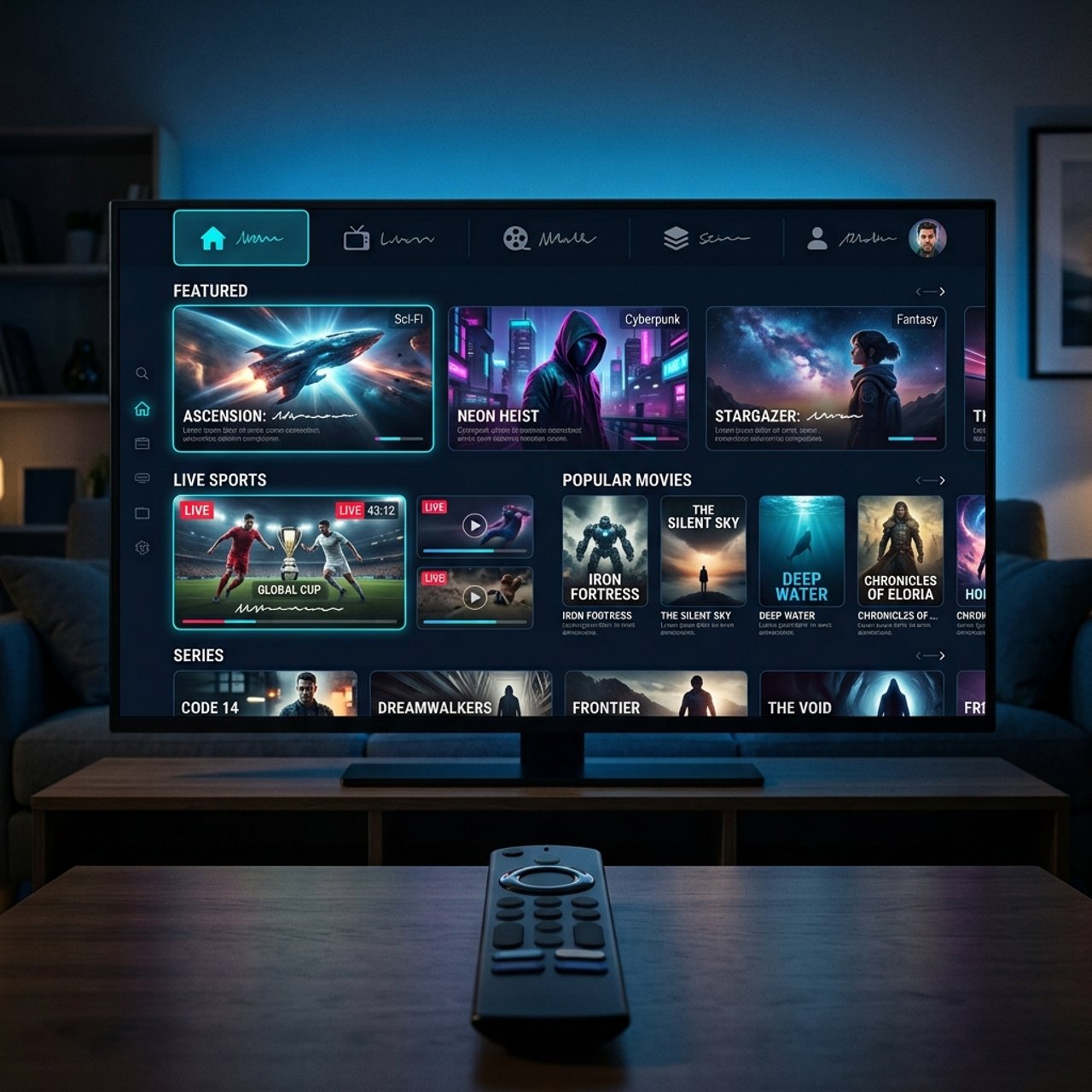
How to Download IPTV Stream Player on Firestick: Step-by-Step Guide

You've got your IPTV subscription ready, your M3U playlist URL sitting in your inbox, and your Firestick plugged in but now you're staring at the Amazon App Store wondering why you can't find the app you need. This is exactly where most new IPTV users get stuck, and it's frustrating because you're so close to having hundreds of live channels and VOD content at your fingertips. The good news? Knowing how to download IPTV Stream Player on Firestick takes about ten minutes once you know the correct method, and this guide walks you through every single click.
Solving this setup correctly the first time is crucial because a misconfigured IPTV player causes constant authentication errors and broken streams that have nothing to do with your subscription quality. Getting the foundation right means every channel, every VOD title, and every sports stream loads cleanly without fighting your device.
Core Concepts & Need-To-Know Info
- Sideloading: Because IPTV Stream Player isn't available directly in the Amazon App Store, you install it by sideloading, which means loading an APK file from outside Amazon's ecosystem. This is completely legal.
- APK File: An Android Package Kit file is the installation file format used on Android-based devices. Firestick runs a modified version of Android, so it accepts APK files just fine.
- Downloader App: This is the free, Amazon-approved tool you use to download APK files onto your Firestick. It's available in the official App Store and acts as your bridge.
- M3U Playlist URL: This is the link your IPTV provider gives you. It contains all your channel and VOD data. You'll paste this into the player after installation.
- Xtream Codes API: Some IPTV providers give you a server URL, username, and password instead of an M3U link. IPTV Stream Player supports both formats.
- Unknown Sources Permission: Amazon locks Firestick by default to only run apps from their store. You must enable this permission specifically for the Downloader app before anything else will work.
- Internet Speed Requirements: You need a minimum of 25 Mbps for reliable HD streaming. For 4K content, aim for 50 Mbps or higher with a stable connection, not shared Wi-Fi.
Step-by-Step Guide
- Step 1: Enable Developer Options on Your Firestick:
- From your Firestick home screen, go to Settings (the gear icon in the top navigation bar). Scroll right and select My Fire TV. Scroll down and click About. Now scroll down to Fire TV Stick and click it rapidly seven times in a row. You'll see a message that says you are now a developer. Go back one screen and you'll now see a new option called Developer Options, click into it.
- Step 2: Turn On Apps from Unknown Sources:
- Inside Developer Options, find the toggle labeled Install Unknown Apps or Apps from Unknown Sources depending on your Firestick firmware version. Toggle it to ON. On newer Firestick models, you'll need to enable this permission specifically for the Downloader app after you install it. The system will prompt you automatically, so just click Allow when it does.
- Step 3: Install the Downloader App:
- Press the home button and navigate back to the main screen. Click the Search icon (magnifying glass) at the top left. Type Downloader and select it from the results. Click Get or Download to install it. This is a free, Amazon-approved app and it typically takes under 60 seconds to install on a good connection.
- Step 4: Open Downloader and Enter the APK URL:
- Launch the Downloader app. If it asks to allow access to files and media, click Allow. You'll land on a browser-style home screen with a URL bar. Click on the URL bar and type in the official download URL for IPTV Stream Player's APK file. You can find the current verified APK link on the official IPTV Stream Player website or through your IPTV provider's setup guide. Type it carefully because one wrong character will return an error page.
- Step 5: Download and Install the APK:
- Once you've entered the URL and hit Go, Downloader will fetch the file. You'll see a download progress bar at the bottom of the screen. When it completes, a prompt will automatically appear asking if you want to install the app. Click Install and wait for the installation to complete, this takes about 15 to 30 seconds. Do not click anything else during this process.
- Step 6: Delete the APK File:
- After installation succeeds, Downloader will ask if you want to delete the APK file. Click Delete because the APK has already done its job and keeping it just wastes storage on your device. Click Done on the next screen.
- Step 7: Open IPTV Stream Player and Add Your Playlist:
- Find IPTV Stream Player in your apps list. If it doesn't appear immediately on the home screen, go to Settings, then Applications, then Manage Installed Applications and find it there, then move it to your home screen. Open the app, tap Add Playlist, and choose either M3U URL or Xtream Codes depending on what your provider gave you. Paste your M3U playlist URL or enter your Xtream Codes server, username, and password. Hit Save and let the app load your channel list.
Imagine finally getting everything set up perfectly, sitting down to watch a live Champions League match, and spending the entire first half watching a loading spinner, all because your ISP identified your streaming traffic. That scenario is incredibly common and it's entirely preventable with the right setup. Taking five extra minutes to configure a VPN during your initial setup is always worth it.
Best VPNs to Stop ISP Throttling on Firestick
ISP throttling specifically targets IPTV and streaming traffic because providers want you on their paid TV packages. A VPN encrypts your traffic so your ISP can't identify what you're streaming or slow it down. ExpressVPN is consistently the fastest option for Firestick and has a native Fire TV app available directly in the Amazon App Store, which means no sideloading required. NordVPN delivers excellent speeds and strong encryption, and its NordLynx protocol based on WireGuard provides the low latency that's critical for live sports streams. Surfshark is the best budget option with unlimited simultaneous connections so you can protect every streaming device in your home on a single subscription. IPVanish is popular specifically in the IPTV community because it integrates well with Kodi and IPTV players. Always connect your VPN before opening your IPTV Stream Player, not after, because connecting mid-session forces a new IP address which can break active streams.
Common Setup Mistakes & How to Fix Them
Even tech-savvy users make these errors on their first IPTV Firestick setup. Installing the wrong app is a frequent mistake because there are several apps with similar names in the App Store and on third-party sites, so verify the developer name before installing. Not enabling Unknown Sources for Downloader specifically is another common issue because on newer Firestick firmware you must grant this permission to the Downloader app individually by going to Settings, then Privacy, then Allow Installation of Unknown Apps, then Downloader, and toggling it to ON. Using the wrong playlist format also trips people up because if your M3U URL isn't loading channels, try connecting via Xtream Codes instead since sometimes one method works better than the other on specific servers. Finally, skipping EPG setup means you won't see channel names or program schedules, so ask your provider for their XMLTV EPG URL and paste it into the EPG settings inside IPTV Stream Player.
Recommended Apps: IPTV Stream Player vs TiviMate vs Smarters
Once you know how to download IPTV Stream Player on Firestick, you'll start wondering whether it's the best option for your needs. IPTV Stream Player is great for beginners with a clean interface, fast playlist loading, support for both M3U and Xtream Codes, and a free basic version, making it ideal if you just want channels to work without complicated configuration. TiviMate is the gold standard for serious IPTV users and the premium version at $4.99 per year adds multi-screen view, catch-up TV support, and an incredibly smooth EPG guide, though it must be sideloaded since it's not in the Amazon App Store. IPTV Smarters Pro is a middle ground option with a polished interface and Xtream Codes support built in, though it can feel slightly slower to navigate than TiviMate on older Firestick models. If you're brand new to IPTV, start with IPTV Stream Player, get comfortable with M3U playlists and EPG guides, then graduate to TiviMate when you want more control.
Network Requirements for Smooth IPTV Streaming
Your IPTV experience is only as good as your network setup. You need a minimum of 10 Mbps for SD content, 25 Mbps for HD, and 50 Mbps for 4K, and these are per-stream speeds, not your total package speed. A wired connection is always better, and the Amazon Ethernet Adapter for Fire TV Stick costs under $15 and eliminates the Wi-Fi instability that causes intermittent buffering. If you must use Wi-Fi, place your router in the same room or use a Wi-Fi 6 router since old Wi-Fi 4 routers struggle with IPTV traffic during peak evening hours. Many users also report improved stream stability by switching from their ISP's default DNS to Cloudflare at 1.1.1.1 or Google DNS at 8.8.8.8, which you can configure on Firestick by going to Settings, then Network, then your Wi-Fi network, then Advanced, and manually entering the DNS addresses.
Troubleshooting: Fixing Playlist Errors in IPTV Stream Player
If your channels aren't loading or you're seeing error messages, work through these fixes in order. A playlist failed to load error almost always means your M3U URL has expired or was copied incorrectly, so contact your IPTV provider for a fresh URL and re-enter it manually. If channels load but won't play, this indicates a connection or authentication issue, so check that your VPN is connected or disconnected if your provider blocks VPN IPs, then try refreshing the playlist inside the app settings. Buffering every few minutes can be fixed by clearing the IPTV Stream Player cache through Firestick Settings, then Applications, then Manage Installed Applications, then IPTV Stream Player, then Clear Cache, and then switching your stream quality from Auto to a fixed HD setting. If your EPG isn't showing program info, re-enter your XMLTV EPG URL in the app settings and force a manual EPG refresh, and if your provider's EPG URL has changed they'll need to send you an updated one.
Mastering how to download IPTV Stream Player on Firestick is genuinely a one-time learning curve, and once you've done it, adding new playlists, switching apps, or setting up a second Firestick takes minutes rather than an hour. The combination of the right player, a reliable M3U playlist, a solid VPN, and a strong network connection transforms your Firestick into a streaming powerhouse, so explore our full channel list and pricing plans to get started with a trusted IPTV subscription today.
Frequently Asked Questions
Ready to get started?
Try our service risk-free with a 24-hour free trial.
Related Articles
HDMI to IPTV Converter Guide and How to Encode Any Video Source for IP Streaming
A technical guide to HDMI encoder hardware that converts any HDMI video source into IP streams for distribution over local networks or the internet covering hardware specifications and encoding settings and deployment architectures.
How to Change Your DNS Settings for Faster Internet Browsing and Streaming
A technical guide to understanding and changing DNS settings for faster internet performance covering how DNS resolution works and how to configure public DNS servers on routers and individual devices.
How to Effectively Search for Movies in IPTV Services
Master movie searches in IPTV with our expert tips.