
Unlocking 4K Live IPTV: A Complete Guide for 2026

You finally upgraded to that beautiful 4K TV, and now you want the streaming experience to match. But instead of crisp, cinema-quality live sports and channels, you're sitting through endless buffering wheels, pixelated images, and streams that drop out right at the best moment. Sound familiar? The problem isn't your TV it's that streaming 4K live IPTV has specific requirements that most guides gloss over entirely. This guide gives you the complete picture: from choosing the right IPTV subscription and app to locking down your network settings so your 4K streams run smooth every single time.
Solving your 4K streaming problems matters because poor setup leads to a cycle of frustration, downgrading to 1080p just to stop buffering, or constantly restarting apps mid-match. Getting it right once means you never have to think about it again.
Core Concepts & Need-To-Know Info
- 4K IPTV bitrate: A true 4K live stream requires between 25 Mbps and 50 Mbps per stream, your internet connection needs headroom above this figure to avoid buffering
- M3U playlist: This is a URL or file that contains your channel list. Your IPTV provider gives you one after purchase and it looks like http://yourprovider.com:port/get.php?username=xxx&password=xxx&type=m3u_plus
- Xtream Codes API: Many premium IPTV services use this login method, you enter a server URL, username, and password directly into apps like TiviMate instead of pasting a long M3U link
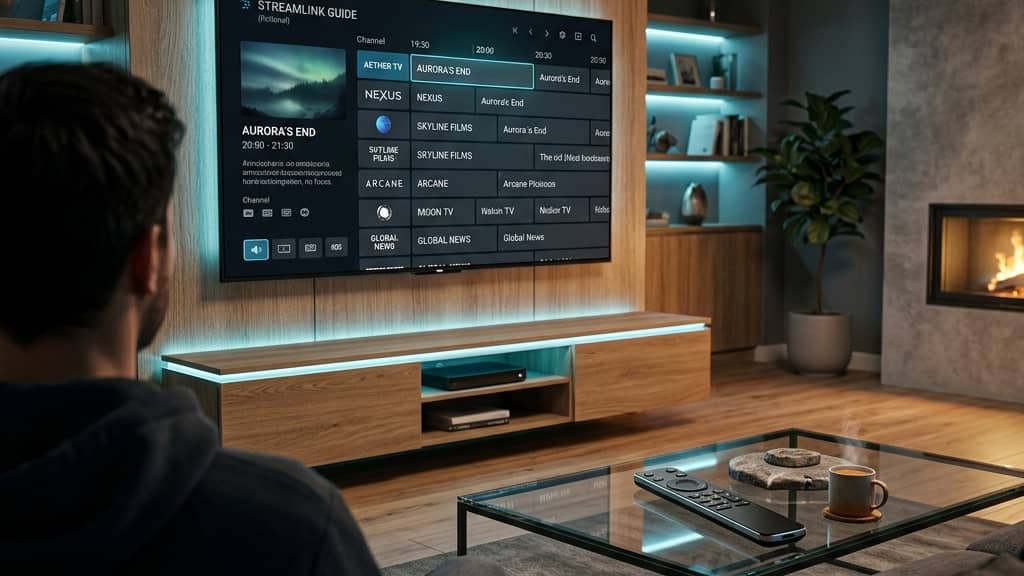
- EPG (Electronic Programme Guide): The on-screen TV guide that shows what's playing now and what's coming next, essential for navigating hundreds of 4K channels
- ISP throttling: Internet Service Providers deliberately slow down IPTV and streaming traffic during peak hours, which is a leading cause of 4K stream buffering even on fast connections
- Hardware decoder vs. software decoder: Your Firestick or Android TV box can use its built-in chip (hardware) to decode 4K HEVC/H.265 video, this uses far less processing power and prevents overheating stutters
- VPN tunnel: Routes your traffic through an encrypted server to bypass ISP throttling and protect your privacy while streaming
Step-by-Step Guide: Setting Up 4K Live IPTV on Your Device
- Step 1: Check Your Internet Speed:
- Run a speed test at fast.com or using your router's built-in tool. You need a minimum of 50 Mbps download speed for a single 4K stream, 100 Mbps or above is ideal if others in your home are also using the internet. If you're below this, upgrade your plan before anything else.
- Step 2: Use a Wired Ethernet Connection or 5GHz Wi-Fi:
- Plug your Firestick or Android TV box directly into your router using an Ethernet adapter. If wired isn't possible, connect to your router's 5GHz Wi-Fi band, not 2.4GHz. The 5GHz band has far more bandwidth and much lower interference, which is critical for stable 4K streams.
- Step 3: Install TiviMate on Firestick or Android TV:
- On Firestick, go to Settings, My Fire TV, Developer Options and enable Apps from Unknown Sources. Download the Downloader app from the Amazon App Store, open it, and enter the URL for the APKPure or TiviMate APK. On Android TV, TiviMate is available directly on the Google Play Store, search TiviMate IPTV Player and install it.
- Step 4: Enter Your IPTV Provider Credentials:
- Open TiviMate and tap Add Playlist. Choose either M3U URL or Xtream Codes depending on what your provider sent you. For Xtream Codes, enter the server address, your username, and your password exactly as provided, one wrong character breaks the connection. Tap Next and wait for the channel list to load.
- Step 5: Add Your EPG Source:
- Inside TiviMate, go to Settings, EPG Sources and paste in your provider's EPG URL. This populates the on-screen guide with show times and programme info. If your provider hasn't given you one, ask their support team, a good EPG URL usually ends in /xmltv.php?username=xxx&password=xxx.
- Step 6: Configure 4K Playback Settings:
- In TiviMate, go to Settings, Player, select External Player and choose MX Player or VLC. In MX Player, go to Settings, Decoder and select Hardware (HW+). This tells your device to use its dedicated video chip for 4K HEVC decoding, which eliminates the stuttering caused by software decoding overloading your processor.
- Step 7: Organize Your 4K Channel Groups:
- In TiviMate, tap Playlists, Groups and hide all the channel groups you don't need. Create a Favorites list and add your most-watched 4K channels. This keeps navigation fast and stops you from scrolling through thousands of channels to find what you want.
Imagine this: it's the Champions League final, you've got friends over, and your 4K stream drops to a blurry 480p mess at minute 89. That happens when ISP throttling kicks in during peak hours and you don't have a VPN in place. Or picture spending an hour troubleshooting a playlist error that turns out to be a single mistyped letter in your M3U URL, these scenarios are completely avoidable with the right preparation.
Best VPNs to Stop ISP Throttling on 4K Live IPTV
- ExpressVPN is the top pick for IPTV users, its Lightway protocol delivers consistently fast speeds above 200 Mbps on most connections, handles 4K streams effortlessly, and works on Firestick natively via their app
- NordVPN offers a NordLynx protocol built on WireGuard that reaches speeds over 300 Mbps in testing, its SmartPlay feature also unblocks geo-restricted IPTV content automatically
- Surfshark is the best budget option, unlimited simultaneous connections means you can protect every streaming device in your home on one subscription, and its speeds hold up well for 4K content
- Always connect to a VPN server located in the same country as your IPTV provider's server to minimize added latency, the closer the VPN server, the lower the ping
- Enable your VPN's kill switch feature so that if the VPN connection drops, your IPTV traffic stops rather than leaking your real IP to your ISP
Recommended Apps: TiviMate vs. IPTV Smarters for 4K Streaming
- TiviMate is widely considered the best IPTV player for Firestick and Android TV, its hardware decoding support, smooth EPG, and picture-in-picture mode make it purpose-built for heavy streaming use. The Premium upgrade ($4.99/year) unlocks multiple playlists, recordings, and customizable channel groups
- IPTV Smarters Pro is more beginner-friendly with a cleaner interface and works well on both Android and iOS. It handles 4K streams competently but lacks TiviMate's advanced buffering and decoder controls
- GSE Smart IPTV is a solid alternative for users who want cross-platform support across Apple TV, iPhone, and Android, its external player support and robust M3U handling make it a reliable 4K option
- For pure 4K performance on Android TV hardware, TiviMate paired with MX Player in hardware decode mode is one of the most recommended combinations on Firestick 4K Max and NVIDIA Shield
Network Requirements for Stable 4K Live IPTV
- Minimum download speed: 50 Mbps dedicated to the IPTV stream, use Quality of Service (QoS) settings on your router to prioritize your streaming device above phones and laptops
- Router placement matters: Your router should be in a central location with your streaming device within 10 meters if using Wi-Fi, walls and floors between them kill the 5GHz signal dramatically
- Use a Wi-Fi 6 router if you're a serious IPTV household, Wi-Fi 6 handles multiple simultaneous high-bandwidth streams without the congestion issues older routers suffer under load
- Set a custom DNS server on your streaming device, use Google DNS (8.8.8.8 / 8.8.4.4) or Cloudflare DNS (1.1.1.1) instead of your ISP's default DNS. ISP DNS servers are often slow and can cause IPTV-specific connection delays
- Disable IPv6 on your Firestick or Android TV box if you experience intermittent stream drops, some IPTV servers don't handle IPv6 connections correctly, causing silent reconnection failures
Common Setup Mistakes & How to Fix Them
- Playlist Not Found error: This almost always means a typo in your M3U URL or Xtream Codes server address. Delete the playlist entirely in TiviMate, then re-add it by carefully copy-pasting credentials from your provider's welcome email
- Channels load but video is black: Switch your external player from VLC to MX Player or vice versa. A black screen usually means the player can't handle the specific video codec, hardware mode in MX Player resolves HEVC/H.265 black screen issues 90% of the time
- 4K channels buffer but HD channels don't: This is a bandwidth issue, not an app problem. Run a speed test and check if your actual download speed matches your plan, if it's significantly lower, restart your router or contact your ISP about line quality
- EPG not showing programme information: Your EPG URL may have expired or changed. Log into your IPTV provider's customer portal, copy the fresh EPG URL, and update it in TiviMate under Settings, EPG Sources. Force a manual refresh after updating
- App crashes on 4K channels: Clear the TiviMate and MX Player cache on your Firestick (Settings, Applications, Manage Installed Applications, select app, Clear Cache). Reboot your device and try again, cache buildup is a silent killer of streaming stability
Troubleshooting: Fixing Playlist and Stream Errors
- Step one is always a device reboot, unplug your Firestick or Android box from power for 30 seconds, restart your router, and reconnect. This clears temporary network states that cause mysterious stream failures
- Check your IPTV provider's status page or Telegram group, server maintenance or DDoS attacks occasionally take streams offline for 15 to 30 minutes. Waiting it out beats reinstalling everything unnecessarily
- Test your M3U URL in VLC on a PC, open VLC, go to Media, Open Network Stream, paste your M3U URL, and hit play. If it works on PC but not your TV device, the issue is device-specific rather than account-related
- If specific 4K channels buffer but others don't, contact your provider and ask them to move you to a different server node, premium providers run multiple server clusters and can migrate your account in minutes

Getting 4K live IPTV working perfectly is a one-time investment of about an hour, the right app, a solid network setup, a reliable VPN, and quality credentials from a reputable provider. Once everything is dialed in, you'll have access to live sports, international news, and on-demand content in genuine 4K quality for a fraction of what cable charges, so check out our channel list and pricing plans today to get started.
Frequently Asked Questions
Ready to get started?
Try our service risk-free with a 24-hour free trial.
Related Articles
How to Set Up an EPG for IPTV and Get a Full Electronic Program Guide Working
A complete technical walkthrough of electronic program guide configuration for IPTV services covering EPG data sources and XMLTV format and player app integration and troubleshooting.
Discover the BestBuyIPTV Free Trial: Your Ultimate Guide
Get started with BestBuyIPTV's free trial today!
The Ultimate Guide to Buy IPTV Subscriptions in 2026
Learn how to buy IPTV subscriptions and optimize your streaming.