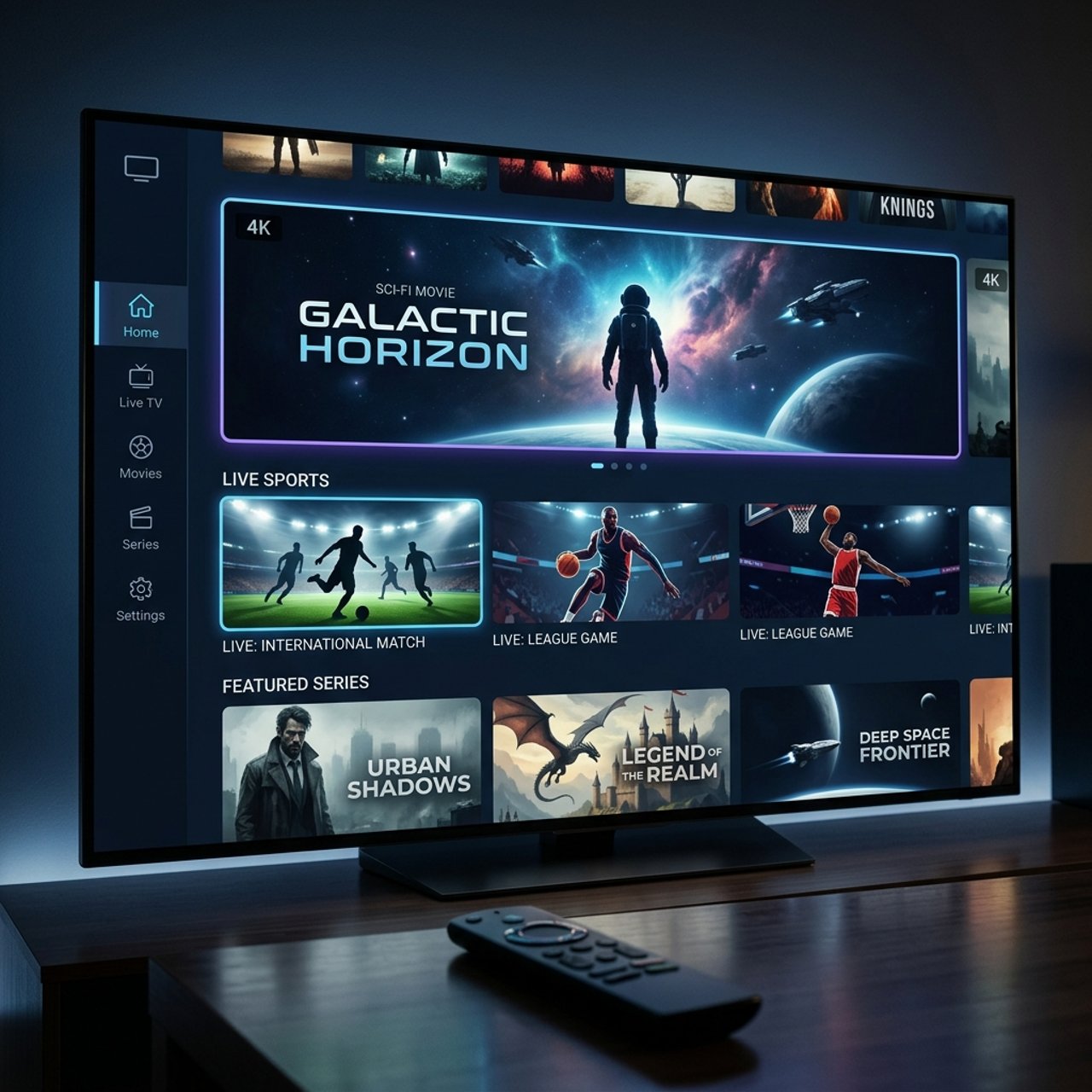
How to Get Your IPTV Username and Password Easily

Getting IPTV to actually work the way it's supposed to — crisp live sports, smooth VOD playback, zero buffering — starts with one thing most guides skip right over: knowing exactly how to get your IPTV username and password and plug it into the right app correctly. If you've ever stared at a login screen with an M3U URL, a portal link, and two credential fields wondering what goes where, you're not alone. This guide walks you through every single step so you can go from confused to streaming in under 15 minutes.
Getting your credentials right from the start eliminates 80% of all IPTV setup headaches. A botched login doesn't just stop playback — it prevents the app from even pulling your channel list, EPG data, or VOD library, leaving you with a completely blank screen and no idea why.
Core Concepts & Need-To-Know Info
- Xtream Codes API credentials: Consist of three parts: a server URL (portal URL), a username, and a password. All three are required for apps like TiviMate and IPTV Smarters Pro.
- M3U playlist URL: A single link that contains your username and password baked right into the URL string — it typically looks like: http://yourprovider.com:port/get.php?username=YOU&password=PASS&type=m3u_plus
- Port numbers: IPTV servers usually run on port 80, 8080, or 25461. Leaving the port out of the server URL will break the connection entirely.
- Credential delivery: Your IPTV provider sends credentials via email after purchase — check spam folders, as automated emails often get filtered.
- Trial accounts: Use the same format as paid accounts, so testing with a free trial before committing is 100% possible.
- Device limits: Tied to your username — most providers allow 1 to 2 simultaneous connections per subscription. Exceeding that causes one stream to drop automatically.
- EPG (Electronic Program Guide) data: Usually pulled automatically once your credentials are accepted — no separate setup needed on most apps.
Step-by-Step Guide
- Step 1: Purchase or Request a Trial From an IPTV Provider:
- Go to your chosen IPTV service's website and either subscribe to a paid plan or request a free trial (most reputable providers offer 24–48 hour trials). Complete the checkout process. Within minutes — sometimes instantly — you'll receive a confirmation email. This email contains your server URL, username, and password. Save this email or screenshot the credentials before doing anything else.
- Step 2: Locate Your Credentials in the Email:
- Open the email from your provider. Look for fields labeled Server, Host, or Portal URL — this is your base URL. Then find Username and Password. Some providers also include a pre-built M3U URL. Copy these exactly, including the port number (e.g., :8080) at the end of the server URL. One wrong character breaks everything.
- Step 3: Download Your IPTV App:
- On a Firestick, press and hold the Home button, go to Apps, then search for Downloader and install it. Use Downloader to sideload IPTV Smarters Pro or TiviMate (for TiviMate, you'll need the companion app first). On Android TV or a Smart TV, go directly to the Google Play Store or Samsung/LG app store and search for your preferred app.
- Step 4: Open the App and Select Add Playlist or Add User:
- Launch your IPTV app. In IPTV Smarters Pro, tap Add User then select Login with Xtream Codes API. In TiviMate, open the companion app, tap Add Playlist, then choose Xtream Codes. In GSE Smart IPTV, tap the menu icon and select Remote Playlists or Xtream Code API.
- Step 5: Enter Your IPTV Username and Password:
- In the Xtream Codes login screen, fill in the three fields precisely. Server URL: Enter the full URL including http:// and the port (e.g., http://streamserver.net:8080). Username: Enter exactly as provided — these are case-sensitive. Password: Enter exactly as provided — no spaces before or after. If using an M3U URL instead, paste the entire link into the M3U URL or Playlist URL field in one go.
- Step 6: Tap Add or Login and Wait for the Playlist to Load:
- Hit the confirm button. The app will contact the server, authenticate your credentials, and begin downloading your full channel list and VOD library. This can take 30 seconds to 3 minutes depending on how large the playlist is and your internet speed. Once loaded, you'll see your channels organized by category — live TV, sports, movies, series.
- Step 7: Test Playback Immediately:
- Click on any live channel to verify the stream loads. Test a sports channel and a movie from the VOD section. If both play without errors, your IPTV username and password are correctly configured and your subscription is active.

Real-world example: someone subscribes to a quality IPTV service, their credentials are correct, but they entered http://server.com without the port number :8080. Every single channel returns a stream error. They spend two hours thinking the service is bad — when it's one missing number. Another common scenario: a user shares their login with a family member overseas. Both try to watch simultaneously, the provider's system detects it, and both connections are terminated. These aren't edge cases — they happen constantly.
Best VPNs To Stop ISP Throttling When Using IPTV
ISP throttling is a silent killer of IPTV streams. Your credentials can be perfectly correct, your provider's servers can be running flawlessly, and your stream will still buffer if your ISP detects and throttles the traffic. ExpressVPN is consistently the top performer for IPTV — fast enough for 4K streams, with servers optimized for media traffic and a Firestick-native app. NordVPN offers a Meshnet feature that's useful for IPTV setups across multiple devices in the home, and its speeds rarely dip below what HD streaming requires. Surfshark is the best budget option — unlimited simultaneous connections mean you can protect every streaming device in the house on one subscription. Connect your VPN before launching your IPTV app — connecting mid-session often resets the stream and can trigger re-authentication. Always choose a VPN server close to your IPTV provider's server location for the lowest latency and fastest load times.
Common Setup Mistakes and How To Fix Them
Even with the correct IPTV username and password in hand, setup errors creep in at predictable points. Using HTTP instead of HTTPS (or vice versa) produces an instant connection failure — use exactly what's in your welcome email. Forgetting to include the port number means entering http://provider.tv alone will never connect when the correct URL is http://provider.tv:8080. Logging into the wrong app section — putting Xtream credentials into the M3U field or vice versa — breaks authentication completely. For an Invalid Credentials error, double-check username and password for capital letters, zeros vs. letter O, and accidental spaces, then re-copy directly from the email. For a Server Unreachable error, confirm your internet connection works, verify the server URL and port are correct, and if still failing, contact your provider as the server may be temporarily down.
TiviMate vs IPTV Smarters Pro: Which App Is Better for Your Login
Both apps accept the same IPTV username and password credentials, but they handle the experience very differently. TiviMate is widely considered the gold standard for Android-based IPTV — its EPG guide is smooth, the interface is remote-friendly for Firestick and Android TV, and it handles large playlists (10,000+ channels) without lagging. It requires a one-time premium purchase (~$5/year) for multi-playlist support and parental controls. IPTV Smarters Pro is free, more beginner-friendly, and works well out of the box — ideal for first-time users who just want to paste their credentials and start watching immediately. GSE Smart IPTV is the best option for iOS users (iPhone, iPad, Apple TV) since TiviMate is Android-only. For Firestick users specifically, TiviMate offers the best navigation experience using just the remote — no need to constantly go back to a main menu.
Network Requirements for Smooth IPTV Streaming
Your credentials and app setup mean nothing if your network can't support the stream quality you're expecting. HD (1080p) streaming requires a minimum of 10 Mbps dedicated to the IPTV stream — not your total household speed, but what's actually available to the streaming device. 4K IPTV streams demand 25–50 Mbps and a wired Ethernet connection is strongly recommended over Wi-Fi for stability. Use a wired connection whenever possible — plug your Firestick or Android TV box directly into your router with an Ethernet adapter to eliminate Wi-Fi interference. Restart your router monthly and keep your IPTV app and device firmware updated to avoid performance degradation over time. If you're on Wi-Fi, position your device on the 5GHz band rather than 2.4GHz — it's faster and less congested in most homes.
Troubleshooting Playlist Errors and Authentication Failures
If your IPTV username and password are correct but something still isn't working, here's how to diagnose it fast. Clear the app cache first — on Firestick: Settings, Applications, Manage Installed Applications, then your app, then Clear Cache. This fixes the majority of playlist loading failures without changing any settings. Re-enter credentials manually if a copy-paste attempt fails — some apps have issues with certain clipboard formats. Check your subscription status by logging into your provider's website with the same username and password — most providers have a customer portal showing expiry date and connection status. Contact your provider's support with your username (never send your password) and describe the exact error message — most legitimate providers respond within a few hours.
Learning how to get your IPTV username and password set up correctly is genuinely the foundation everything else is built on — get this right and the rest of the IPTV experience falls into place naturally. Follow the steps above exactly, protect your credentials, and use a trustworthy VPN to beat ISP throttling, then check out our full channel list and pricing plans to find the subscription that matches your streaming needs perfectly.
Frequently Asked Questions
Ready to get started?
Try our service risk-free with a 24-hour free trial.
Related Articles
Discover the Number One Rated IPTV Service for 2026
Explore the best-rated IPTV services for your streaming needs.
What is a Portal URL in IPTV? Everything You Need to Know
Learn about IPTV portal URLs and their significance.

IPTV Multicast Explained and How One Stream Serves Thousands of Viewers
A technical deep dive into IP multicast streaming architecture covering how multicast groups deliver live television efficiently across managed networks and how it compares to unicast delivery for IPTV deployments.