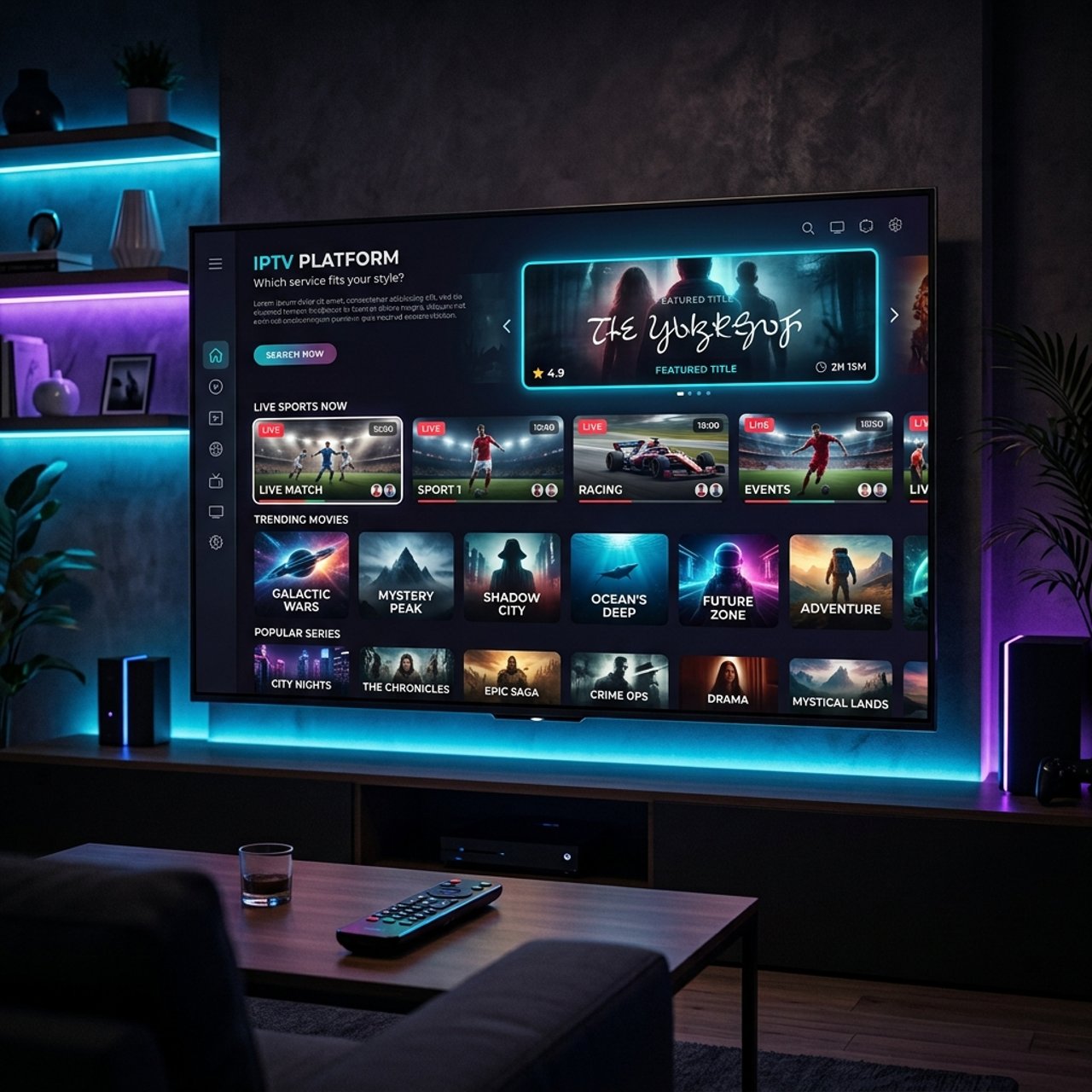
Which IPTV is the Best? Top Picks for 2026

Tired of paying a fortune for cable TV only to flip through 300 channels and find nothing worth watching? You're not alone. Millions of cord-cutters are making the switch to IPTV, but the moment they start searching for options, they hit a wall — dozens of providers, confusing M3U playlists, mystery buffering issues, and zero guidance on what actually works. This guide cuts through all of that. Whether you're streaming on a Firestick, Android TV box, or Smart TV, you'll know exactly which IPTV is the best fit for your setup by the time you're done reading.
Choosing the right IPTV service isn't just about channel count — it's about server stability, customer support, and compatibility with your specific device. A service that works brilliantly on a high-end Android TV box might buffer constantly on an older Firestick if the infrastructure isn't optimized for lower-bandwidth connections.
Core Concepts & Need-To-Know Info
- M3U Playlist / M3U URL: This is a text file containing all your channel links. When you subscribe to an IPTV service, they give you an M3U URL that you paste into apps like TiviMate or IPTV Smarters
- Xtream Codes API: An alternative to M3U — providers give you a server URL, username, and password instead of a long playlist link. More stable for large channel lists
- VOD (Video on Demand): On-demand movies and TV series that come bundled with most IPTV subscriptions — think of it as their version of Netflix
- EPG (Electronic Program Guide): The on-screen TV guide that shows what's on now and what's coming up. Not all providers deliver a reliable EPG
- ISP Throttling: Your internet provider can detect and slow down IPTV streams. This is one of the biggest causes of buffering that has nothing to do with the IPTV service itself
- Concurrent Connections: Most subscriptions allow 1–2 streams simultaneously. Going over that limit will kick one stream offline
- Server Location: Providers with servers in multiple regions (US, UK, EU) offer much better performance depending on where you live
- Buffer/Cache Settings: Apps like TiviMate allow you to manually increase the buffer size, which dramatically reduces mid-stream freezing
Step-by-Step Guide: Setting Up IPTV on Any Device
- Step 1: Choose Your App:
- Before you pick a provider, decide which app you'll use. TiviMate is the gold standard for Android TV and Firestick — it's polished, supports Xtream Codes and M3U, and has a stellar EPG layout. IPTV Smarters Pro is a solid free alternative. GSE Smart IPTV works well on iOS and Samsung Smart TVs.
- Step 2: Enable Sideloading (Firestick Only):
- Navigate to Settings > My Fire TV > Developer Options > turn on "Apps from Unknown Sources." This allows you to install apps not found in the Amazon App Store. Without this step, you cannot install TiviMate.
- Step 3: Install Downloader:
- Search for "Downloader" in the Amazon App Store and install it. This is the browser tool used to sideload APK files onto your Firestick. Open it and enable browser mode in its settings.
- Step 4: Install Your Chosen IPTV App:
- In Downloader, type the direct APK download URL for TiviMate or IPTV Smarters. Once downloaded, hit "Install" and then "Open." You only need to do this once — updates can be handled inside the app.
- Step 5: Purchase Your IPTV Subscription:
- This is critical — only buy from a reputable provider with a trial option. Look for providers that offer a 24–48 hour free trial, have active customer support via Telegram or live chat, and have real user reviews on forums like Reddit's r/IPTV. Once purchased, you'll receive either an M3U URL or Xtream Codes credentials via email.
- Step 6: Add Your Playlist to the App:
- Open TiviMate > tap "Add Playlist" > choose either "M3U Playlist" and paste your M3U URL, or choose "Xtream Codes" and enter the server, username, and password. Hit Next, let it load, and your full channel list will populate.
- Step 7: Set Up Your EPG:
- Inside TiviMate settings, go to EPG > add your EPG URL (your provider should supply this). Set it to refresh every 24 hours. A working EPG makes the experience feel like a real TV service rather than a bare channel list.
- Step 8: Connect a VPN:
- Before you start streaming, launch your VPN and connect to a server in your country. This bypasses ISP throttling and protects your connection. ExpressVPN and NordVPN both have dedicated Firestick apps available in the Amazon App Store.

A lot of people blame the IPTV provider when the real culprit is their ISP silently throttling the connection. If your stream is perfect at 3 AM but constantly stutters at 8 PM, that's a throttling issue, not a service quality issue. Similarly, a wrong M3U URL entry is the number one support ticket in the IPTV world — something as simple as an autocorrected character can make a perfectly valid playlist appear completely broken.
Best VPNs to Stop ISP Throttling
- ExpressVPN: The fastest option for Firestick — has a native app in the Amazon App Store, consistently delivers 300+ Mbps on a good connection, and has servers optimized for streaming
- NordVPN: Excellent value with a meshnet feature that's useful for multi-device households. Their NordLynx protocol (based on WireGuard) is exceptionally fast for live TV streams
- Surfshark: The best budget option — allows unlimited simultaneous connections, so you can cover every streaming device in the house on one subscription
- IPVanish: Popular specifically in the IPTV community because of its Firestick integration and solid US server infrastructure. Works well with Kodi-based setups too
- Always choose a VPN with a kill switch feature — if the VPN connection drops mid-stream, a kill switch prevents your real IP from being exposed to your ISP
Recommended Apps: TiviMate vs IPTV Smarters
Knowing which IPTV is the best service means nothing if you're running it through a subpar app. TiviMate Premium is hands-down the best UI for live TV — it feels like a proper cable TV experience, supports multiple playlists, custom channel groups, and a catch-up TV feature, and requires a one-time purchase of around $5 to unlock premium features. It's best suited for Firestick, NVIDIA Shield, and Android TV boxes. IPTV Smarters Pro is free to download and use, supports both M3U and Xtream Codes with a built-in VOD and series section, and is available on iOS, Android, and Smart TVs — though its interface is less polished than TiviMate. For Apple TV and iPhone users, GSE Smart IPTV is the top pick, offering highly customizable EPG and multi-stream support with a steeper learning curve but exceptional power once configured. For most users on Firestick or Android TV, TiviMate Premium is the definitive choice.
Network Requirements for 4K Streaming
- SD Channels: 5 Mbps minimum — almost any modern connection handles this fine
- HD Channels (1080p): 10–15 Mbps per stream — the sweet spot for most users
- 4K/UHD Channels: 25–50 Mbps per stream — requires a solid broadband connection and ideally a wired setup
- Multiple simultaneous streams: Multiply the above by the number of concurrent streams you're running
- Router placement matters: If your streaming device is more than 20 feet from your router with walls in between, invest in a powerline Ethernet adapter or a Wi-Fi 6 mesh system
- Run a speed test at fast.com specifically (Netflix's tool) rather than Speedtest.net — it gives a more accurate reflection of real-world streaming performance
Common Setup Mistakes & How to Fix Them
- Playlist loads but channels show No Data: Your M3U URL has likely expired or the provider reset your credentials. Contact your provider for a fresh URL — this is common in the first 24 hours after signup
- EPG not loading or showing wrong times: Go into TiviMate's EPG settings and manually trigger a refresh. If the times are offset, check that your app's timezone matches your device's system timezone
- App crashes when loading large playlists: This is a RAM issue on older Firesticks. In TiviMate settings, reduce the number of channels loaded at startup by filtering to only your favorite groups
- Channels buffer only during live sports: This is 90% of the time a server load issue — premium providers have dedicated sports servers. Contact support and ask for the high-load sports server URL
- Error 403 or Stream Unavailable: Usually means your IP has been flagged or your subscription has hit its concurrent connection limit. Disconnect all other devices and try reconnecting
Troubleshooting Playlist Errors
- Test the M3U URL in a browser first: Paste it into Chrome or Firefox. If a text file downloads, the URL is valid. If you get an error page, the link is broken or expired
- Check for trailing spaces: When copy-pasting M3U URLs, clipboard apps sometimes add a space at the end. Delete any space after the last character of the URL
- Verify Xtream Codes server format: The server URL should include http:// or https:// and end without a trailing slash — for example, http://servername.com:8080 not http://servername.com:8080/
- Clear the app's cache: On Firestick, go to Settings > Applications > Manage Installed Applications > find your IPTV app > Clear Cache and Clear Data. Then re-add your playlist
- Try a different IPTV app temporarily: If the same credentials work in IPTV Smarters but not TiviMate, the issue is app-specific, not credential-based
Figuring out which IPTV is the best comes down to three things: server reliability, device compatibility, and the quality of support when things go wrong. The perfect setup isn't just about the provider — it's about pairing a premium subscription with the right app, a solid VPN, and a properly configured network. Follow the steps and tips laid out above, and you'll have a streaming experience that genuinely rivals — and in most cases, beats — anything cable TV has ever offered you. Check out our full channel list and pricing plans to find the subscription that fits your needs perfectly.
Frequently Asked Questions
Ready to get started?
Try our service risk-free with a 24-hour free trial.
Related Articles
Unlock the BestBuyIPTV Trial: Your Ultimate Guide to Streaming
Explore the BestBuyIPTV trial and enhance your streaming experience.
The Ultimate Guide to Buy IPTV Subscriptions in 2026
Learn how to buy IPTV subscriptions and optimize your streaming.
What is SmartOne IPTV? Discover Its Features and Benefits
Explore the features and benefits of SmartOne IPTV.