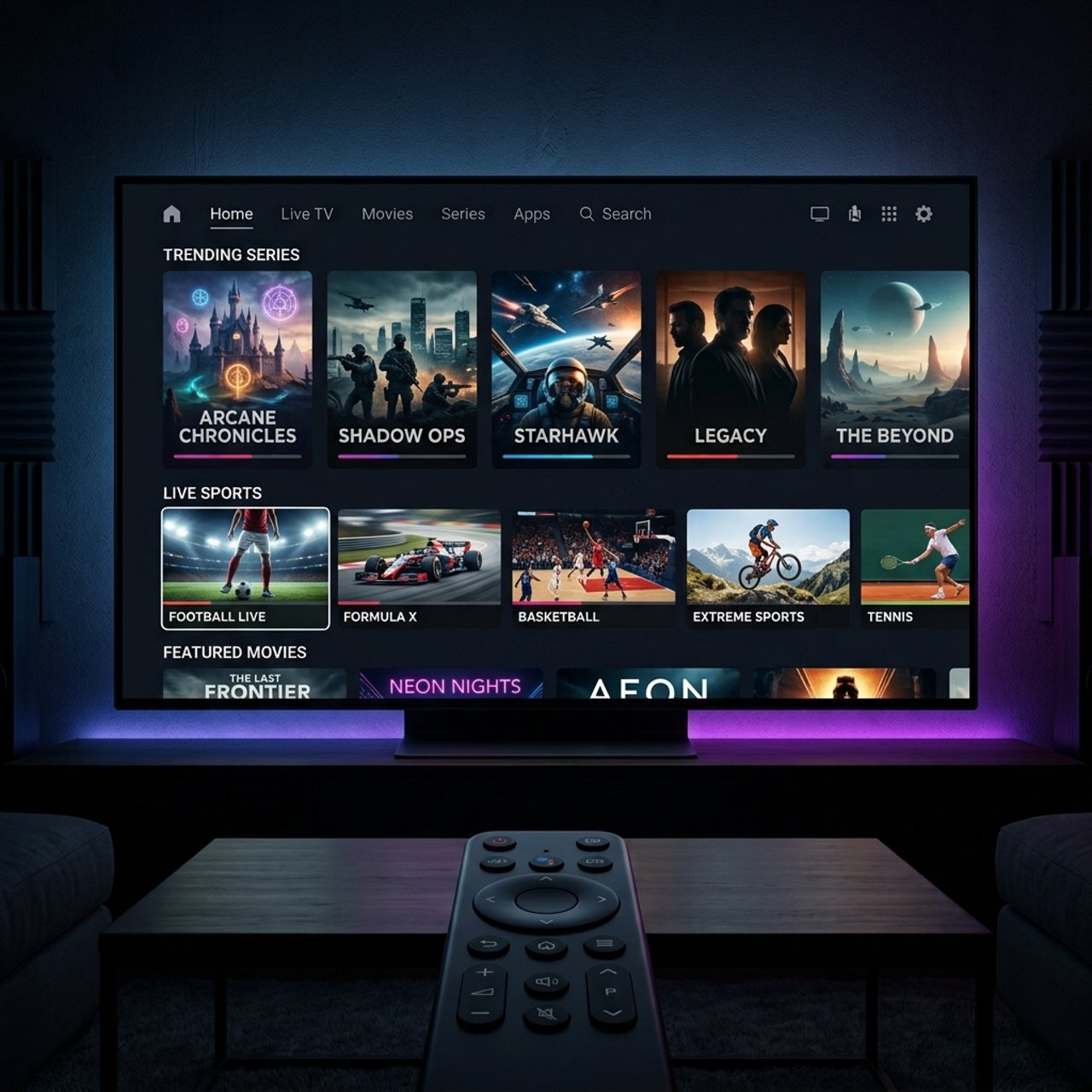
Does IPTV Work Better with a VPN? Find Out Now!

If your IPTV keeps buffering, freezing mid-match, or your provider's streams randomly drop out, there's a very good chance your Internet Service Provider is the culprit and a VPN might be the fix you've been sleeping on. Millions of IPTV subscribers deal with throttled connections, geo-blocked content, and unstable M3U playlists every single day, not realizing that one tool could solve most of their problems. So does IPTV work better with a VPN? The honest answer is: yes, in most cases but only when you understand exactly why, and how to set it up correctly.
Solving the throttling and buffering problem isn't just about comfort it's about actually using the service you're paying for. When ISP interference is removed from the equation, IPTV streams load faster, 4K content plays without stuttering, and your M3U playlist stays connected and stable throughout long viewing sessions.
Core Concepts & Need-To-Know Info
- ISP Throttling: Your Internet Service Provider monitors traffic types. When they identify IPTV or heavy video streaming, they cap your bandwidth sometimes cutting speeds by 50% or more.
- What a VPN Does: A Virtual Private Network encrypts your internet connection and routes it through a server in a location you choose, hiding what you're doing from your ISP.
- M3U Playlist & Xtream Codes: Your IPTV service delivers content through M3U URLs or Xtream Codes API. These streams travel over your internet connection if that connection is throttled or blocked, streams fail.
- VPN Tunneling: The encryption tunnel prevents your ISP from reading your traffic. To them, it just looks like encrypted data not IPTV streams.
- Server Location Matters: Connecting to a VPN server close to your IPTV provider's servers typically gives you the lowest latency and fastest speeds.
- Kill Switch: A critical VPN feature that cuts your internet if the VPN drops, preventing your real IP from being exposed mid-stream.
- Split Tunneling: Lets you route only your IPTV app traffic through the VPN while other apps use your regular connection reducing speed impact.
- Protocol Choice: WireGuard and OpenVPN are the two most common VPN protocols. WireGuard is significantly faster and is ideal for streaming IPTV.
Step-by-Step Guide
- Step 1: Choose Your VPN Service:
- Select a paid, reputable VPN that supports streaming and has fast servers. ExpressVPN, NordVPN, and Surfshark are the top three for IPTV. Avoid free VPNs they throttle your own speed and log your data. Sign up on the provider's website and note your login credentials.
- Step 2: Enable Apps from Unknown Sources (Firestick Only):
- Go to your Firestick Home screen, navigate to Settings, My Fire TV, Developer Options. Toggle Apps from Unknown Sources to ON. This step is only needed if you're sideloading your VPN. Most major VPNs are available directly in the Amazon App Store, so you may be able to skip this.
- Step 3: Download and Install the VPN App:
- From your Firestick or Android TV home screen, open the Search icon and type your VPN's name (e.g., ExpressVPN or NordVPN). Select the app from results, click Download, then Install. Wait for installation to complete it takes about 60 seconds on most devices.
- Step 4: Log Into the VPN App:
- Open the VPN app from your app library. Enter the username and password you created when signing up. On most apps, you'll land on a main dashboard with a large Connect button and a server selection menu.
- Step 5: Select the Right Server Location:
- This is crucial. Choose a server in the same country or region where your IPTV provider's servers are based. If you're in the US and your provider runs servers in the UK, test both locations. Tap the location name, browse the server list, and select your preferred country. Some VPNs have dedicated Streaming server categories use those first.
- Step 6: Enable WireGuard Protocol for Speed:
- Inside the VPN app, go to Settings, Protocol (or Connection Type). Select WireGuard if available. This is the fastest modern protocol and will minimize any speed loss while keeping your IPTV traffic fully encrypted.
- Step 7: Connect and Verify:
- Tap the main Connect button. Wait for the VPN status to show Connected this usually takes 5 to 15 seconds. Once connected, open a browser and search what is my IP to confirm your IP address has changed to the VPN server's location. This confirms everything is working.
- Step 8: Open Your IPTV App and Test:
- Launch TiviMate, IPTV Smarters Pro, or whichever player you use. Load your M3U playlist or Xtream Codes URL as normal. Navigate to a live channel ideally a sports or news channel with consistent activity and play it. Check for smooth playback, no buffering, and stable stream quality.
- Step 9: Enable the Kill Switch:
- Go back into your VPN app Settings and locate the Kill Switch option. Toggle it ON. This ensures that if your VPN connection drops unexpectedly, your IPTV traffic stops rather than exposing your real IP and unencrypted stream data to your ISP.
- Step 10: Activate Split Tunneling (Optional but Recommended):
- In your VPN's settings, find Split Tunneling. Enable it and select only your IPTV app (e.g., TiviMate) to route through the VPN. All other apps on your device will use your regular connection. This reduces speed overhead and keeps gaming, browsing, and other apps running at full native speed.

Imagine this scenario: it's the Champions League final, 80th minute, the score is tied and your stream freezes for 30 seconds because your ISP decided to throttle your bandwidth right at peak hour. That's not a VPN problem that's exactly the situation a VPN prevents. On the flip side, someone who grabs a free VPN off the app store to fix buffering often ends up with streams that are slower than before, because the free server is overloaded with thousands of users. Getting this right from the start saves you a lot of frustration.
Best VPNs to Stop ISP Throttling for IPTV
ExpressVPN is widely regarded as the top choice for IPTV streamers. It has servers in 105 countries, uses the Lightway protocol (comparable to WireGuard in speed), and consistently unblocks geo-restricted IPTV content. It's available natively on Firestick and Android TV. NordVPN offers Meshnet and obfuscated servers, which are especially useful when your IPTV provider blocks standard VPN IP addresses. Their NordLynx protocol (based on WireGuard) delivers excellent speeds, and their no-logs policy has been independently audited. Surfshark is the best value option, with unlimited simultaneous device connections meaning you can protect your Firestick, Smart TV, phone, and laptop all under one subscription. It supports split tunneling and has solid IPTV performance.
- Look for VPNs with dedicated streaming servers specifically optimized for video traffic.
- Confirm the VPN supports WireGuard or equivalent fast protocols avoid services that only offer PPTP or L2TP.
- Check that the VPN has a native Android TV or Fire OS app browser-based VPNs don't protect your IPTV app's traffic.
Common Setup Mistakes and How to Fix Them
Connecting to the wrong VPN server location is the number one mistake new users make. If your IPTV provider's content library is US-based but you're connecting to a UK server, certain channels may not load or VOD content may appear blocked. Always test multiple server locations systematically. Forgetting to reconnect the VPN after a device restart is another trap. Firesticks and Android TV boxes don't always auto-launch VPN apps on boot. Set your VPN app to auto-connect on startup, or make it a habit to check VPN status before opening your IPTV player.
- Problem: Streams buffer even with VPN on. Fix: Switch VPN protocol to WireGuard, change to a closer server, and reduce stream quality temporarily to test if it's a speed or server issue.
- Problem: VPN connects but IPTV app shows no streams available. Fix: Your IPTV provider may be blocking that VPN server's IP switch servers, try an obfuscated server, or contact support.
- Problem: VPN slows down all other apps too. Fix: Enable split tunneling and route only your IPTV application through the VPN, leaving everything else on your direct connection.
Network Requirements for IPTV Streaming Quality
Your VPN and IPTV setup is only as good as the connection underneath it. Here's what you actually need:
- Standard Definition (SD): Minimum 5 Mbps download speed. Stable enough for basic channels on an M3U playlist.
- High Definition (HD/1080p): 15 to 25 Mbps recommended. Most live sports and premium channels stream at this quality.
- 4K Ultra HD: 50 Mbps minimum and closer to 75 Mbps if multiple devices are streaming simultaneously. A VPN adds some overhead, so having headroom above the minimum is essential.
- Wired ethernet connection is always preferred over Wi-Fi for IPTV, especially on Firestick. An ethernet adapter for Firestick 4K costs under $15 and eliminates most Wi-Fi interference issues.
- Router placement matters. If you must use Wi-Fi, ensure your Firestick or Android TV box is on the 5GHz band, not the crowded 2.4GHz band.
- Run a speed test at fast.com before and after connecting your VPN to measure the actual speed difference. A good paid VPN should reduce your speed by no more than 10 to 20%.
Troubleshooting: Fixing Playlist Errors When Using a VPN
First, confirm your VPN is actually connected. Open a browser on the same device and check your IP address. If it shows your real ISP IP, your VPN disconnected without triggering the kill switch reconnect and try again. Your IPTV provider may have IP whitelisting. Some providers lock your account to a specific IP address. When you connect through a VPN, your IP changes, causing authentication to fail. Contact your provider and ask them to remove IP restrictions on your account, or ask for a dedicated IP option from your VPN provider.
- Playlist loads but channels show error: Server-side issue with your IPTV provider not VPN-related. Contact provider support.
- VOD works but live TV buffers: Your selected VPN server may be overloaded. Switch to a different server in the same country.
- App won't load playlist at all: Clear the IPTV app cache (Settings, Apps, App Name, Clear Cache), reconnect the VPN, and re-enter your M3U URL or Xtream Codes credentials from scratch.
The bottom line is straightforward: does IPTV work better with a VPN? For the vast majority of users dealing with ISP throttling, inconsistent stream quality, or geo-blocked content, yes significantly better. A quality paid VPN like ExpressVPN or NordVPN encrypts your traffic, bypasses ISP speed manipulation, and gives your M3U playlist and Xtream Codes streams the clean, uninterrupted connection they need to perform at their best. Set it up correctly using the steps above, enable WireGuard for maximum speed, activate your kill switch, and check out our channel list and pricing plans to get the most out of your IPTV experience from the very first stream.
Frequently Asked Questions
Ready to get started?
Try our service risk-free with a 24-hour free trial.
Related Articles
How to Install IPTV on Amazon Fire Stick: A Complete Guide
Step-by-step guide to install IPTV on Fire Stick.
How to Use IPTV Smarters Pro on Samsung TV: A Step-by-Step Guide
Master IPTV Smarters Pro on your Samsung TV.

TV Schedule Guide App and How to Find What Is On Every Channel in 2026
A comprehensive guide to finding accurate television schedule listings across free broadcast channels, streaming platforms, and enterprise IPTV services in 2026. Reviews the best electronic program guide applications, explains how EPG data systems work, and compares guide tools across different viewing platforms.