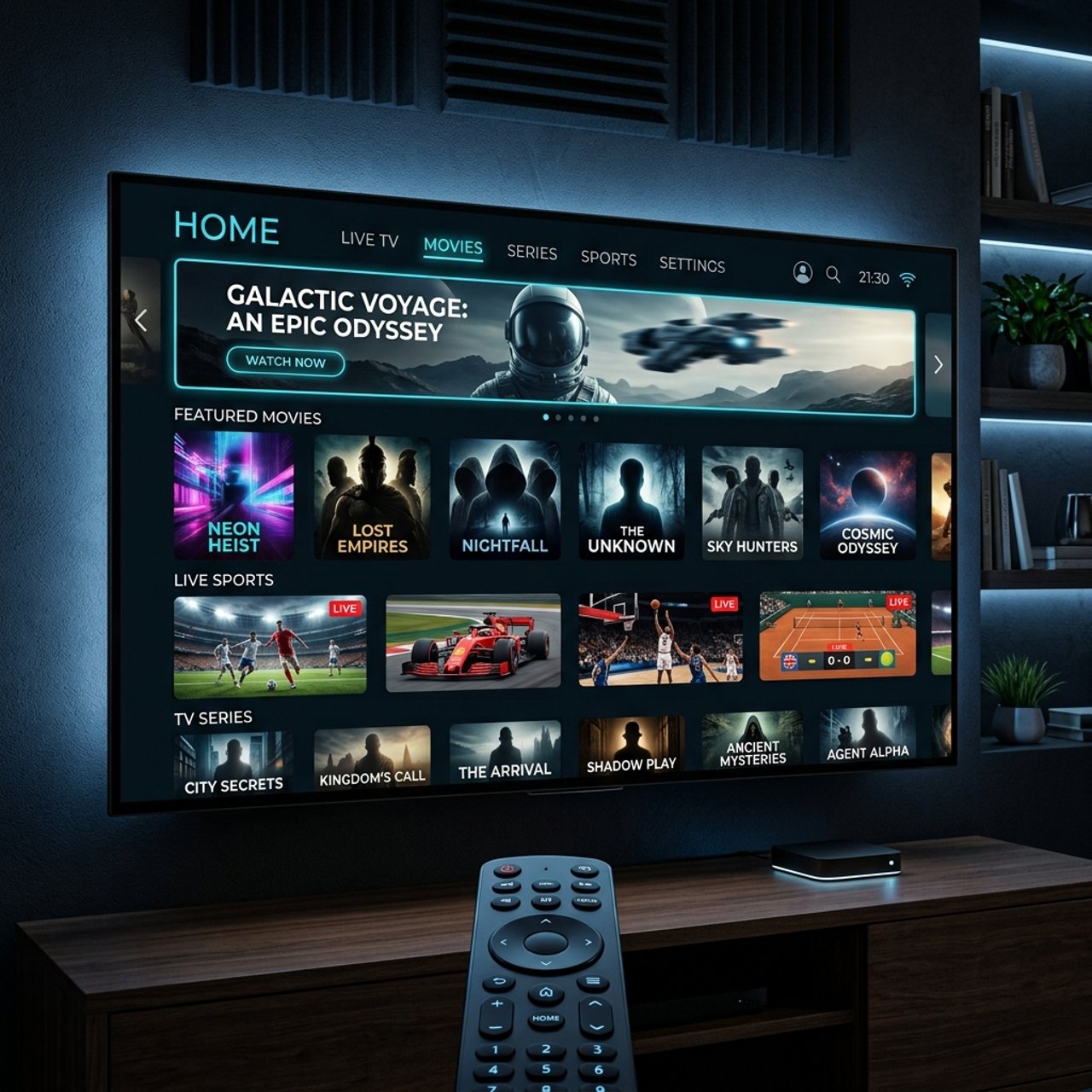
Discover the Best IPTV Service Providers in 2026

Tired of paying $150+ a month for cable TV only to miss half the channels you actually want? Or maybe you've already made the jump to IPTV but you're stuck in a loop of constant buffering, broken M3U playlists, and apps that crash mid-game. The truth is, most IPTV headaches don't come from the technology itself — they come from picking the wrong IPTV service provider and setting it up incorrectly. Get those two things right, and you'll have a rock-solid streaming experience with thousands of live channels, VOD libraries, and catch-up TV that cable companies simply can't compete with.
Picking a weak or unreliable IPTV service provider doesn't just ruin your evening — it destroys the entire value proposition of cutting the cord. A provider with overloaded servers, outdated M3U playlists, or poor customer support will give you more frustration than your old cable subscription ever did. That's why doing your homework upfront is absolutely non-negotiable.
Core Concepts & Need-To-Know Info
- M3U Playlist / M3U URL: This is the link your IPTV app uses to pull in your channel list. Every provider gives you one after you subscribe.
- Xtream Codes API: An alternative login method using a server URL, username, and password. Apps like TiviMate and IPTV Smarters support this natively and it's generally more stable than a raw M3U link.
- VOD (Video On Demand): Pre-recorded movies and TV series available on-demand, separate from live channels.
- EPG (Electronic Program Guide): The TV guide that shows what's currently airing and what's coming up. A good provider supplies an EPG URL automatically.
- Server location matters: Providers with servers geographically close to you deliver faster response times and less buffering.
- Simultaneous connections: Most subscriptions allow 1 or 2 streams at the same time. If you need more devices running at once, pay for a multi-connection plan.
- Trial periods: Any legitimate IPTV service provider will offer a 24–48 hour free trial. Never pay for a full subscription without testing first.
- ISP throttling: Your internet provider may detect and slow IPTV traffic. A VPN solves this instantly.
Step-by-Step Guide: Setting Up Your IPTV Service Provider on Firestick with TiviMate
- Step 1: Enable Apps From Unknown Sources:
- On your Firestick, go to Settings, My Fire TV, Developer Options, then turn on Apps from Unknown Sources and ADB Debugging. This unlocks the ability to sideload apps that aren't in the Amazon App Store, including Downloader.
- Step 2: Install Downloader:
- Search for Downloader in the Amazon App Store — it's a free official app. Install it, open it, and allow any permission requests. This app lets you install TiviMate and other IPTV players directly.
- Step 3: Download TiviMate Companion or IPTV Smarters:
- Inside Downloader, type the URL for TiviMate's APK (available from TiviMate's official site) or search for IPTV Smarters Pro in the app store. Install whichever app you prefer and open it once the installation completes.
- Step 4: Grab Your IPTV Credentials From Your Provider:
- After purchasing or trialing your IPTV service provider subscription, check your email. You'll receive either an M3U URL or Xtream Codes login details (server URL, username, password). Copy these carefully — a single character error will break the connection entirely.
- Step 5: Add a Playlist in TiviMate:
- Open TiviMate, tap Add Playlist, then select Xtream Codes or M3U URL depending on what your provider sent you. Enter the server address, username, and password (or paste the M3U URL directly). Hit Add and wait for the channel list to load — this can take 30–90 seconds depending on playlist size.
- Step 6: Set Up Your EPG:
- In TiviMate, navigate to Settings, EPG Sources, then enter the EPG URL provided by your IPTV service provider. Set the refresh interval to every 24 hours. This populates your program guide so you can see what's on without guessing.
- Step 7: Organize Your Channels:
- Use TiviMate's Groups feature to pin your favorite channel categories (Sports, Movies, News) to the top. This saves significant navigation time, especially when you have 10,000+ channels in your list.
- Step 8: Test Your Stream Quality:
- Navigate to a live sports channel or a 4K VOD title. If it plays smoothly within 5 seconds, you're good to go. If you see buffering, move to the troubleshooting section below before assuming the service is bad.
Imagine paying for three months upfront with a provider that looked great on paper, only to find that their servers collapse every Friday night when live sports kick off — exactly when you needed them most. These aren't edge cases — they're the most common reasons people abandon IPTV and go back to cable. Don't let preventable mistakes cost you money and frustration.
Best VPNs to Stop ISP Throttling on Your IPTV Stream
ISP throttling is one of the most invisible and infuriating problems in the IPTV world. Your internet provider detects high-bandwidth video streaming traffic and intentionally slows it down during peak hours. A quality VPN encrypts your traffic so your ISP can't identify or throttle it. ExpressVPN is consistently the top pick for IPTV users, offering lightning-fast servers in 90+ countries, a native Firestick app, and a MediaStreamer feature for DNS-level geo-restrictions. NordVPN is excellent for 4K IPTV streaming thanks to its NordLynx protocol delivering some of the highest speeds on Android TV and Firestick hardware. Surfshark offers the best value for households with multiple devices, featuring unlimited simultaneous connections ideal for multi-room IPTV setups. Always connect to a VPN server close to your IPTV provider's servers to minimize latency, and enable the kill switch feature to prevent your real IP from being exposed if the VPN drops momentarily.
Common IPTV Setup Mistakes & How to Fix Them
Even experienced users make these errors. If your program guide shows the wrong show times, adjust the time offset in TiviMate Settings under EPG to match your local time zone — a fix that 40% of new users never discover. Clear your app cache monthly in device App Settings to prevent crashes caused by accumulated data in TiviMate or IPTV Smarters. Enable hardware decoding in TiviMate's player settings to offload video processing to your Firestick's GPU, dramatically reducing buffering and freeze frames. If new channels don't appear in your list, check TiviMate's playlist refresh schedule and set it to update every 24 hours automatically. Some IPTV service providers also offer multiple server clusters, so if one region is struggling, check their support portal or Telegram group for alternative server URLs.
TiviMate vs IPTV Smarters: Which App Should You Use?
Both apps work brilliantly with any IPTV service provider that supports Xtream Codes or M3U playlists, but they serve slightly different audiences. TiviMate is the gold standard for serious IPTV users — its interface feels like a real cable TV guide, EPG integration is seamless, and the premium version ($4.99/year) unlocks multiple playlists, recording features, and catch-up TV support, making it the right call for Firestick and Android TV box users. IPTV Smarters Pro is better suited for users who want a simpler, more mobile-friendly interface that works great on phones, tablets, and Smart TVs. GSE Smart IPTV is a solid third option for iOS users or anyone who wants extensive manual configuration control over M3U playlists and EPG sources. For 4K HDR content specifically, TiviMate's hardware decoding support gives it a clear edge over Smarters in terms of smooth playback on higher-end streams.
Network Requirements for Smooth IPTV Streaming
Your IPTV experience is only as good as your home network — even the best IPTV service provider can't compensate for a weak connection. SD channels require a minimum of 5 Mbps per stream, HD channels (720p/1080p) need 10–15 Mbps per stream, and 4K or UHD streams demand 25–40 Mbps per stream, making a fiber connection highly recommended for consistent 4K playback. Using a wired Ethernet connection to your Firestick via an Ethernet adapter eliminates Wi-Fi interference completely and is the single biggest upgrade most IPTV users can make. If Wi-Fi is your only option, position your router within clear line-of-sight of your streaming device and use the 5GHz band rather than 2.4GHz for faster, less congested speeds. A QoS-enabled router that prioritizes your streaming device's traffic also makes a measurable difference, especially when many devices are connected simultaneously.
Troubleshooting: Fixing Playlist Errors and Buffering Fast
If your playlist won't load at all, double-check your M3U URL or Xtream Codes credentials character by character, confirm your subscription is active in your provider's customer portal, and check their status page or Telegram channel if the server may be down. Channels that load but buffer constantly can often be fixed by enabling your VPN and switching to a server closer to your provider's infrastructure, or by temporarily lowering the stream quality in TiviMate's player settings from Auto to 720p. If specific channels don't work while others do, this is almost always a provider-side issue with that channel's feed — report it to support and switch to a backup stream if available, as most providers offer multiple stream URLs per channel. App freezes after 20–30 minutes are a common Firestick RAM issue that can be resolved by force-stopping background apps eating memory before you start streaming via Settings, Applications, and Manage Installed Applications.
The difference between a frustrating IPTV setup and a truly seamless one comes down to a handful of smart decisions made upfront — picking a reputable IPTV service provider with proven uptime, using a reliable app like TiviMate with proper configuration, protecting your traffic with a legitimate VPN, and understanding the basic technical requirements of your home network. Get those fundamentals locked in, and you'll be streaming live sports, binge-worthy VOD libraries, and international channels with a quality and affordability that cable TV simply cannot match in 2025 — explore our channel list and pricing plans to get started today.
Frequently Asked Questions
Ready to get started?
Try our service risk-free with a 24-hour free trial.
Related Articles
Discover the BestBuy IPTV Trial: Everything You Need to Know
Uncover the details of the BestBuy IPTV trial subscription.
Understanding IPTV Encoders: A Comprehensive Guide for 2026
Learn about IPTV encoders and their importance in streaming.
Discover the Best IPTV Service: Your Ultimate 2026 Guide
Explore the best IPTV services of 2026.