Discover the Best IPTV Service: Your Ultimate 2026 Guide

Tired of paying $150+ a month for cable channels you never watch, only to still miss live sports and get stuck scrolling through a bloated guide? You're not alone, and the good news is there's a smarter, cheaper, and frankly more satisfying way to watch TV. The best IPTV service gives you thousands of live channels, a massive VOD library, and crystal-clear 4K streams for a fraction of what cable costs. But here's the catch: with hundreds of providers flooding the market, choosing the wrong one means constant buffering, broken M3U playlists, and channels that disappear overnight. This guide cuts through the noise and shows you exactly what to look for, how to set it up on any device, and how to keep your streams running smooth every single time.
Choosing the right IPTV provider isn't just about price — it's about server uptime, stream quality during peak hours, and whether the M3U playlist or Xtream Codes API actually works with your preferred app. A service that looks great on paper but buckles during a playoff game is absolutely worthless, and getting burned once is enough to make anyone swear off IPTV entirely.
Core Concepts & Need-To-Know Info
- M3U Playlist URL: This is a text-based file link your IPTV app uses to load all your channels and VOD content. Your provider sends you this URL after purchase.
- Xtream Codes API: An alternative login method (server URL + username + password) that many apps like TiviMate and IPTV Smarters prefer because it's more stable than M3U.
- EPG (Electronic Program Guide): The on-screen channel guide showing what's on now and what's coming up. A good provider includes an EPG URL with your subscription.
- Server uptime: The percentage of time a provider's servers are online. Anything below 99.5% uptime means you'll experience outages at the worst possible moments.
- VOD (Video On Demand): The movie and TV show library section of your IPTV service, separate from live channels.
- Concurrent connections: How many devices can stream simultaneously on one account. Most providers offer 1 to 4 connections per plan.
- ISP throttling: Your internet service provider can detect and deliberately slow down IPTV traffic. This is one of the most common causes of buffering even on fast connections.
- Reseller vs. direct provider: Some sellers resell a larger panel's streams. Direct providers usually offer better support and more stable servers.
Step-by-Step Guide
- Step 1: Choose a Reliable IPTV Provider:
- Research providers that offer a free trial before committing. Look specifically for those advertising 99.9% uptime, at least 10,000 channels, 4K/FHD stream options, and responsive customer support. Avoid any service that only accepts crypto with no trial — that's a red flag. Once you've selected a provider, purchase your plan and note your Xtream Codes credentials or M3U URL sent to your email.
- Step 2: Download Your IPTV Player App:
- On a Firestick, press the Home button and navigate to the Search icon. Type "Downloader" and install the Downloader app from AFTVnews. Then go to Settings, My Fire TV, Developer Options and enable both "Apps from Unknown Sources" and "ADB Debugging." On Android TV or a Smart TV, open the Google Play Store or Samsung/LG App Store and search directly for TiviMate, IPTV Smarters Pro, or GSE Smart IPTV.
- Step 3: Install TiviMate (Recommended Player):
- Open the Downloader app on your Firestick and enter the URL for the TiviMate APK (available from the official TiviMate website). Follow the on-screen prompts to install. On Android TV, simply install TiviMate directly from the Play Store — no sideloading required.
- Step 4: Add Your IPTV Playlist:
- Launch TiviMate and tap "Add Playlist." Select "Xtream Codes" if your provider gave you a server URL, username, and password. Enter each field exactly as provided — no spaces, no typos. If you received an M3U URL instead, select "M3U Playlist" and paste the full URL including the "http://" prefix. Hit "Next" and let TiviMate load your channels, which can take 1–3 minutes depending on your provider's channel count.
- Step 5: Set Up Your EPG:
- Once channels load, go to TiviMate Settings, Playlist, EPG URL. Paste the EPG link your provider supplied. Set the update interval to every 24 hours. This populates your program guide so you can see what's airing live and schedule recordings if you have TiviMate Premium.
- Step 6: Connect a VPN Before Streaming:
- Before playing any content, launch your VPN app (ExpressVPN or NordVPN recommended), connect to a server in your country or nearest city, and then open TiviMate. This prevents ISP throttling from killing your stream speed mid-movie and protects your connection privacy.
- Step 7: Test Your Streams:
- Navigate to a live sports channel or 4K VOD title and let it buffer for 3–5 seconds. If it plays cleanly, you're done. If you see constant buffering, switch to a lower quality stream (FHD instead of 4K), change your VPN server, or contact your provider to check their current server load.
Picture this: it's the final quarter of a playoff game, your stream starts buffering at 10 second intervals, and you realize your ISP detected the IPTV traffic and throttled your connection. Without a VPN enabled, there's nothing you can do in that moment except watch the spinning wheel. This exact scenario plays out for thousands of viewers every single week who skipped the VPN step because they figured their 200 Mbps connection was fast enough — speed is irrelevant when your ISP is deliberately choking the stream. Similarly, a mistyped M3U URL might show "playlist loaded" but give you zero channels, leading many beginners to incorrectly blame their device when the fix is a single corrected character.
Best IPTV Services Worth Paying For in 2025
Not all providers are created equal. Here are the key qualities that separate top-tier services from the ones that will waste your money. Look for providers offering Xtream Codes panel support, since it's more stable and easier to reload than M3U. Premium providers also invest in adaptive bitrate technology that automatically reduces quality slightly to prevent freezing rather than buffering indefinitely. During major events like the Super Bowl or Champions League final, a shared server melts down, so look for providers advertising separate sports server infrastructure. If a server goes down at 2 AM during a live event, you need support that responds in minutes, not days, so always prioritize providers with 24/7 live chat or Telegram support. Providers like Xtrix TV, Helix IPTV, and Apollo Group TV consistently rank highly in community forums for uptime reliability and channel variety. Always run a 24-hour trial before committing to an annual plan and specifically test the channels you watch most — live sports, news, and your regional channels.
TiviMate vs. IPTV Smarters: Which App Is Right for You?
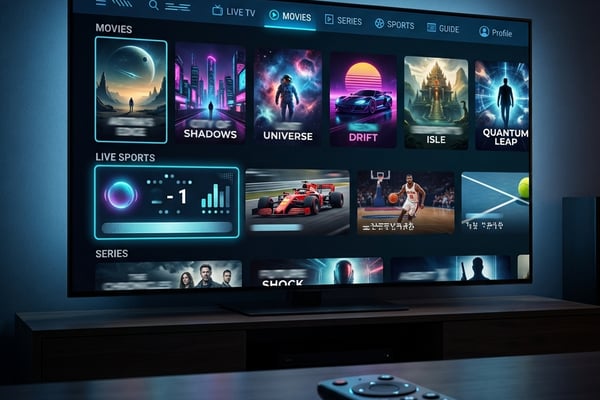
Choosing between these two dominant IPTV players genuinely changes your daily streaming experience. TiviMate is the gold standard for Firestick and Android TV users — the interface is clean, fast, and feels like a real cable guide, and TiviMate Premium at $4.99/year unlocks recording, multiple playlists, and panel management. IPTV Smarters Pro is better for users who want a more app-like interface with separate tabs for Live TV, Movies, Series, and Catch-Up, and it excels on iOS when you don't need a traditional EPG grid layout. GSE Smart IPTV is the best choice for power users who want granular control over stream URLs, custom EPG sources, and advanced playlist management. For pure Firestick performance, TiviMate wins on speed and stability, but for multi-device users jumping between phone and TV, IPTV Smarters' cross-platform consistency gives it the edge.
Network Requirements for Buffer-Free 4K Streaming
Your internet connection is just as important as the IPTV service itself. You need a minimum of 10 Mbps for FHD (1080p) and 25 Mbps for 4K UHD streams per device, so multiply those figures by the number of concurrent streams in your household. Connecting your Firestick or Android TV box via Ethernet adapter rather than relying on Wi-Fi eliminates the majority of buffering complaints — a $10 Ethernet adapter is the single best hardware upgrade you can make. If you must use Wi-Fi, keep your streaming device within clear line-of-sight of your router, since walls, especially concrete or brick, cut signal strength dramatically. Log into your router admin panel and enable Quality of Service (QoS), prioritizing your streaming device's MAC address so your TV always gets bandwidth first. Also change your device DNS to 1.1.1.1 (Cloudflare) or 8.8.8.8 (Google) to speed up playlist loading times and reduce channel-change lag.
Common Setup Mistakes and How to Fix Them
Even tech-savvy users make errors when setting up a new IPTV subscription. Loading an M3U playlist with 20,000+ channels overwhelms your app and device memory, so ask your provider for a filtered playlist or use TiviMate's group hide feature to disable irrelevant channel groups. If your program guide shows wrong times or blank entries, manually force an EPG refresh in TiviMate Settings under Playlist, Update Now. On Firestick, always close all background apps before launching TiviMate since they eat RAM and cause crashes mid-stream. Most legitimate providers have a Telegram channel or status page, so check it before assuming your setup is broken — sometimes a server is down for maintenance and will be back in 20 minutes. Finally, always download the latest version of your IPTV player, since outdated apps have known bugs that cause playlist loading failures.
Best VPNs to Stop ISP Throttling
A VPN isn't optional if you want consistent, buffer-free IPTV — it's a necessity. ExpressVPN is the fastest VPN for streaming, with optimized servers in 105 countries and a Lightway protocol that maintains speed even on slower connections, making it the best overall choice for IPTV. NordVPN is excellent for privacy and comes with a SmartPlay DNS feature that helps with geo-restricted content, and while it's slightly slower than ExpressVPN it's more affordable on long-term plans. Surfshark offers the best value by allowing unlimited simultaneous connections, making it ideal for households with multiple streaming devices. IPVanish is popular specifically in the IPTV community because it integrates directly with Kodi and allows sideloading on Firestick without extra steps. Always choose a VPN with a no-logs policy and a kill switch so that if the VPN drops mid-stream, your raw IP is never exposed to ISP monitoring.
Finding the best IPTV service isn't just about picking the cheapest plan or the one with the most channels listed on a sales page — it's about matching reliable server infrastructure with the right app setup, a solid network foundation, and the protection of a good VPN. When all those pieces work together, you get a streaming experience that genuinely outperforms cable in every measurable way: more content, better flexibility, and a fraction of the cost. Take the time to run a trial, test your key channels under real conditions, and dial in the settings covered in this guide — then check out our full channel list and pricing plans to find the perfect subscription for your household.
Frequently Asked Questions
Ready to get started?
Try our service risk-free with a 24-hour free trial.
Related Articles
How to Watch Live Sports on IPTV: The 2026 Game-Day Playbook
The ultimate 2026 sports fan playbook for streaming live football, basketball, and combat sports on IPTV in 4K with ultra-low latency.
How to Watch IPTV on VLC: Step-by-Step Guide for 2026
A complete guide on watching IPTV using VLC.
How to Download IPTV Smarters Pro on Samsung TV: A Step-by-Step Guide
Step-by-step guide to download IPTV Smarters on Samsung TV.