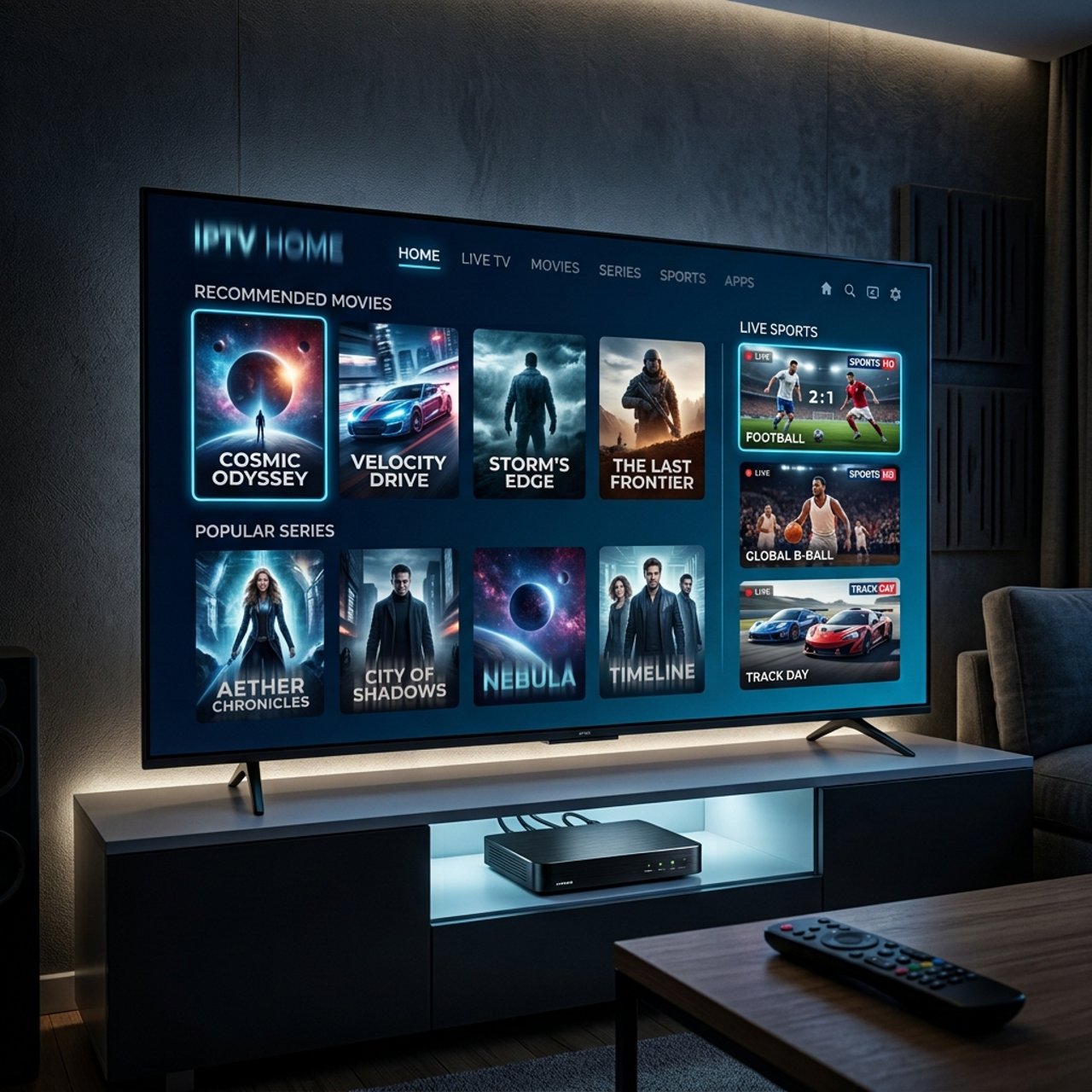
Discover the Best IPTV Encoder Box for Ultimate Streaming

You've got cameras, you've got content, and you've got an audience waiting — but without the right hardware in the middle, everything falls apart. If you've been struggling with choppy live streams, incompatible signal formats, or trying to figure out how your local video feed becomes an M3U playlist that thousands of viewers can watch simultaneously, the answer almost always comes back to one piece of gear: the IPTV encoder box. Whether you're running a hotel TV system, a sports bar, a church broadcast, or your own IPTV subscription service, this guide walks you through exactly what an encoder box does, how to set one up from scratch, and how to make sure your stream never drops a frame.
Solving the encoder problem isn't just a technical checkbox — it's the foundation of a smooth, professional IPTV experience. Without proper encoding, even the fastest internet connection and the best IPTV app in the world can't compensate for a broken or bloated video signal at the source.
Core Concepts & Need-To-Know Info
- What an IPTV encoder box does: It takes a raw video signal (from a camera, satellite receiver, or capture card) and converts it into a compressed digital stream (H.264 or H.265) that can be delivered over an IP network.
- H.264 vs H.265: H.264 is universally compatible and works on almost every device. H.265 (HEVC) cuts file size nearly in half but requires more processing power on the viewer's end — important for 4K streaming.
- RTMP, HLS, and UDP: These are the three most common streaming protocols. RTMP pushes to platforms like YouTube or a private media server. HLS (HTTP Live Streaming) is what most M3U playlists use. UDP is preferred for local network multicast delivery.
- Xtream Codes integration: Many encoder boxes can feed directly into an Xtream Codes or middleware panel, instantly creating a channel your subscribers can access through their IPTV app.
- Bitrate is everything: Too high and your stream buffers; too low and it looks terrible. For HD streaming, 3-6 Mbps is the sweet spot. For 4K, aim for 15-25 Mbps.
- ISP throttling awareness: If you're streaming outbound over a residential connection, your ISP may throttle upload speeds. A VPN on your server or a dedicated upload line solves this.
- Network requirements: Wired ethernet is non-negotiable for the encoder box itself. Wi-Fi introduces latency and packet loss that will destroy stream quality.
Step-by-Step Guide
- Step 1: Unbox and Inspect the Hardware:
- Before anything else, check that your encoder box has all necessary ports for your use case — HDMI in, ethernet out, and a USB or SD slot for firmware updates. Connect it to power but don't turn it on yet.
- Step 2: Connect Your Video Source:
- Run an HDMI cable from your camera, satellite receiver, or broadcast source directly into the HDMI input port on the encoder box. If your source uses SDI, make sure your encoder model supports SDI input or use an SDI-to-HDMI converter first.
- Step 3: Connect to Your Network via Ethernet:
- Plug a Cat6 ethernet cable from your encoder box directly into your router or network switch. Never use Wi-Fi for the encoder — the packet consistency of a wired connection is critical for stable streaming.
- Step 4: Power On and Access the Web Interface:
- Turn on the encoder. Most units broadcast on a default IP address (commonly 192.168.1.168 or similar — check your manual). Open a browser on a PC connected to the same network and type that IP address into the address bar. This opens the encoder's admin dashboard.
- Step 5: Set Your Encoding Parameters:
- Inside the dashboard, navigate to the Video Settings panel. Set your codec to H.264 for maximum compatibility, your resolution to 1920x1080 for HD, your frame rate to 30fps (or 60fps for sports content), and your bitrate to 4000-6000 Kbps for HD delivery. Apply settings.
- Step 6: Configure Your Streaming Protocol:
- Go to the Stream Output section. Choose your protocol: RTMP to enter your media server or platform's RTMP URL and stream key; HLS where the encoder generates an M3U URL you can plug directly into TiviMate, IPTV Smarters, or any M3U-compatible player; or UDP Multicast where you enter a multicast address (e.g., udp://239.0.0.1:1234) for local network delivery.
- Step 7: Start the Stream and Verify Output:
- Hit the Start Stream button in the dashboard. On a separate device — a Firestick, Android TV box, or Smart TV — open your IPTV app and enter the M3U URL or RTMP stream address generated by the encoder. Confirm the stream plays back smoothly with no lag or artifacts.
- Step 8: Integrate with Xtream Codes or Your IPTV Panel:
- Log into your Xtream Codes or middleware panel and create a new stream. In the stream source field, paste the RTMP or HLS URL your encoder is pushing. Assign it to a bouquet, set EPG data if available, and publish it to your subscribers. They'll see it appear as a live channel in their lineup automatically.
- Step 9: Monitor and Adjust:
- Use the encoder's real-time stats panel to watch your bitrate, dropped frames, and CPU load. If you see dropped frames, lower the bitrate slightly or reduce resolution. If the image quality looks poor on playback, increase the bitrate in 500 Kbps increments until you find the sweet spot.
Imagine you've set up a sports bar with 12 screens all pulling from your encoder box. During the championship game, the stream drops because you didn't account for ISP throttling at peak hours — that's a real-world nightmare that ruins the customer experience and your reputation. Or picture a hotel TV system where guests on the 5th floor get a frozen stream because the encoder was configured over Wi-Fi instead of a wired connection. These aren't edge cases — they happen constantly, and every one of them is preventable with the right setup.
Best VPNs to Stop ISP Throttling on Your Encoder Stream
When you're pushing a high-bitrate stream over a consumer internet connection, ISPs often detect and throttle video traffic — especially during peak hours. ExpressVPN offers the best overall performance for streaming servers with dedicated IPs and consistently high upload speeds that don't choke under load. NordVPN is excellent for server-side use with obfuscated servers that make your stream traffic look like regular HTTPS traffic to your ISP. Mullvad VPN is privacy-first with no-account setup and one of the lowest latency options for European-based IPTV server operators. Install the VPN directly on your router or streaming server — not just on a single device — to ensure all encoder traffic exits through the VPN tunnel. Always test your upload speed with and without the VPN active using Speedtest.net; a quality paid VPN should reduce your speed by no more than 10-15%, which is acceptable for most HD streaming scenarios.
Common Setup Mistakes and How to Fix Them
Even experienced broadcasters make these errors. Using MPEG-2 instead of H.264 results in massive file sizes and streams that most modern IPTV apps can't decode properly — always default to H.264 unless you have a specific reason for H.265. If your stream works on the local network but not externally, your router's firewall is almost certainly blocking the output port — forward the specific port your encoder uses (commonly 1935 for RTMP or 8080 for HLS) in your router's port forwarding settings. Mixing a 60fps video source with a 30fps encoder setting creates audio-video drift over time, so match your encoder's frame rate exactly to your camera's output setting. If your RTMP stream key gets exposed, anyone can push video to your stream endpoint — rotate your keys regularly and use authenticated HLS wherever possible.
Recommended Apps: TiviMate vs IPTV Smarters for Viewing Your Encoder Output
Once your IPTV encoder box is pushing a stream, your viewers need a great app to receive it. TiviMate is the gold standard for Firestick and Android TV, handling M3U playlists and Xtream Codes connections flawlessly with multi-screen layouts and the best EPG integration available — if your viewers are on Fire TV or Android TV boxes, point them here first. IPTV Smarters Pro is more beginner-friendly and works across more platforms including iOS, which TiviMate doesn't support natively, making it the better recommendation for a mixed-device subscriber base. GSE Smart IPTV is a solid backup option for viewers who need deep M3U customization or are using unusual device types. Always test your encoder-generated M3U URL in at least two different apps before distributing it to subscribers — what renders correctly in one app may have timestamp or codec issues in another.
Network Requirements for HD and 4K Streaming from an Encoder Box
Your encoder box is only as good as the network it sits on. For HD (1080p) streaming you need a minimum 10 Mbps dedicated upload speed with your encoder bitrate set to 4,000-6,000 Kbps, leaving headroom for network overhead and multiple simultaneous connections. For 4K (2160p) streaming you need at minimum 25 Mbps upload and your encoder must support H.265/HEVC encoding — budget encoder boxes often don't, so verify before you buy. For hotel or enterprise deployments where streams stay on-site, UDP multicast consumes bandwidth only once regardless of how many viewers are watching, which is how large-scale IPTV deployments serve thousands of rooms without bandwidth multiplication. If you're distributing to multiple rooms or screens, use a managed network switch that supports IGMP snooping to handle multicast traffic cleanly without flooding every port on the network.
Troubleshooting: Fixing Playlist and Stream Errors
When something goes wrong between your encoder and your viewers, use this systematic fix-it checklist. If the stream plays audio but no video, this is usually a codec mismatch — confirm the encoder is outputting H.264, not MPEG-4 Part 2 or a proprietary format. If your M3U URL returns a 403 or 404 error, the encoder's web server may have restarted and changed the output URL — log back into the encoder dashboard and verify the stream is active. For constant buffering despite good speeds, check your encoder's dropped frames counter — if frames are dropping at the source, reduce bitrate or check the HDMI cable integrity. Stream freezes every few minutes usually indicate a keyframe interval issue — set your encoder's keyframe interval to 2 seconds to match most CDN and IPTV middleware recommendations. If viewers on one app see the stream but another shows "URL not supported," the issue is usually the HLS container format requiring an explicit .m3u8 extension in the URL.
Getting your IPTV encoder box configured correctly the first time saves you hours of troubleshooting down the road and gives your viewers the kind of rock-solid, buffer-free experience that keeps them coming back. The hardware itself is only half the equation — the real magic is in dialing in your bitrate, locking down your network, choosing the right streaming protocol, and making sure every link in the chain from camera to screen is solid. Follow this guide step by step, avoid the common pitfalls, and check out our channel list and pricing plans to see how your encoder output can power a full professional IPTV service from day one.
Frequently Asked Questions
Ready to get started?
Try our service risk-free with a 24-hour free trial.
Related Articles
Unlocking HDMI IPTV: Your Complete Setup Guide for 2026
Learn to set up HDMI IPTV with ease.
Unlocking the Power of HDMI to IPTV Encoder: Your 2026 Guide
A guide on using HDMI to IPTV encoders effectively.

How to Watch PPV on IPTV: The 2026 Live Fight Night Playbook
The complete 2026 sports fan guide to watching live pay-per-view boxing, MMA, and championship events on IPTV with backup server feeds.