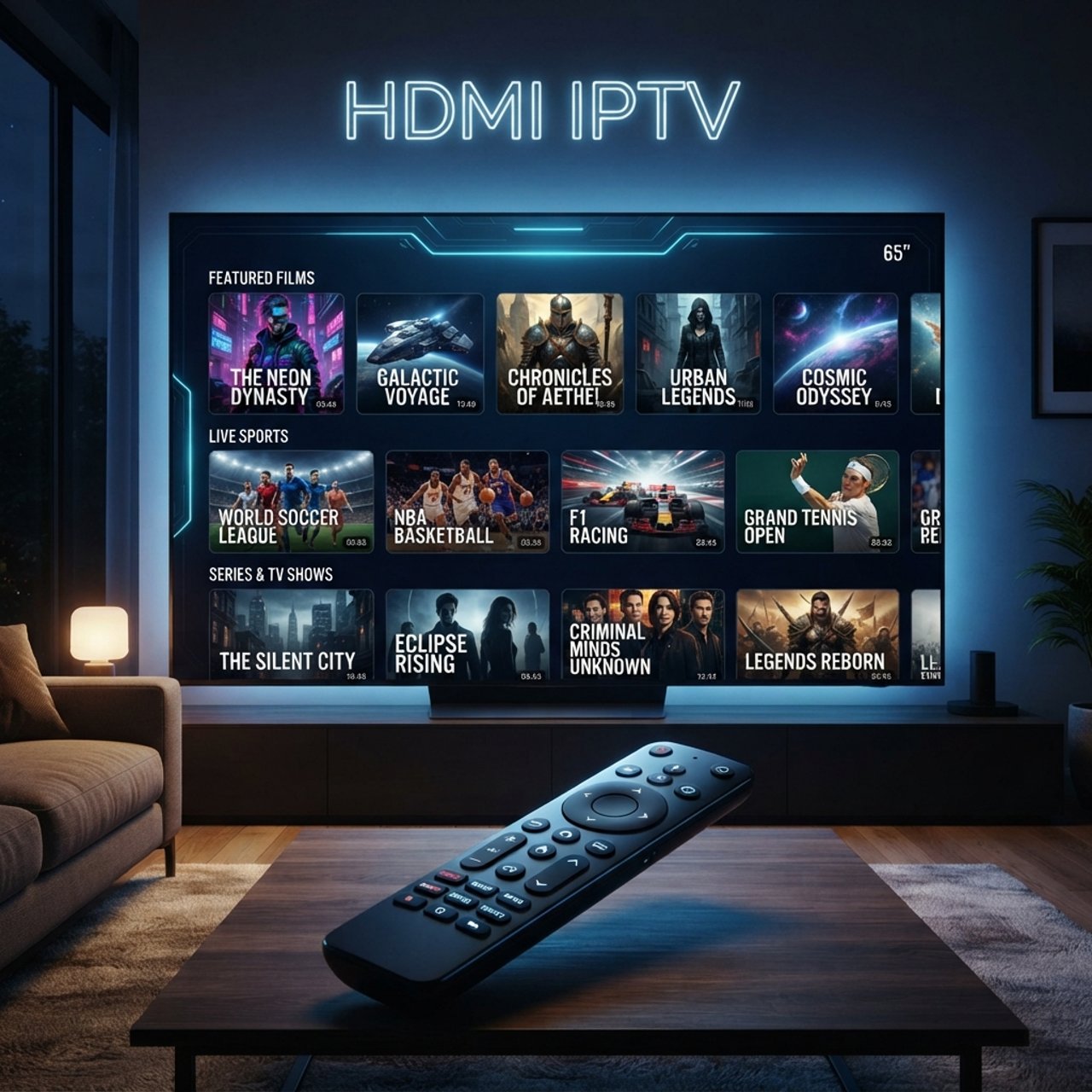
Unlocking HDMI IPTV: Your Complete Setup Guide for 2026

Your smart TV is sitting right there, but you're stuck paying $150+ a month for a cable package that still somehow doesn't have the channels you actually want. Meanwhile, HDMI IPTV setups are letting people stream thousands of live channels, full VOD libraries, and every major sports league for a fraction of the cost. The catch? Most tutorials skip the real-world details that determine whether your stream runs buttery smooth or freezes every ten minutes during the big game. This guide covers everything: hardware selection, app configuration, network optimization, and the warnings nobody else bothers to mention.
Getting your HDMI IPTV connection right isn't just about convenience, it's about reliability. A poorly configured setup leads to buffering spikes, dropped streams mid-match, and the kind of frustration that makes people incorrectly blame their IPTV provider when the real culprit is a misconfigured app or throttled connection. Solving this properly means you get the experience you're actually paying for, every single time you sit down to watch.
Core Concepts & Need-To-Know Info
- HDMI IPTV explained simply: You're connecting a streaming device (Firestick, Android TV box, or similar) to your TV via HDMI, then running an IPTV app on that device to receive live channel streams over your internet connection
- M3U playlist: A URL or file provided by your IPTV service that contains all your channel links; it's what you paste into apps like TiviMate or IPTV Smarters Pro
- Xtream Codes API: An alternative login method (server URL, username, password) that many providers support; generally more stable than raw M3U URLs
- ISP throttling: Your internet provider can detect and slow down streaming traffic specifically; this is a leading cause of buffering that has nothing to do with your subscription quality
- EPG (Electronic Program Guide): The on-screen TV guide that shows what's on each channel; requires a separate URL from your provider to activate
- Bandwidth requirements: SD streams need ~5 Mbps, HD needs 10-25 Mbps, and 4K IPTV streams demand 40-60 Mbps minimum with low latency
- HDMI 2.0 vs 2.1: For 4K HDR streaming, confirm your TV and device support HDMI 2.0 at minimum; HDMI 2.1 is ideal for future-proofing
Step-by-Step Guide
- Step 1: Choose and Connect Your Streaming Device:
- Plug your Firestick, NVIDIA Shield, or Android TV box into an available HDMI port on your television. If ports are tight, use an HDMI extender cable, this also improves Wi-Fi signal reception on Firestick devices by moving them away from the TV body. Power the device via USB to your TV or a wall adapter, then complete the initial OS setup.
- Step 2: Enable Sideloading (Firestick Specific):
- On a Firestick, navigate to Settings, My Fire TV, Developer Options, then turn on Apps from Unknown Sources. This unlocks the ability to install IPTV apps that aren't in the Amazon App Store. Android TV boxes running stock Android can skip this; most already allow third-party APK installation.
- Step 3: Install the Downloader App:
- Search Downloader in the Firestick App Store and install it, it's free and developed by AFTVnews. On Android TV boxes, you can use a USB drive or a browser to sideload APKs directly. Downloader lets you input a URL and pull the APK file for any IPTV application.
- Step 4: Download and Install Your IPTV App:
- Open Downloader and enter the official URL for TiviMate (tivimate.com) or IPTV Smarters Pro. Download the APK, click Install when prompted, then select Done (not Open) so you return to Downloader. TiviMate is the gold standard for Firestick HDMI IPTV setups; Smarters works better on some Android TV boxes.
- Step 5: Launch the App and Add Your Playlist:
- Open TiviMate and select Add Playlist. Choose either M3U playlist (paste your M3U URL directly) or Xtream Codes (enter your server URL, username, and password exactly as provided). Double-check every character, a single typo in an M3U URL is the number one reason first-time setups fail.
- Step 6: Configure Your EPG:
- Inside TiviMate, go to Settings, Playlists, your playlist name, then EPG URL. Paste the EPG URL your IPTV provider gave you. Set the update interval to every 12-24 hours. Your channel guide will populate within a few minutes. If no EPG URL was provided, ask your provider, a good IPTV service always includes one.
- Step 7: Organize Channels and Test Streams:
- Browse to a live sports channel or a 24/7 news channel and run a quick playback test. Check for smooth motion, clear audio sync, and no pixelation. If everything loads cleanly, you're fully operational. If you see buffering, move immediately to the network troubleshooting section below before assuming your subscription is at fault.
Picture this scenario: you've set everything up correctly, your internet speed test shows 200 Mbps, but your IPTV stream keeps stuttering during peak evening hours. That's almost certainly ISP throttling in action, your provider sees the sustained streaming traffic and deliberately slows it down. Without a VPN masking that traffic, there's no reliable fix. Another common scenario is sharing your login with a family member in another city, only to find neither of you can load channels because the provider's server has flagged the account for too many simultaneous connections.
Best VPNs to Stop ISP Throttling on HDMI IPTV
ISP throttling is one of the most frustrating invisible problems in the HDMI IPTV world, and a quality VPN is the direct solution. By encrypting your traffic and masking it from your ISP, a VPN prevents targeted throttling of your stream. ExpressVPN consistently delivers the fastest speeds, has a native Firestick app, and is excellent for 4K IPTV streams. NordVPN offers an excellent server network and its NordLynx protocol delivers low-latency connections ideal for live sports. Surfshark is budget-friendly with unlimited simultaneous connections, making it perfect if you're running HDMI IPTV on multiple TVs in your home. IPVanish is popular specifically in the IPTV community because it allows unlimited devices and has strong performance on Amazon Fire devices. When choosing a VPN server, always pick one geographically close to your IPTV provider's servers to avoid adding unnecessary latency. Most premium VPNs also offer a kill switch, enable it so your IPTV app doesn't accidentally expose your real IP if the VPN connection drops briefly.
Common Setup Mistakes and How to Fix Them
Even experienced streamers make errors when switching to a new HDMI IPTV configuration. A wrong protocol in the M3U URL (https vs. http) will cause the playlist to fail to load entirely, so always confirm the exact URL format with your provider. EPG not loading after 24 hours is usually caused by a mismatched time zone setting in the app, check TiviMate's settings to ensure the time zone matches your actual location. Channels loading with missing audio typically points to an audio passthrough conflict on your HDMI connection, try switching from Dolby Digital Plus to Stereo in your Firestick's Display and Sounds settings. Buffering only on specific channels means those channels are on overloaded servers on your provider's end, contact your provider to request alternative stream links. If the app crashes on startup, clear the app's cache via Settings, Applications, Manage Installed Apps, then your IPTV app, then Clear Cache and restart.
Recommended Apps: TiviMate vs IPTV Smarters Pro
Both TiviMate and IPTV Smarters Pro are excellent choices but they serve slightly different users. TiviMate is purpose-built for the Firestick and Android TV remote interface; the UI is clean, fast, and the DVR recording feature with a premium subscription is genuinely useful for sports fans who want to replay matches. IPTV Smarters Pro has a more traditional TV-guide layout that feels familiar to cable TV users and handles Xtream Codes API connections particularly well, making it excellent on Android TV boxes. GSE Smart IPTV is worth considering if you're switching between iOS and Android devices, as it syncs well across platforms. Nora Go is a newer option gaining traction for its stability with large M3U playlists containing thousands of channels. For a pure Firestick HDMI IPTV setup, TiviMate wins on performance and interface polish, while for a mixed-device household, IPTV Smarters Pro's cross-platform support gives it an edge.
Network Requirements for 4K HDMI IPTV Streaming
Running 4K IPTV isn't just about having fast internet, it's about consistent, low-latency delivery. You need a minimum of 40-60 Mbps dedicated to the streaming device, keeping in mind that other devices in your home competing for bandwidth will reduce your actual available speed. Wired Ethernet always beats Wi-Fi, so connect your Firestick or Android TV box via an Ethernet adapter rather than Wi-Fi whenever possible to eliminate wireless interference and reduce latency. If you must use Wi-Fi, ensure your router is in the same room or directly adjacent, with 5GHz preferred for speed and 2.4GHz as a fallback for range. Many modern routers support Quality of Service settings that allow you to prioritize your streaming device's MAC address so it always gets first access to available bandwidth. Finally, replacing your ISP's default DNS with Cloudflare (1.1.1.1) or Google (8.8.8.8) in your router settings speeds up M3U playlist loading and reduces channel-switching lag noticeably.
Troubleshooting: Fixing Playlist Errors and Stream Failures
When your HDMI IPTV setup suddenly stops working, it's important to work through issues systematically before panicking. If your playlist fails to refresh, your M3U URL may have expired since many providers rotate URLs periodically for security, so log into your provider's customer portal to get a fresh URL. Streams showing an error loading on all channels is almost always a server-side issue with your provider, so check their Telegram group or support page for maintenance announcements before troubleshooting your own setup. If only some channels buffer while others are fine, try selecting an alternate stream quality within the app since many providers offer SD, HD, and FHD variants of the same channel. Authentication errors on Xtream Codes usually indicate your account may be suspended for exceeding connection limits or for a payment lapse, so contact provider support with your username to verify account status. If the app works on your phone but not your Firestick via HDMI, check whether your Firestick's streaming resolution is set higher than the channel supports and lower it temporarily in Settings, Display, Video Resolution to test.
A proper HDMI IPTV setup genuinely changes how you consume television, delivering library depth, meaningful cost savings, and the flexibility to watch exactly what you want on the biggest screen in your home. The technical barrier looks intimidating from the outside, but as you've seen here, it breaks down into straightforward, repeatable steps that anyone can follow. Ready to take the next step? Check out our full channel list and pricing plans to find the subscription that fits your viewing needs perfectly.
Frequently Asked Questions
Ready to get started?
Try our service risk-free with a 24-hour free trial.
Related Articles
How to Set Up IPTV on Reddit: A Complete Guide
Master IPTV setup with tips from Reddit users.
Best Live TV Streaming Apps That Actually Work Without Cable in 2026
A tested breakdown of the best live TV apps available in 2026 covering both free ad-supported options and premium IPTV players. Includes real performance comparisons across Firestick and Roku and Smart TV with setup instructions for each app.
Discover the Best IPTV USA Options for 2026: Your Complete Guide
Find the best IPTV USA services and tips for 2026.