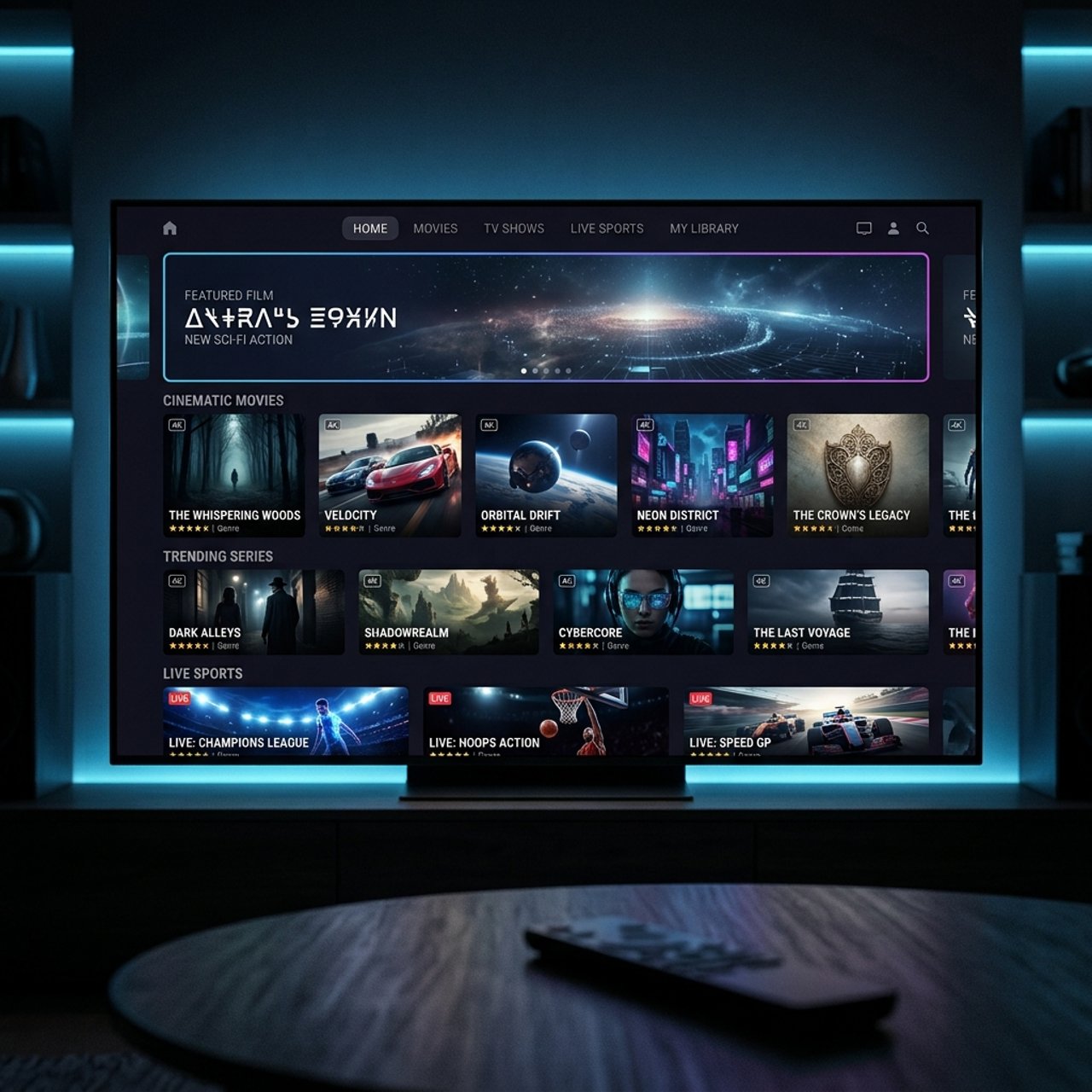
How to Set Up IPTV: A Comprehensive Guide for 2026

You've paid for an IPTV subscription, you're staring at your Firestick or Smart TV, and absolutely nothing is working. Maybe the app crashes on launch, maybe your M3U playlist throws an error, or maybe the stream buffers every 30 seconds right when your team scores. Sound familiar? Setting up IPTV doesn't have to be a frustrating guessing game — and by the time you finish reading this, you'll have a fully working IPTV setup running smoothly on your device, with zero buffering and crystal-clear picture quality.
Solving your IPTV setup correctly the first time is crucial because a misconfigured app or incorrect playlist URL doesn't just cause buffering — it actively corrupts your viewing experience and wastes the money you spent on the subscription. Providers won't refund you because you entered the wrong portal URL, so getting these steps exactly right matters.
Core Concepts & Need-To-Know Info
- M3U URL / M3U Playlist: This is a text-based file link your IPTV provider gives you. It contains every channel, VOD title, and series in your package. Apps like TiviMate and IPTV Smarters use this to load your content.
- Xtream Codes API: An alternative login method using a server URL, username, and password — faster to load than M3U and preferred for large channel lists of 10,000+ channels.
- EPG (Electronic Program Guide): The on-screen TV guide showing what's currently airing and what's coming up. Your provider usually supplies a separate EPG URL.
- VOD (Video on Demand): Movies and TV series available to stream anytime, separate from live channels — usually organized in its own section inside your IPTV app.
- ISP Throttling: Internet Service Providers can detect and deliberately slow down streaming traffic, causing buffering even on fast connections. A VPN encrypts your traffic and bypasses this.
- Minimum Internet Speed: 10 Mbps for HD streams, 25 Mbps for Full HD, and 50 Mbps+ for 4K/UHD streams. Ethernet is always better than Wi-Fi for IPTV.
- Buffer/Cache Settings: Most IPTV apps let you increase buffer size, which pre-loads more stream data and eliminates freezing on slower connections.
Step-by-Step Guide
- Step 1: Enable Sideloading on Your Firestick or Android TV:
- On a Firestick, go to Settings, My Fire TV, Developer Options, and turn on Apps from Unknown Sources. On Android TV, go to Settings, Device Preferences, Security, and enable Unknown Sources for your file manager or browser app. This allows you to install IPTV apps that aren't listed on official app stores.
- Step 2: Install the Downloader App (Firestick Only):
- Open the Amazon App Store, search for Downloader by AFTVnews, and install it. This free app lets you download APK files directly to your Firestick using a URL. Once installed, open it and grant it storage permissions when prompted.
- Step 3: Download and Install TiviMate or IPTV Smarters Pro:
- Open Downloader and type in the direct APK URL for your chosen app. For TiviMate, navigate to tivimate.com on a browser to find the current APK link. For IPTV Smarters Pro, use the URL provided by your IPTV service or search the Google Play Store if you're on Android TV. Once the APK downloads, tap Install and then Done — do not tap Open just yet.
- Step 4: Gather Your IPTV Credentials From Your Provider:
- Before opening the app, have these three things ready: your M3U playlist URL OR your Xtream Codes server URL, username, and password. Your provider sends these via email after purchase. Double-check for typos — a single misplaced character breaks the entire connection. Copy-paste wherever possible.
- Step 5: Open TiviMate and Add Your Playlist:
- Launch TiviMate and tap Add Playlist. Select M3U Playlist if you have an M3U URL, or select Xtream Codes if you have a server/username/password combo. Enter your details carefully, name your playlist something recognizable, and tap Add. The app will now fetch your channel list — this can take 30 seconds to several minutes depending on how many channels you have.
- Step 6: Configure Your EPG (TV Guide):
- After your playlist loads, go to TiviMate's Settings, Playlist Settings, EPG URL, and paste in the EPG link your provider gave you. Set the EPG refresh interval to every 24 hours. This populates your on-screen guide with program names, show descriptions, and schedules for every live channel.
- Step 7: Organize Channels Into Favorites and Groups:
- Navigate to your channel list and press and hold any channel to mark it as a Favorite. Use the Groups feature to hide categories you don't need (like foreign language packs) so your channel list stays clean and fast to navigate. This dramatically improves day-to-day usability.
- Step 8: Test Playback and Adjust the Video Player:
- Tap any live channel and let it load. If it buffers or stutters, go to Settings, Player, and switch from the default player to ExoPlayer or FFmpeg. Increase the buffer size to at least 10 seconds. These two changes alone fix 80% of playback issues. Test a VOD title as well to confirm your full package is working.

A real-world example: a user reports their sports streams are perfect on weekday mornings but buffer constantly on Saturday afternoons. That's textbook ISP throttling triggered by high-traffic periods — their internet speed is fine, but the provider is artificially choking streaming protocols during peak hours. Running a reputable paid VPN like NordVPN or ExpressVPN immediately bypasses this. Another common scenario is someone who types their Xtream Codes server URL as http//provider.com instead of http://provider.com — the playlist loads zero channels and the app gives a vague connection error, sending them down an hours-long troubleshooting rabbit hole for a single missing colon.
Best VPNs to Stop ISP Throttling on IPTV
ISP throttling is one of the single biggest causes of IPTV buffering that has nothing to do with your subscription quality. A VPN encrypts your streaming traffic so your ISP can't identify and slow it down. NordVPN offers the fastest servers for streaming, has a dedicated Meshnet feature, and provides apps natively on Android TV and Fire TV. ExpressVPN is consistently the most reliable for 4K streaming with its Lightway protocol and works natively on Firestick with one-click server selection. Surfshark is the best value for households with unlimited simultaneous device connections, covering your Firestick, phone, tablet, and Smart TV under one subscription. Always connect to a server in your own country first for IPTV — connecting to a distant server adds latency that actually increases buffering. Enable the VPN before opening your IPTV app, not after, as some providers detect and block mid-session VPN connections. Use WireGuard protocol when available since it's the fastest VPN protocol for streaming and the least likely to add noticeable latency.
TiviMate vs IPTV Smarters Pro: Which App Should You Use?
Both apps support M3U playlists and Xtream Codes, but they're built for different users. TiviMate is the gold standard for Fire TV and Android TV users who want a polished, cable TV-like experience. Its EPG grid view, catch-up TV support, and multi-playlist management make it worth the $5/year premium unlock. IPTV Smarters Pro is better suited for users who want a free, cross-platform option that also works on iOS — it's slightly more complex to navigate but handles large Xtream Codes libraries smoothly. GSE Smart IPTV is a solid third option for iOS users or anyone who needs advanced custom EPG mapping and external player support. For 4K content specifically, TiviMate's ExoPlayer integration handles high-bitrate streams with less buffering than Smarters' default player. If your provider gives you both M3U and Xtream Codes credentials, always use Xtream Codes in TiviMate — channel loading is 3x to 5x faster and the EPG syncs more reliably.
Network Requirements for Smooth IPTV Streaming
Your IPTV stream is only as good as the network delivering it. SD channels require 5 Mbps minimum, though 10 Mbps is comfortable. HD / 1080p channels need 15 to 20 Mbps recommended, especially for live sports where bitrate spikes dramatically. 4K / UHD streams require 50 Mbps minimum dedicated bandwidth — meaning 50 Mbps free after all your other devices are accounted for. Wired Ethernet connections eliminate packet loss entirely, and a $10 Ethernet adapter for your Firestick 4K Max is one of the best IPTV investments you can make. If you must use Wi-Fi, connect your streaming device to the 5GHz band and place the router within 20 feet without walls blocking the signal. Changing your DNS to 8.8.8.8 (Google) or 1.1.1.1 (Cloudflare) in your router settings speeds up playlist loading and EPG fetching noticeably.
Common Setup Mistakes and How to Fix Them
Even after following every step correctly, these issues pop up regularly. A Playlist Not Found error means your M3U URL has expired or your provider issued a new one — contact your provider for a fresh URL since many rotate them every 30 to 90 days for security. Channels that load but show a black screen indicate a codec issue; switch your video player inside TiviMate from Auto to ExoPlayer to resolve it. EPG showing wrong times is caused by a mismatched device time zone — go to your Fire TV or Android TV system settings, set the time zone to your exact local region, then refresh your EPG inside TiviMate. If only 30 to 40% of channels work, you're hitting your provider's connection limit because another device is using your credentials simultaneously — log out on all devices, wait 5 minutes, and reconnect on one device only. For app crashes on startup, clear the app's cache via Settings, Apps, TiviMate, Clear Cache, then force-stop and relaunch; if it persists, uninstall, restart your device, and reinstall fresh.
Troubleshooting Playlist Errors and Buffering
When your IPTV setup was working and suddenly stops, the fix is almost always one of a few things. Reload your playlist manually in TiviMate by going to Settings, Playlist, Update Now — providers push server changes that your local cached playlist doesn't reflect automatically. Check your provider's server status on their Telegram channel or status page, since a server outage on their end looks identical to a broken setup on yours. Test on mobile data by switching your phone to mobile data, installing IPTV Smarters, and testing a channel — if it works on mobile data but not home Wi-Fi, your ISP is the problem and you need a VPN running. If buffering only happens on 4K channels, manually select the HD version of the same channel to confirm whether your bandwidth is insufficient for UHD. As a last resort, a clean uninstall, device restart, and fresh install of TiviMate or Smarters clears corrupted config files that cause mysterious errors after months of use.
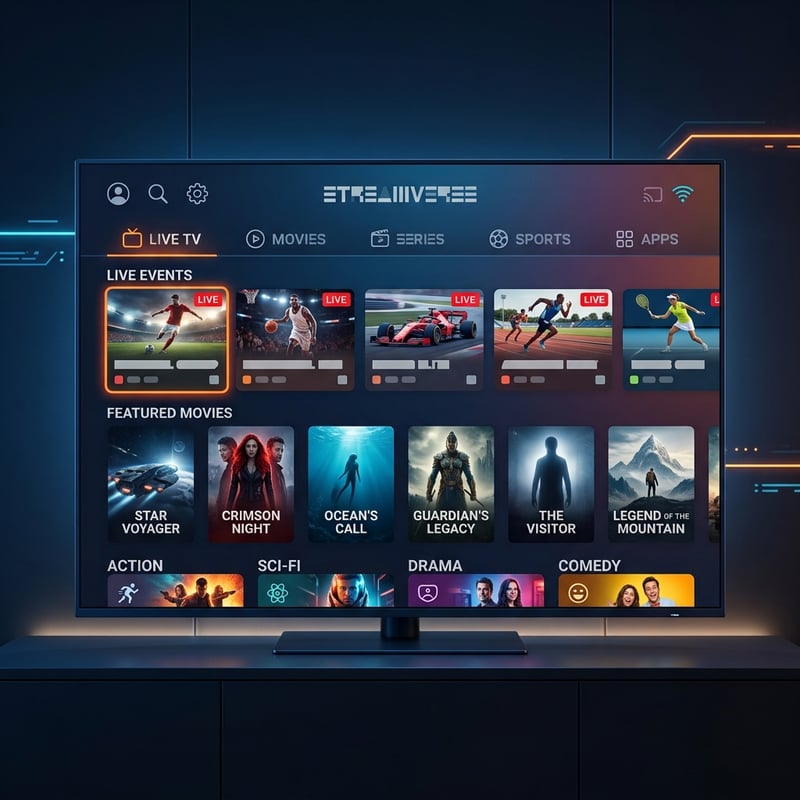
Learning how to set up IPTV properly is genuinely a one-time effort that pays off every single day — once TiviMate is configured with your M3U playlist, your EPG is populating correctly, your VPN is silently defeating ISP throttling, and your Firestick is connected via Ethernet, the whole system just works with no cable box rental fees, no contracts, and no buffering during the championship match. Spend 30 minutes doing this right, and your living room streaming setup will outperform most home entertainment systems — check out our full channel list and pricing plans to get started today.
Frequently Asked Questions
Ready to get started?
Try our service risk-free with a 24-hour free trial.
Related Articles
Discover the Number One Rated IPTV Service for 2026
Explore the best-rated IPTV services for your streaming needs.
Discover the Best IPTV Service: Your Complete 2026 Guide
Explore the top IPTV services for seamless streaming.
Unlocking the Potential of HDMI Encoders for IPTV Streaming
Explore how HDMI encoders improve IPTV streaming quality.