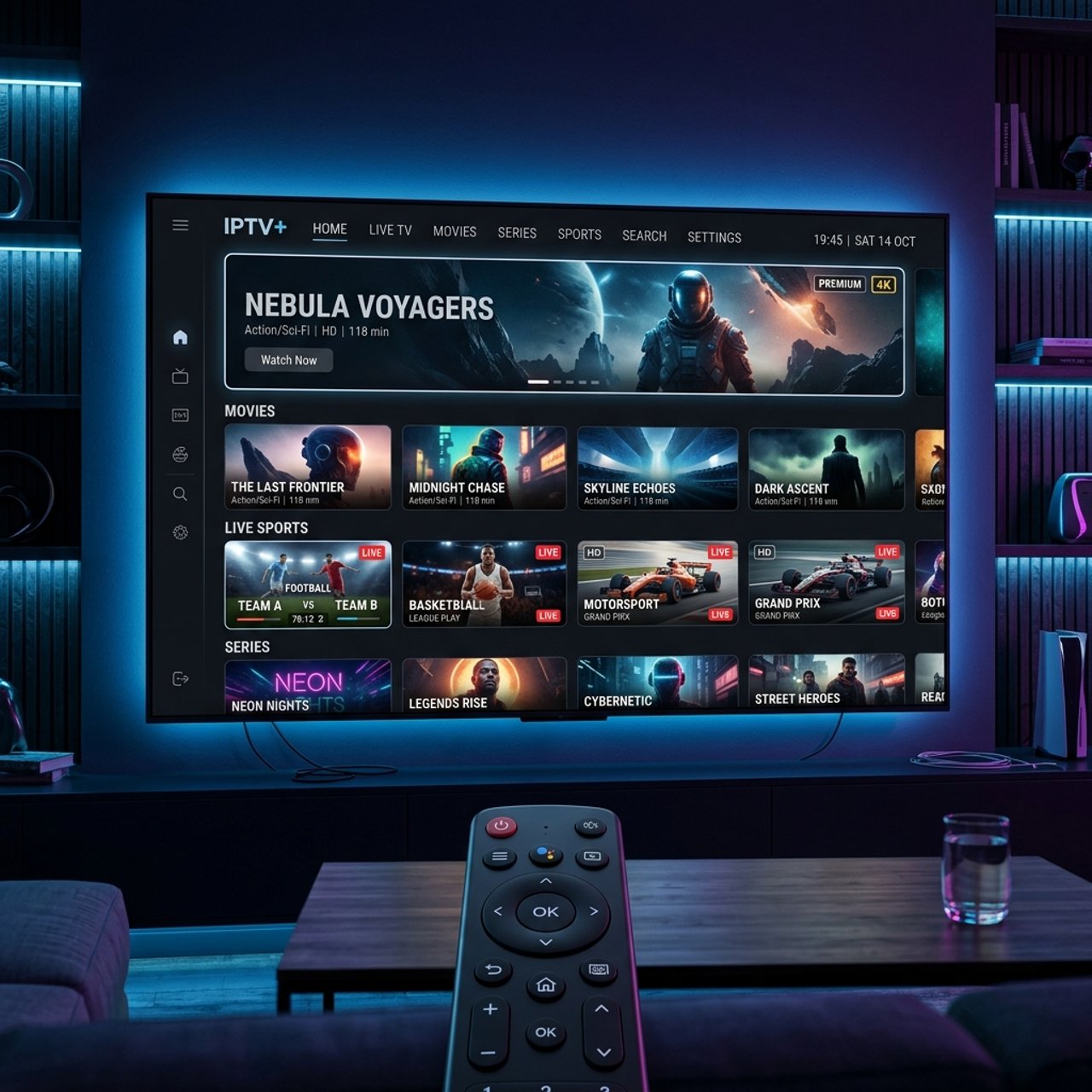
How to Get an IPTV Subscription: Your Complete Guide

Tired of paying $150+ a month for a cable package that still somehow doesn't have the channels you actually want to watch? You're not alone. Millions of people are cutting the cord and switching to IPTV, but the process of finding a reliable provider, understanding M3U playlists, and getting everything loaded onto your device can feel overwhelming if you've never done it before. This guide walks you through exactly how to get an IPTV subscription and get it running smoothly on your Firestick, Android TV, Smart TV, or any other device you prefer, no guesswork, no vague advice.
Getting this right from day one matters more than most people realize. A bad provider or a poorly configured setup leads to constant buffering, dropped streams during live sports, and playlist errors that make the whole experience miserable. When you know how to get an IPTV subscription from a trustworthy source and set it up correctly, you unlock a genuinely better TV experience.
Core Concepts & Need-To-Know Info
- M3U Playlist / M3U URL: A file or link that contains all your channel data. Your IPTV app uses this URL to load your channel list. Guard it carefully, sharing it can get your account suspended.
- Xtream Codes API: An alternative login method (server URL + username + password) used by many providers. Some apps like TiviMate and IPTV Smarters accept both M3U and Xtream Codes.
- VOD (Video on Demand): The on-demand movie and TV show library included with most subscriptions, separate from live channels.
- EPG (Electronic Program Guide): The on-screen TV guide showing what's currently on and what's coming up, similar to your old cable guide.
- ISP Throttling: Your internet service provider deliberately slowing your streaming traffic, which causes buffering. A VPN bypasses this.
- Connections/Streams: Most subscriptions allow 1 or 2 simultaneous connections. Going over that limit cuts off your stream.
- Restream/Reseller: Some cheap providers are resellers who don't own their own servers, which leads to inconsistent uptime.
- Trial Period: Reputable providers offer 24-48 hour free trials. Always test before committing.
Step-by-Step Guide
- Step 1: Research and Choose a Reputable IPTV Provider:
- Don't just Google best IPTV and pick the first result. Go to trusted IPTV communities on Reddit (r/IPTV) or dedicated forums and look for providers with consistent uptime reports, responsive customer support, and verified user reviews. Check whether the provider owns its own servers or is a reseller, server ownership matters for reliability during peak viewing hours like Sunday NFL games.
- Step 2: Request a Free Trial:
- Before handing over any money, email or contact the provider's support channel (usually Telegram or a website live chat) and request a 24-48 hour free trial. Test the trial on your actual device, not just your phone. Run the channels you care about most, specifically live sports and 4K content, during busy evening hours.
- Step 3: Purchase Your Subscription:
- Once satisfied with the trial, choose your plan. Most providers offer 1-month, 3-month, 6-month, and 12-month options. Longer plans cost less per month. Pay using a method the provider accepts, many prefer PayPal, credit card, or crypto. Avoid providers who only accept wire transfers or gift cards.
- Step 4: Receive Your Credentials:
- After payment, the provider will send you either an M3U URL or Xtream Codes login details (server URL, username, and password). Copy these carefully, even one wrong character in your M3U URL will cause a playlist error in your app. Save them somewhere secure like a password manager.
- Step 5: Choose and Install Your IPTV App:
- On Firestick, install TiviMate (best overall), IPTV Smarters Pro, or GSE Smart IPTV via the Downloader app after enabling Apps from Unknown Sources in your Firestick settings (Settings, My Fire TV, Developer Options, Apps from Unknown Sources, ON). On Android TV boxes, these same apps are available directly from the Google Play Store.
- Step 6: Add Your Playlist to the App (Using TiviMate as Example):
- Open TiviMate, tap Add Playlist, select either M3U Playlist (paste your M3U URL) or Xtream Codes (enter server URL, username, and password), give your playlist a name, tap Add. TiviMate will begin loading all your channels and VOD content. Depending on the size of your channel list, this may take 1-3 minutes.
- Step 7: Configure Your EPG:
- Inside TiviMate, go to Settings, EPG, enter the EPG URL provided by your IPTV provider. This loads your electronic program guide so you can see what's currently airing and schedule recordings. Without EPG, you're flying blind through thousands of channels.
- Step 8: Test Your Streams:
- Browse to a few live sports channels, a 4K movie in VOD, and an international news channel. If everything loads cleanly within 2-3 seconds, you're good to go. If you're seeing buffering, jump to the troubleshooting section below before blaming the provider, it's often a local network or ISP issue.
Imagine settling in to watch a championship game, only to have your stream freeze at minute 87 because your provider oversold their server capacity and you only have a 1-connection plan that your kid is also using in the other room. These aren't hypothetical scenarios, they're the most common complaints from people who rushed the buying process. Taking 30 minutes to vet your provider properly saves you hours of frustration.
Best VPNs to Stop ISP Throttling
ISP throttling is one of the most common and least understood causes of IPTV buffering. Your internet provider can detect streaming traffic and deliberately slow it down during peak hours, even if you're paying for a 500Mbps plan. A quality VPN encrypts your traffic so your ISP can't identify or throttle it. ExpressVPN is consistently the fastest VPN for streaming with dedicated servers optimized for video and works seamlessly on Firestick and Android TV boxes via native apps. NordVPN offers excellent speeds, a strong privacy policy, and a Firestick app that's easy to configure, with their NordLynx protocol being particularly fast for live streaming. Surfshark is the best value option with unlimited simultaneous connections, meaning you can protect every device in your home on one subscription. IPVanish is popular specifically in the IPTV community because it has a direct Firestick app and solid performance with minimal speed loss. When choosing a VPN server, connect to one geographically close to you for the lowest latency and avoid servers on the other side of the world as the added distance adds lag that makes live sports streams stutter.
TiviMate vs IPTV Smarters: Which App Is Right for You?
Choosing the right IPTV app is almost as important as choosing the right provider. Both TiviMate and IPTV Smarters support M3U playlists and Xtream Codes, but they serve slightly different users. TiviMate is the gold standard for Firestick and Android TV, with an interface that feels like a proper cable TV guide, an excellent DVR recording feature in the premium version, and the ability to handle massive channel lists without slowing down. TiviMate Premium costs around $5.99/year, making it a no-brainer investment. IPTV Smarters Pro is more beginner-friendly with a simpler layout, is free on most platforms, and handles both live TV and VOD in a clean interface, making it a great starting point if you're new to IPTV. GSE Smart IPTV is the best choice if you're dealing with multiple playlists from different providers, as it handles playlist management exceptionally well. Perfect Player is a solid lightweight option for older or lower-powered Android TV boxes that struggle with more resource-intensive apps. For most users on a Firestick 4K or newer device, start with TiviMate as most people who try it don't look back.
Network Requirements for Buffer-Free Streaming
Your internet connection is the foundation of everything, and even the best IPTV subscription will buffer on a bad connection. HD streams need at least 10 Mbps, Full HD (1080p) needs 20-25 Mbps, and 4K streams need 50+ Mbps per stream. Using a wired Ethernet connection where possible is strongly recommended as Wi-Fi introduces packet loss and latency that causes buffering even on fast connections, and a simple Ethernet adapter for your Firestick 4K Max (available for under $15) can completely solve buffering issues. If you must use Wi-Fi, position your router in the same room or use a Wi-Fi 6 router for better signal stability. Pause downloads, gaming sessions, and other bandwidth-heavy activities on other devices while streaming 4K IPTV content to reduce network congestion. Changing your device DNS to Google (8.8.8.8 / 8.8.4.4) or Cloudflare (1.1.1.1) also helps with faster channel resolution and fewer playlist loading errors.
Troubleshooting: Fixing Common Playlist and Buffering Errors
Even a perfect setup occasionally hits a snag. If you encounter a playlist error or channels won't load, double-check your M3U URL or Xtream Codes credentials for typos, verify your subscription hasn't expired, then clear your app's cache (Settings, Apps, Manage Installed Apps, your IPTV App, Clear Cache). For buffering on specific channels, some channels have multiple server streams and in TiviMate you can long-press the channel and select a different stream source, which alone fixes buffering 70% of the time. If your EPG is not showing, go to your app's EPG settings and force a refresh, and if it still fails contact your provider for an updated EPG URL. App crashes on Firestick are usually a RAM issue, so close background apps (hold the Home button, Apps, close everything else) and restart your Firestick before opening your IPTV app. If you're only getting 1-2 channels loading, you've likely exceeded your connection limit, so log out of IPTV on all other devices and try again.
Common Setup Mistakes and How to Fix Them
Learning how to get an IPTV subscription correctly also means learning what not to do, as these are the errors that trip up almost every first-timer. Skipping the trial is the biggest mistake since paying for a 12-month plan upfront without testing is the fastest way to waste money. Using the wrong app for your device is another common error as not all IPTV apps work equally well on all hardware, for example IPTV Smarters on a 2nd-gen Firestick will stutter. Not updating the playlist is a frequently overlooked issue since channel lists change and most apps let you schedule automatic playlist updates that you should set to refresh every 24 hours. Ignoring EPG setup makes navigating thousands of channels a nightmare when it only takes 2 minutes to configure and makes the whole experience dramatically better. Finally, purchasing based on price alone almost always leads to disappointment since the cheapest providers are the most unreliable, and a $6/month provider that buffers constantly is a worse deal than a $20/month provider that never misses a beat.
Knowing how to get an IPTV subscription is just the beginning, and the real win comes from setting it up thoughtfully, choosing quality tools, and maintaining it with these small but impactful habits. With the right provider, a solid app like TiviMate, a VPN to handle ISP throttling, and a stable wired connection, you'll have a streaming setup that genuinely beats cable in every measurable way, so check out our channel list and pricing plans to find the perfect fit for your home.
Frequently Asked Questions
Ready to get started?
Try our service risk-free with a 24-hour free trial.
Related Articles
Discover Marinios IPTV: Your Ultimate Streaming Solution
A comprehensive review of Marinios IPTV features and troubleshooting.
Discover the Best IPTV Service Providers in 2026
Uncover top IPTV service providers and tips for streaming.
Discover the Best Box for IPTV: Your Ultimate Guide
Find the best IPTV box for seamless streaming.