
Discover the Best Boss IPTV Subscription: Your 2026 Guide

Tired of paying an arm and a leg for cable TV only to miss half your favorite channels or worse, sitting through an important match while your screen buffers into oblivion? Boss IPTV has become one of the most talked-about streaming solutions for cord-cutters who want live TV, sports, VOD libraries, and international channels all under one roof. Whether you're loading it onto a Firestick, Android TV box, or Smart TV, getting the setup right the first time is the difference between a premium experience and a headache that never seems to end. This guide walks you through everything from the core technical concepts to a clean, step-by-step installation process so you can get Boss IPTV running smoothly tonight.
Getting this setup right is absolutely crucial because a misconfigured connection or the wrong app choice can make even a solid IPTV subscription feel unstable and frustrating. A smooth Boss IPTV experience depends on your network environment, your player app, and your configuration being dialed in correctly from the start so skip any one of these and you're going to feel it.
Core Concepts & Need-To-Know Info
- M3U Playlist: A text-based file or URL that contains a list of all your IPTV channels and VOD content. Your Boss IPTV provider will give you a unique M3U URL tied to your subscription.
- Xtream Codes API: An alternative login format using a server URL, username, and password. Most modern IPTV apps like TiviMate and IPTV Smarters Pro support this directly and it's generally more stable than a raw M3U link.
- EPG (Electronic Program Guide): The TV guide data that shows what's currently playing and what's coming up. You'll need to input an EPG URL or let your app auto-fetch it.
- ISP Throttling: Internet Service Providers often deliberately slow down IPTV traffic, especially during peak hours. This is one of the most common causes of unexpected buffering even on fast connections.
- VPN: A Virtual Private Network encrypts your traffic and hides it from your ISP, directly countering throttling and protecting your privacy.
- Internet Speed Requirements: For HD streaming, you need at least 10 Mbps stable. For 4K content, aim for 25 Mbps or higher with low jitter.
- Device Storage: Ensure your Firestick or Android box has enough free storage. IPTV apps and their cache can take up significant space and slow things down over time.
Step-by-Step Guide
- Step 1: Enable Apps from Unknown Sources:
- From your Firestick home screen, go to Settings, then My Fire TV, then Developer Options. Toggle on Apps from Unknown Sources. This is required to sideload apps like TiviMate or IPTV Smarters Pro that aren't available directly in the Amazon App Store.
- Step 2: Download the Downloader App:
- Go back to the home screen, open the search bar, and type Downloader. Install the free Downloader app by AFTVnews. This is your gateway to installing any APK file on your Firestick without needing a computer.
- Step 3: Install Your Preferred IPTV Player:
- Open the Downloader app and enter the APK download URL for TiviMate (recommended) or IPTV Smarters Pro. For TiviMate, navigate to tivimate.com on a browser to find the current APK link, or use a trusted APK mirror. Once the file downloads, tap Install and then Done. Do not tap Open yet.
- Step 4: Open the IPTV App and Add Your Boss IPTV Subscription:
- Launch TiviMate from your apps list. On first launch, it will prompt you to add a playlist. Select Add Playlist, then Xtream Codes. Enter the server URL, username, and password exactly as provided in your Boss IPTV welcome email. If your provider gave you an M3U URL instead, select M3U Playlist and paste the full link including the http:// prefix.
- Step 5: Configure the EPG (TV Guide):
- Once your channels load, go to TiviMate Settings, then EPG. Enter your EPG URL (provided by your Boss IPTV subscription) or enable auto-fetch. Set the EPG update interval to every 12 or 24 hours. This ensures your program guide stays accurate without hammering the server.
- Step 6: Organize Your Channel List:
- In TiviMate, go to the channel list and use the Favorites feature to group your most-watched channels such as sports, news, and local channels for quick access. Hiding categories you don't use will also speed up navigation considerably.
- Step 7: Test Playback and Adjust Buffer Settings:
- Play a live channel and a VOD title to confirm everything works. If you notice any lag, go to TiviMate Settings, then Player, and increase the buffer size to 10MB or higher. Also switch the video player to ExoPlayer if it isn't already selected, as it handles IPTV streams more reliably than the default player on most devices.

Imagine it's the Champions League final and your stream drops at the 89th minute because your ISP detected IPTV traffic and throttled your connection to a crawl. That's not a hypothetical scenario, it happens to thousands of subscribers every single day. Similarly, logging in with a slightly wrong server URL means you'll spend 45 minutes troubleshooting something that would have been solved in 10 seconds with a copy-paste, so take these warnings seriously before you even touch the setup.
Best VPNs to Stop ISP Throttling With Boss IPTV
ISP throttling is one of the most underestimated enemies of a good streaming experience. The fix is straightforward: route your traffic through a VPN so your ISP can't identify or slow down your streams. ExpressVPN is the gold standard for streaming with consistently fast servers, a dedicated MediaStreamer feature, and excellent Firestick app support. NordVPN offers excellent value particularly with its NordLynx protocol which delivers some of the fastest VPN speeds available and works extremely well for 4K IPTV streams. Surfshark is budget-friendly without sacrificing performance and its unlimited simultaneous connections make it ideal for households with multiple streaming devices. IPVanish is popular specifically in the IPTV community because of its native Fire TV app and its history with Kodi users. When choosing a VPN for Boss IPTV, always connect to a server in the same country you're in or the country where your IPTV server is hosted to avoid adding unnecessary latency.
TiviMate vs IPTV Smarters Pro: Which One Is Right for You?
The app you use to run Boss IPTV makes a bigger difference than most people realize. Both TiviMate and IPTV Smarters Pro support Xtream Codes and M3U playlist formats, but they offer a very different user experience. TiviMate is the clear winner for Firestick and Android TV users who want a polished, TV-native interface. The EPG layout feels like a real cable guide, the UI is smooth, and the paid Premium version unlocks multiple playlists, recording, and catchup TV. IPTV Smarters Pro is more beginner-friendly and free to use, with a setup process that is slightly more intuitive for first-timers, though it can feel sluggish on older Firestick models when navigating large channel lists. GSE Smart IPTV is worth mentioning as a solid third option, particularly for iOS users or anyone who wants deeper playlist management and multiple EPG sources simultaneously. For pure Boss IPTV performance on a Firestick or Android TV box, start with TiviMate. If you're setting things up on a smartphone or tablet as a secondary screen, Smarters Pro is a perfectly capable option.
Network Requirements for HD and 4K Boss IPTV Streaming
Your internet connection is the foundation everything else sits on. No amount of app tweaking or VPN optimization will save you if your network isn't up to the task. For SD streaming you need a minimum of 5 Mbps stable download speed with low packet loss. For HD (1080p) you need at least 15 to 20 Mbps with a ping below 50ms to your IPTV server. For 4K UHD you need 25 to 40 Mbps minimum, ideally on a wired Ethernet connection rather than Wi-Fi. If your Firestick supports Ethernet via an adapter or your Android box has a built-in port, always use a wired connection for live TV since Wi-Fi introduces jitter and interference that kills live stream stability even on fast connections. If you must use Wi-Fi, ensure your router is in the same room or at least line-of-sight from your streaming device. Always run a speed test using Fast.com or Speedtest.net on your actual streaming device before blaming buffering on your IPTV service.
Troubleshooting Common Boss IPTV Issues
Even a well-configured setup occasionally hits a snag. If channels are not loading or you see a blank screen, first verify your subscription is active and your credentials haven't changed, then clear the app cache and restart the app, which solves roughly 60% of playback issues. If the EPG is not showing program info, force a manual EPG refresh in your player settings or contact your Boss IPTV provider for an updated EPG URL. If only specific channels buffer, increase your in-app buffer size and switch between Hardware Accelerated and Software Decoded video decoders to find what works best on your device. App crashes on startup usually point to a corrupted installation or storage issue, so uninstall the app, clear residual data, reinstall a fresh copy, and make sure your device has at least 500MB of free storage. If your M3U playlist fails to update, log into your Boss IPTV account portal and grab the freshest M3U link, then update it in your app's playlist settings.
Boss IPTV is genuinely one of the best cord-cutting solutions available right now, but like any technology it rewards users who take the time to set it up properly. Get your app choice right, lock in your credentials without a typo, protect your traffic from ISP throttling with a quality VPN, and make sure your network can actually handle the bitrate you're asking it to deliver. Check out our full channel list and pricing plans to find the subscription tier that fits your needs and start streaming tonight.
Frequently Asked Questions
Ready to get started?
Try our service risk-free with a 24-hour free trial.
Related Articles
Live Sports Streaming Guide and How to Watch Every Major Match in 2026
A comprehensive guide to streaming live sports in 2026. Analyzes the hidden risks of free sports streaming sites, compares dedicated streaming platforms, and outlines how to optimize your network for 60fps buffer-free match viewing.
Is IPTV Safe to Use? Understanding Risks and Benefits
Explore the safety aspects of using IPTV services.
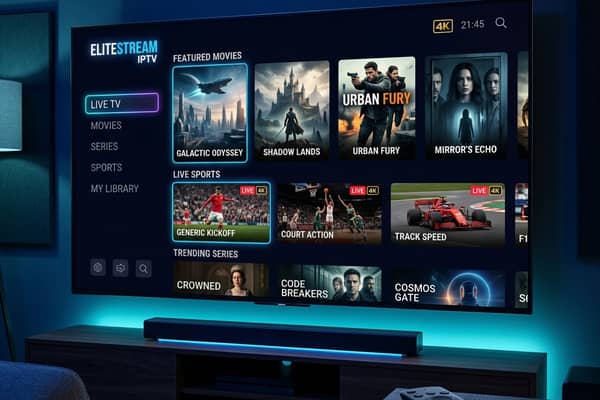
Discover Elitestream IPTV: Your Ultimate 2026 Review Guide
Uncover the features and benefits of Elitestream IPTV in this detailed review.