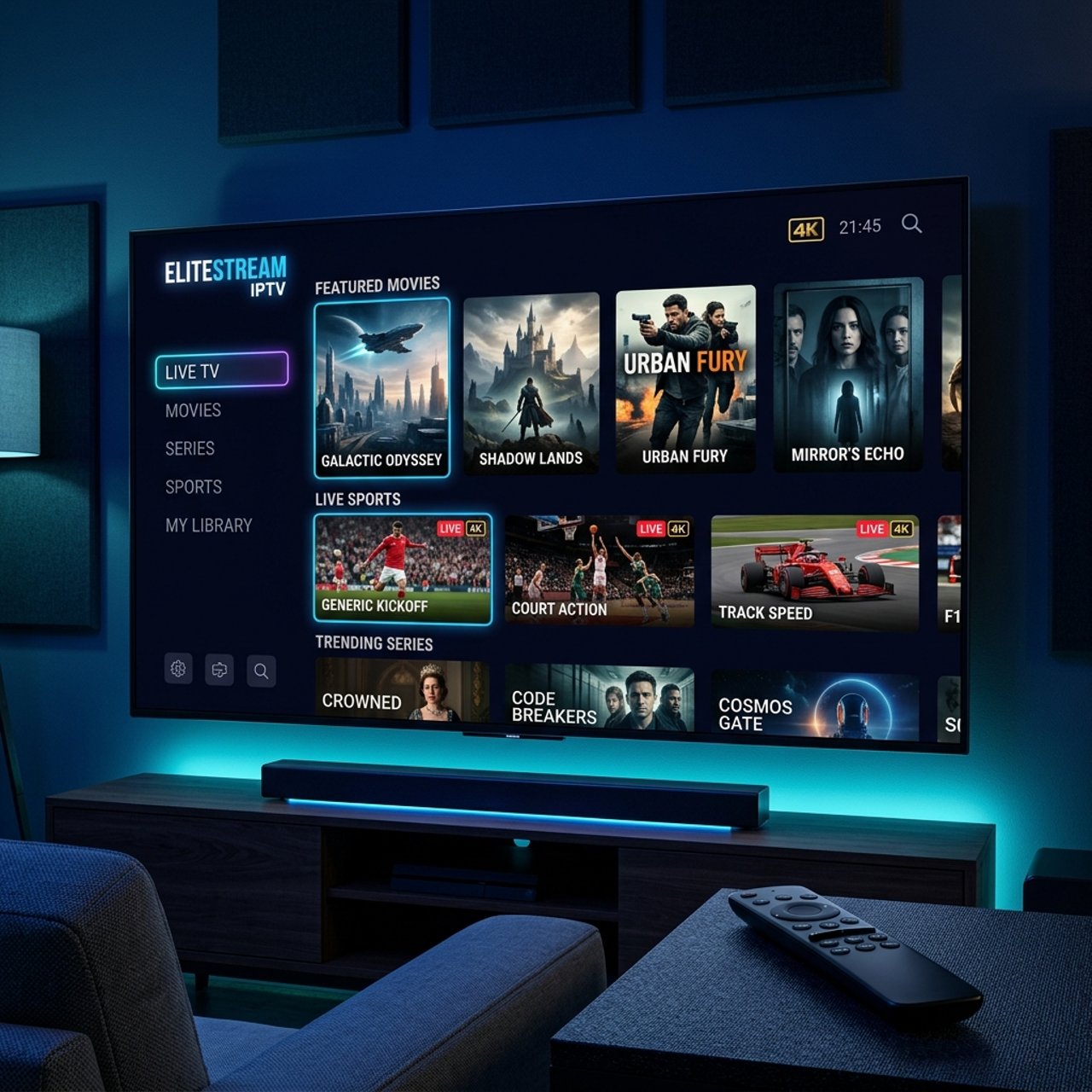
Discover Elitestream IPTV: Your Ultimate 2026 Review Guide

Tired of paying an outrageous cable bill every month for 500 channels you never watch? Or maybe you've already made the jump to IPTV but you're stuck dealing with constant buffering, broken playlists, or an app that simply won't cooperate. EliteStream IPTV has become one of the most talked-about services in the streaming community and for good reason. It delivers thousands of live channels, a massive VOD library, and rock-solid uptime that puts most competitors to shame. This guide walks you through everything you need to know to get EliteStream IPTV running perfectly on your Firestick, Android TV box, or Smart TV no tech degree required.
Solving your IPTV setup issues isn't just about convenience, it directly impacts picture quality, stream reliability during peak hours, and whether you actually enjoy what you're watching. When every component is configured correctly, EliteStream IPTV delivers a cable-replacement experience that's genuinely hard to beat.
Core Concepts & Need-To-Know Info
- M3U Playlist URL: A link provided by EliteStream IPTV that contains all your channel data. Your player app reads this file to load channels and stream content. One wrong character breaks the entire list.
- Xtream Codes: An alternative login method using a server URL, username, and password. Often more stable than M3U links and allows faster channel refreshes.
- EPG (Electronic Program Guide): The on-screen TV guide. EliteStream IPTV provides an EPG URL so you can see what's currently playing and what's coming up next.
- ISP Throttling: Your internet provider can detect and slow down IPTV traffic. This is one of the most common causes of buffering that has nothing to do with the service itself.
- VPN: A Virtual Private Network encrypts your traffic and hides IPTV usage from your ISP, effectively bypassing throttling.
- VOD (Video on Demand): The on-demand movie and TV show section of your IPTV subscription, separate from live channels.
- Buffer Size: A setting inside apps like TiviMate that controls how much content is preloaded before playback. Increasing this reduces buffering on slower connections.
- Minimum Recommended Speed: 25 Mbps for HD streaming, 50+ Mbps for 4K. Run a speed test before blaming the service.
Step-by-Step Guide
- Step 1: Enable Apps from Unknown Sources:
- Go to your Firestick's Settings menu, scroll right to My Fire TV, then select Developer Options. Toggle Apps from Unknown Sources to ON. Without this, you cannot install third-party apps like TiviMate or Downloader.
- Step 2: Install the Downloader App:
- Return to the Firestick home screen and use the search function to find Downloader in the Amazon App Store. Install the official Downloader app by AFTVnews, it's free and takes about 30 seconds to download.
- Step 3: Install TiviMate IPTV Player:
- Open Downloader and type the following URL in the address bar: https://tivimate.com, navigate to the APK download section and download the latest version. Once downloaded, tap Install and wait for the process to complete. TiviMate is the gold standard for IPTV playback on Firestick.
- Step 4: Retrieve Your EliteStream IPTV Credentials:
- After subscribing to EliteStream IPTV, check your email for a welcome message containing your M3U URL or your Xtream Codes login (server URL, username, and password). Keep this email open on your phone for easy reference during setup.
- Step 5: Add Your Playlist in TiviMate:
- Open TiviMate and tap Add Playlist. Choose either M3U Playlist or Xtream Codes depending on what EliteStream IPTV provided. If using M3U, paste your full playlist URL exactly as provided. If using Xtream Codes, enter the server address, username, and password in their respective fields.
- Step 6: Add Your EPG Source:
- Inside TiviMate's playlist settings, look for EPG URL and paste the EPG link provided by EliteStream IPTV. Set the EPG refresh interval to every 24 hours. This populates your channel guide with show names, descriptions, and schedules.
- Step 7: Organize Your Channel List:
- Once the playlist loads, TiviMate allows you to create custom channel groups and add favorites. Pin your most-watched channels (sports, news, local) to the top for quick access. This makes daily navigation feel like a proper cable box experience.
- Step 8: Adjust Playback Settings:
- Go to TiviMate Settings, then Player Settings, and increase the buffer size to at least 5 to 10 seconds. Set your preferred video decoder to Hardware for smoother 4K playback. These two adjustments alone eliminate most playback issues.
ISP throttling is a real-world problem that catches new cord-cutters completely off guard. You'll be watching a Sunday Night Football game in perfect HD and suddenly hit a buffering wall right at kickoff, that's peak-hour throttling, and it ruins the experience entirely. Connecting to a premium VPN server before launching TiviMate solves this instantly and permanently.
Best VPNs to Stop ISP Throttling on EliteStream IPTV
ExpressVPN is consistently the fastest VPN for streaming with servers in 94 countries. Its MediaStreamer feature provides smart DNS functionality alongside full encryption, ideal for 4K IPTV streams. NordVPN offers an excellent price-to-performance ratio with obfuscated servers that hide VPN usage from ISPs that actively block VPN traffic. Surfshark is the best option for households with multiple devices since it allows unlimited simultaneous connections, with solid speeds and significantly cheaper long-term plans. IPVanish is popular specifically in the IPTV community because it works seamlessly with Firestick and can be installed directly from the Amazon App Store without sideloading. Always connect to a VPN server located in your own country for the lowest latency, a UK server for UK streams and a US server for US content, as connecting internationally adds unnecessary delay.
TiviMate vs IPTV Smarters: Which App Works Best for EliteStream IPTV?
TiviMate is the clear winner for Firestick users who want a polished, cable-TV-like experience. The interface is clean, channel switching is near-instant, and the EPG integration is best-in-class. The premium version ($4.99/year) unlocks multiple playlists, recording features, and advanced buffer controls. IPTV Smarters Pro is the better choice for users who switch between multiple devices (phone, tablet, Smart TV) because it has a more consistent cross-platform interface and setup is slightly simpler for complete beginners. GSE Smart IPTV is worth mentioning as a strong alternative for iOS and Apple TV users, offering robust M3U support and a customizable interface that EliteStream IPTV streams load into without issues. For pure Firestick performance with EliteStream IPTV, TiviMate wins every benchmark with faster channel loading, better 4K handling, and more granular buffer settings.
Network Requirements for Smooth EliteStream IPTV Streaming
Your internet connection is just as important as the IPTV service itself. For HD streaming at 1080p, you need a minimum 25 Mbps download speed with a stable, consistent connection. Wireless is fine if your router is in the same room or the next one over. For 4K streaming, you need at least 50 Mbps and ideally a wired Ethernet connection, as a 4K stream with HDR can consume 25 to 40 Mbps on its own. Use a wired connection whenever possible by plugging your Firestick into your router via an Ethernet adapter, which eliminates 90% of wireless-related buffering. Upgrade your router if it's more than 5 years old, since modern Wi-Fi 6 routers handle multiple streaming devices simultaneously without degradation. Changing your DNS settings to Cloudflare (1.1.1.1) or Google (8.8.8.8) in your router settings speeds up playlist loading and EPG refreshes noticeably.
Troubleshooting Common EliteStream IPTV Errors
A Playlist Failed to Load error almost always means your M3U URL has expired or contains a typo. Log into your EliteStream IPTV account portal, generate a fresh M3U link, and re-add the playlist in TiviMate from scratch. If channels load but no video plays, check your internet speed first, then switch the video decoder in TiviMate from Hardware to Software or vice versa, since some channels encode in formats that require the alternative decoder. If your EPG is not showing program info, go to TiviMate Settings, select your playlist, and force a manual EPG refresh, verifying the EPG URL with your EliteStream IPTV provider if it still fails. If only some channels buffer while others don't, this is a server-side issue during peak hours and switching to the backup stream link provided by EliteStream IPTV resolves this immediately. For app crashes on startup, clear TiviMate's app cache and data through Settings, then Apps, then TiviMate, then Clear Cache and Clear Data, which solves 80% of crash issues without requiring a full reinstall.
EliteStream IPTV delivers exactly what cord-cutters have been looking for, a comprehensive, reliable streaming service that genuinely replaces cable without the bloated monthly bill. Follow this guide step by step, pair the service with TiviMate on a properly configured Firestick, protect your connection with a reputable VPN, and you'll have a streaming setup that rivals anything a cable company could offer. Check out our full channel list and pricing plans to get started today.
Frequently Asked Questions
Ready to get started?
Try our service risk-free with a 24-hour free trial.
Related Articles
Best IPTV in the USA: Top 2026 US Providers Tested & Ranked
Comprehensive 2026 guide to choosing a reliable US IPTV service with local channel coverage, 4K live sports, and anti-throttling tips.
Understanding the SDI IPTV Encoder: A Comprehensive Guide
Explore the SDI IPTV encoder for better streaming.
How to Install IPTV Smarters Pro on Your TV: A Complete Guide
Step-by-step guide to install IPTV Smarters Pro on your TV.