
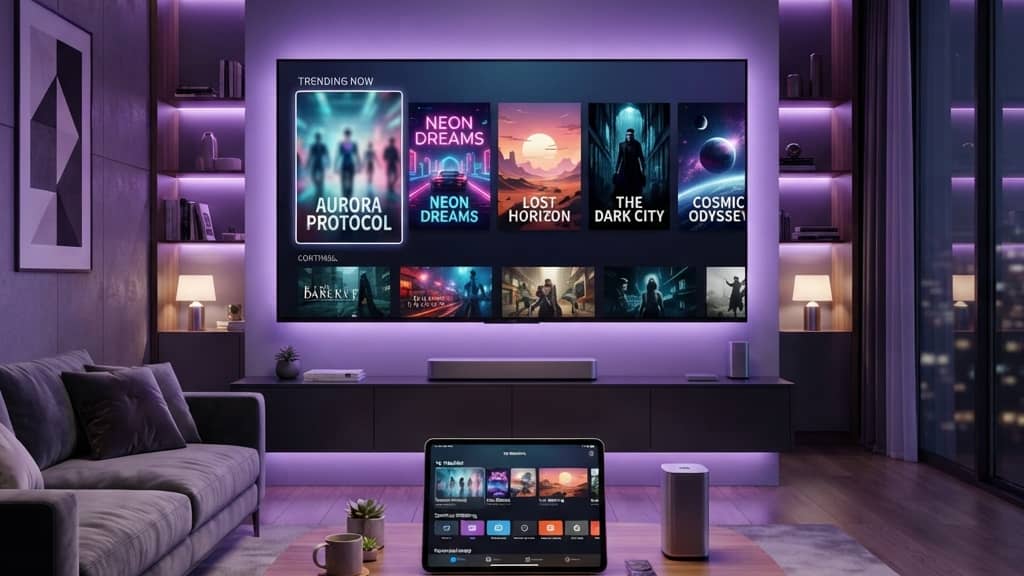
Discover the Best IPTV Subscriptions for 2026: Complete Guide

Tired of paying $150+ a month for a cable bundle you barely use, only to still miss half the live sports, international channels, and on-demand movies you actually want? You're not alone, and the good news is, the IPTV market in 2026 has never been more powerful, more stable, or more affordable. The hard part isn't finding an IPTV service anymore. It's knowing which one won't buffer every time a big match kicks off, which app to pair it with, and how to get everything running without pulling your hair out. This guide cuts through the noise and gives you the exact answer.
Solving your IPTV setup correctly from the start isn't just about convenience — it's about protecting the money you're investing. A poorly configured service will buffer, drop channels, and frustrate you into quitting before you've even experienced what good IPTV actually feels like.
Core Concepts & Need-To-Know Info
- M3U Playlist URL: This is a link your IPTV provider gives you. It contains the channel list and stream addresses. You paste this into your player app (like TiviMate or IPTV Smarters Pro) to load all your channels automatically.
- Xtream Codes API: An alternative login method using a server URL, username, and password instead of an M3U link. It enables better EPG (Electronic Program Guide) integration and is the preferred format for TiviMate users.
- EPG (Electronic Program Guide): The on-screen TV guide that shows what's playing now and what's coming up. A good provider supplies an EPG URL that syncs automatically.
- VOD (Video on Demand): The on-demand movie and TV show library within your IPTV service. Quality varies enormously between providers — look for providers with 10,000+ VOD titles.
- ISP Throttling: Internet Service Providers often detect and slow down IPTV traffic specifically, especially during evenings and weekends. This is the #1 hidden cause of buffering that most guides never mention.
- Minimum speed requirements: HD streams need 10 Mbps, Full HD needs 25 Mbps, and 4K streams require at least 50 Mbps with low latency and a stable connection.
- Panel/Portal vs. App: Some providers use a Stalker Portal or MAG-style interface. Most modern users prefer app-based delivery via Xtream Codes because it's faster and more flexible.
Step-by-Step Guide
- Step 1: Choose a Reputable IPTV Provider:
- Research providers that offer a free trial (24–48 hours is standard). Look for services advertising 99.9% uptime, anti-freeze servers, and dedicated server infrastructure rather than resellers. Check independent forums like Reddit's IPTV community and avoid any provider that can't give you a trial before payment. Confirm they support both M3U and Xtream Codes formats.
- Step 2: Install a VPN Before You Do Anything Else:
- On your Firestick, Android TV box, or Smart TV, install a trusted VPN (ExpressVPN, NordVPN, or Surfshark are the top picks in 2026). Open the VPN app, select a server close to your physical location for minimum latency, and connect. This prevents ISP throttling from ruining your streams before your IPTV even has a chance to perform.
- Step 3: Install Your IPTV Player App:
- On Firestick: Go to Settings, then My Fire TV, then Developer Options, then enable Apps from Unknown Sources. Then open the Downloader app (search in the Amazon Store), type the URL for TiviMate APK or IPTV Smarters Pro, and install it. On Android TV or a Google TV device, search for TiviMate or IPTV Smarters Pro directly in the Google Play Store and install from there.
- Step 4: Add Your IPTV Subscription to the App:
- Open TiviMate and select Add Playlist. Choose Xtream Codes if your provider gave you a server URL, username, and password — enter those three details exactly as provided. If you have an M3U URL instead, select M3U Playlist and paste the full URL carefully. One wrong character here will cause a failed load, so copy-paste whenever possible rather than typing manually.
- Step 5: Configure EPG and Categories:
- After your playlist loads (this can take 1–5 minutes depending on channel count), go to TiviMate's Settings, then EPG, then enter your provider's EPG URL. Set the EPG refresh interval to every 12 hours. Then organize your favorites by long-pressing channels and adding them to a Favorites group — this saves you from scrolling through 10,000+ channels every time you want to watch something.
- Step 6: Test Streams Across Different Categories:
- Before committing to a full subscription payment, use your trial to test: a live sports channel in HD, a 4K channel if available, a VOD movie, and a less popular international channel. Note whether streams load within 3–5 seconds and whether the picture holds steady for at least 10 minutes. If anything buffers consistently, contact support before upgrading — a good provider will troubleshoot with you.
- Step 7: Optimize Your Network for Streaming:
- Connect your streaming device via Ethernet cable instead of Wi-Fi wherever possible — this single change eliminates 80% of buffering complaints. If Ethernet isn't an option, place your router within direct line-of-sight of your device, set your router to use the 5GHz band, and change your DNS settings to 8.8.8.8 (Google DNS) or 1.1.1.1 (Cloudflare DNS) for faster channel loading.
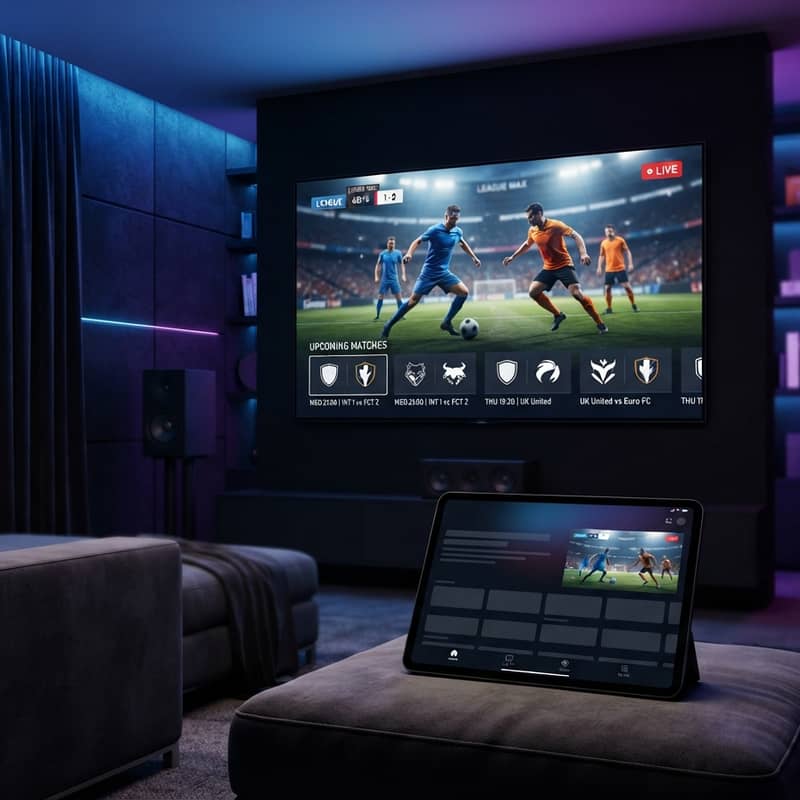
ISP throttling is a real and growing problem in 2026 — major providers actively identify IPTV traffic patterns and deliberately slow those connections during peak hours (typically 7–11 PM on weekdays and all day Saturday/Sunday during sports seasons). Without a VPN encrypting your traffic, even a 500 Mbps home internet connection can be choked down to speeds that make 1080p streaming impossible. This is not a device problem or a provider problem — it's your ISP quietly degrading your experience, and the only effective counter is encrypted VPN traffic.
Best VPNs to Stop ISP Throttling in 2026
- ExpressVPN: Consistently the fastest option for IPTV users. Its MediaStreamer feature and Lightway protocol deliver low-latency connections that don't sacrifice stream quality. Works natively on Firestick through the Amazon App Store — no sideloading needed.
- NordVPN: Offers dedicated streaming servers and the NordLynx protocol (based on WireGuard), which delivers exceptional speeds for 4K IPTV streams. Its threat protection feature also blocks malicious IPTV ad injections.
- Surfshark: Best value option, allowing unlimited simultaneous connections on one account. Perfect for households where multiple people are streaming on Firestick, Android TV, and Smart TVs at the same time.
- IPVanish: A strong choice specifically for Firestick users because it has a native Firestick app in the Amazon Store and offers SOCKS5 proxy support for even faster streaming speeds when VPN overhead is a concern.
When choosing, always connect to a server geographically close to you. Connecting to a server in a distant country adds latency and actually increases buffering rather than reducing it. For most users, a same-country server within 100–300 miles is optimal.
TiviMate vs. IPTV Smarters Pro: Which App Wins in 2026?
- TiviMate is the gold standard for interface quality and EPG management. The channel guide looks and feels like a premium cable TV experience. The paid Premium version ($4.99/year) unlocks multi-panel layouts, recording to external storage, parental controls, and archive/catch-up TV. It works perfectly with Xtream Codes and M3U playlists. If you have a Firestick 4K or Android TV box, TiviMate is the correct choice.
- IPTV Smarters Pro is completely free and works on almost every platform including iOS and Smart TVs. It supports M3U, Xtream Codes, and even Stalker Portal connections. The interface isn't as polished as TiviMate, but it's more universally compatible and requires zero payment to access full functionality.
- GSE Smart IPTV is worth mentioning as the best option for Apple TV and iPhone users, since TiviMate is Android-only. It handles M3U playlists reliably and has a solid EPG integration.
- Bottom line: Start with IPTV Smarters Pro if you're testing a new provider — it's free and fast to configure. Once you find a provider you love, upgrade to TiviMate Premium for the best daily streaming experience on Firestick or Android TV.
Common Setup Mistakes and How to Fix Them
- Problem: Channels load but immediately freeze — This is almost always an ISP throttling issue or a server connection problem. Enable your VPN, change the VPN server to a different location, and retry. If it persists, contact your provider and ask them to assign you a different server URL.
- Problem: EPG shows no guide data — Your EPG URL may be incorrect or the provider's guide server is temporarily down. Go to TiviMate Settings, then EPG, then force a manual refresh. If it fails, ask your provider for the correct EPG URL — some providers issue a separate EPG link different from your M3U URL.
- Problem: M3U playlist fails to load entirely — Double-check that you copied the full URL including "http://" or "https://" at the beginning. Many providers also include a port number (like :8080) in the URL — ensure that's included. If using Xtream Codes, verify your username and password haven't been accidentally changed.
- Problem: App crashes on Firestick when loading large playlists — Large M3U playlists (10,000+ channels) can exceed the memory limits of older Firestick models. Enable Xtream Codes login instead of M3U to reduce memory load, or clear the app's cache every week via Firestick Settings, then Applications, then Manage Installed Applications, then your app, then Clear Cache.
Network Requirements for 4K IPTV Streaming
- Minimum 50 Mbps dedicated to your streaming device for stable 4K IPTV. This means if others in your home are also streaming, gaming, or video calling simultaneously, your router needs to handle the combined load. A gigabit internet plan with a Wi-Fi 6 router is the ideal setup.
- Wired Ethernet always beats Wi-Fi for 4K — Even Wi-Fi 6 introduces occasional packet loss and latency spikes that cause micro-freezes in 4K streams. An Ethernet cable from your router to your streaming device costs $10 and solves the problem permanently.
- Enable QoS (Quality of Service) on your router — Most modern routers allow you to prioritize traffic from specific devices. Set your Firestick or Android TV box as the highest priority device so it always gets bandwidth first when your network is busy.
- Change your DNS to 1.1.1.1 or 8.8.8.8 — Default ISP DNS servers are often slow and can add hundreds of milliseconds to channel load times. Switching to Cloudflare (1.1.1.1) or Google (8.8.8.8) DNS reduces initial channel loading time noticeably and improves overall responsiveness.
Troubleshooting: Fixing Playlist Errors Fast
- Refresh your playlist first — In TiviMate, go to Settings, then Playlists, then select your playlist, then Update Now. Providers regularly update their server infrastructure, and an outdated cached playlist is the most common cause of missing channels.
- Check your subscription expiry date — Log into your provider's customer panel and confirm your subscription is active. Expired accounts look exactly like a technical error from the app's perspective — no error message, just channels that won't load.
- Test a different streaming app — If your channels work in IPTV Smarters Pro but not TiviMate (or vice versa), the issue is app-specific, not provider-specific. Reinstall the problematic app, clear its data completely, and set it up fresh.
- Try a different internet connection — Connect your phone's hotspot to your streaming device and test the same channels. If they work perfectly on mobile data but not your home Wi-Fi, your ISP is definitively the problem — and a VPN is your solution.

The best IPTV service in 2026 isn't just about who has the most channels — it's about finding a provider with reliable infrastructure, pairing it with the right player app, protecting your connection with a VPN, and tuning your network for the job. Follow the steps in this guide exactly, avoid the common mistakes outlined above, and you'll have a streaming setup that outperforms cable television in every measurable way for a fraction of the monthly cost — explore our channel list and pricing plans to get started today.
Frequently Asked Questions
Ready to get started?
Try our service risk-free with a 24-hour free trial.
Related Articles
Watch Live Events Online and How to Stream Sports Without Buffering in 2026
A comprehensive guide to streaming live sporting events and entertainment broadcasts online in 2026. Evaluates the reliability of free streaming alternatives, explains why unverified sites create security risks, and presents enterprise IPTV as the most stable and affordable solution for uninterrupted live event coverage.
Wi-Fi 6 and Wi-Fi 6E Explained and What These Standards Mean for Streaming
A technical explanation of Wi-Fi 6 and Wi-Fi 6E wireless standards covering the speed improvements and multi-device efficiency gains and the new 6 GHz spectrum band and their practical impact on streaming households.
How to Use IPTV Smarters Pro on Samsung TV: A Step-by-Step Guide
Master IPTV Smarters Pro on your Samsung TV.