
Discover the Best IPTV Provider: A Complete 2026 Guide

Tired of paying a fortune for cable TV only to miss the channels you actually want? Or maybe you've already dipped your toes into IPTV but keep running into buffering, dropped streams, or shady providers that vanish overnight with your money. Finding the best IPTV provider isn't just about picking the cheapest option — it's about finding a service that delivers rock-solid streams, massive channel libraries, and reliable support without turning your living room into a tech support nightmare. This guide cuts through the noise and gives you everything you need to choose, set up, and optimize your IPTV subscription the right way.
Choosing the right IPTV provider is the single most important decision in your streaming setup. A bad provider with unstable servers will ruin every football match, movie night, and binge session regardless of how fast your internet is or how premium your streaming app is. Getting this right from the start saves you hours of frustration and money lost on refunds.
Core Concepts & Need-To-Know Info
- M3U Playlist / M3U URL: This is a text file containing links to every channel your provider offers. When you sign up for an IPTV service, they give you an M3U URL that you paste into your streaming app (like TiviMate or IPTV Smarters) to load your channels.
- Xtream Codes API: An alternative to M3U, this uses a server URL, username, and password to connect. It's generally more stable and supports better EPG (electronic program guide) integration.
- EPG (Electronic Program Guide): The on-screen TV guide showing what's currently playing and what's coming up. A good provider always includes EPG data.
- VOD (Video on Demand): On-demand movies and TV series included alongside live TV in your subscription.
- Server Uptime: The percentage of time the provider's servers are running. Look for providers guaranteeing 99.9% uptime backed by real user reviews.
- Concurrent Connections: How many devices can stream simultaneously on one subscription. Most households need at least 2.
- Trial Periods: Reputable providers offer 24-48 hour free or low-cost trials so you can test stream quality before committing.
- ISP Throttling: Your internet service provider can detect and slow down IPTV traffic. This is one of the most common hidden causes of buffering even with fast internet.
Step-by-Step Guide: Setting Up Your IPTV Provider on Any Device
- Step 1: Choose Your Provider and Get Your Credentials:
- Sign up for a reputable IPTV service that offers a trial period. After payment, you'll receive either an M3U URL or Xtream Codes credentials (server URL, username, and password) via email. Save these somewhere accessible — you'll need them in the next steps.
- Step 2: Install Your Streaming App:
- On a Firestick, press the Search icon on the home screen, type "Downloader," and install it. Then go to Settings > My Fire TV > Developer Options and enable "Apps from Unknown Sources." For Android TV or Smart TV, open the Google Play Store and search for TiviMate, IPTV Smarters Pro, or GSE Smart IPTV and install your preferred app.
- Step 3: Open the App and Select Add Playlist:
- Launch TiviMate or IPTV Smarters Pro. On TiviMate, tap the "+" icon and select "Add Playlist." On Smarters, tap "Add User" then choose either "M3U URL" or "Xtream Codes API" depending on what your provider sent you.
- Step 4: Enter Your M3U URL or Xtream Codes Details:
- If using M3U, paste the full URL your provider gave you into the playlist URL field — be extremely careful with spelling, slashes, and port numbers as even one wrong character breaks the entire playlist. If using Xtream Codes, enter the server URL (e.g., http://yourserver.com:PORT), your username, and your password into the corresponding fields.
- Step 5: Load Channels and Configure EPG:
- After the playlist loads, the app will populate with your channel list. Navigate to the EPG or Guide settings and enter the EPG URL provided by your IPTV service to enable the TV guide. Set the EPG refresh interval to every 24 hours to keep it current.
- Step 6: Organize Favorites and Test Streams:
- Browse through your channel list and mark your most-watched channels as favorites for quick access. Test several channels across different categories — local news, live sports, international channels — to verify stream quality before your trial ends.
- Step 7: Connect a VPN (Strongly Recommended):
- Install a trusted VPN app (ExpressVPN or NordVPN) on your device, connect to a nearby server, and then launch your IPTV app. This prevents ISP throttling and adds a layer of privacy to your streaming sessions.
Imagine paying upfront for a full year of service, getting your favorite team's playoff run perfectly set up, and then waking up one morning to find the service completely offline with no communication and no refund. It happens constantly in the IPTV space. On the technical side, ISP throttling is equally devastating — your internet speed test shows 200 Mbps, but your streams buffer every 30 seconds because your ISP is specifically targeting and slowing down video streaming traffic on certain ports.
Best VPNs to Stop ISP Throttling
- ExpressVPN consistently delivers the fastest speeds for IPTV streaming, with servers in 94+ countries and a MediaStreamer DNS feature for devices that can't run VPN apps natively. It's the top choice for Firestick users.
- NordVPN offers NordLynx protocol (based on WireGuard) which provides excellent speeds and strong encryption without the performance hit of older VPN protocols. Their threat protection feature also blocks intrusive ads.
- Surfshark is the best budget option, supporting unlimited simultaneous connections — perfect if you're streaming on a Firestick, a Smart TV, and a phone at the same time under one account.
- When using a VPN for IPTV, always choose a server geographically close to you to minimize latency. A VPN server in the same country or neighboring region typically adds less than 5ms of latency, which is invisible during streaming.
- Enable the VPN's split tunneling feature if available — this routes only your IPTV app traffic through the VPN while keeping other apps on your regular connection, which can improve overall performance.
Common Setup Mistakes & How to Fix Them
- Mistake: Using the wrong app for the wrong device. TiviMate is exclusively available on Android-based devices and is not available on iOS. iPhone and iPad users should use IPTV Smarters Pro or GSE Smart IPTV instead. Using an incompatible app leads to crashes and failed playlist loads.
- Mistake: Not updating the app before entering credentials. Outdated versions of IPTV Smarters or TiviMate frequently have bugs that cause Xtream Codes login failures. Always check for and install updates before troubleshooting anything else.
- Mistake: Skipping the EPG setup. Many users load their channels and think something is broken because there's no guide data. EPG URLs are separate from M3U URLs — always ask your provider for both and enter them separately in the app settings.
- Mistake: Choosing the wrong streaming protocol. Most apps default to HLS (HTTP Live Streaming), which adds buffering delay. Switching to ExoPlayer or VLC player within the app's playback settings often dramatically improves stream stability, especially for 4K content.
- Mistake: Forgetting to reboot after setup. Particularly on Firestick, a full device restart after installing and configuring your IPTV app clears memory and ensures the app has full system resources allocated to it.
Recommended Apps: TiviMate vs IPTV Smarters
- TiviMate is widely considered the gold standard for Android TV and Firestick. Its UI looks and feels like a real cable TV guide, it supports multiple playlists simultaneously, has excellent EPG integration, and the premium version (around $5/year) unlocks recording functionality and multi-screen viewing.
- IPTV Smarters Pro is more universally compatible, working on iOS, Android, Smart TVs, and desktops. It's easier to set up for first-timers and supports both M3U and Xtream Codes natively. However, it can feel less polished than TiviMate on large screens.
- GSE Smart IPTV is the best fallback option for users on less common devices or those having trouble with the above two apps. It's highly customizable and handles even large M3U playlists (10,000+ channels) better than most competitors.
- For the best experience on a Firestick or Android TV box, TiviMate with Xtream Codes API from your provider is the winning combination — better performance, cleaner interface, and fewer dropped streams compared to M3U-based setups.
Network Requirements for 4K Streaming
- Minimum speeds required: Standard definition (SD) needs 5 Mbps, High Definition (HD) requires 10-15 Mbps, and 4K Ultra HD streams demand at least 25-40 Mbps of stable, dedicated bandwidth per stream.
- Wired over Wi-Fi always: An Ethernet connection to your Firestick (via an OTG Ethernet adapter) or Smart TV eliminates Wi-Fi interference, the single biggest cause of random buffering spikes during high-action sports scenes.
- Router placement and frequency matter: If you must use Wi-Fi, ensure your streaming device is on the 5GHz band rather than the congested 2.4GHz band, and position your router within clear line-of-sight of your TV.
- QoS (Quality of Service) settings: Log into your router's admin panel and enable QoS, then prioritize your streaming device's MAC address. This tells your router to always give your TV's internet connection priority over other devices on the network.
- Test your real-world speed: Run a speed test on the actual device you're streaming on — not your phone or laptop — because speeds vary dramatically between devices on the same network.
Troubleshooting: Fixing Playlist Errors
- Error: Playlist loads but channels show Stream Error or buffer immediately. This is usually a server-side issue with your provider or an ISP throttling issue. Connect your VPN, switch to a different VPN server location, then try the stream again. If it works with VPN but not without, ISP throttling is confirmed.
- Error: Playlist fails to load entirely. Your M3U URL or Xtream Codes credentials are either wrong or your subscription has expired. Copy-paste the URL fresh from your provider's email rather than typing it manually, and confirm your subscription is active in the provider's customer panel.
- Error: Channels load but EPG guide shows no data. The EPG URL may be outdated or the refresh hasn't triggered yet. Go into your app's EPG settings, delete the current EPG source, re-enter the URL, and force a manual refresh.
- Error: Some channels work but specific channels always buffer. Certain premium channels (especially live sports and PPV) use higher bitrate streams that require more bandwidth. Temporarily switch the problematic channel's playback quality from Auto to a lower resolution in the stream settings to confirm if it's a bandwidth issue.
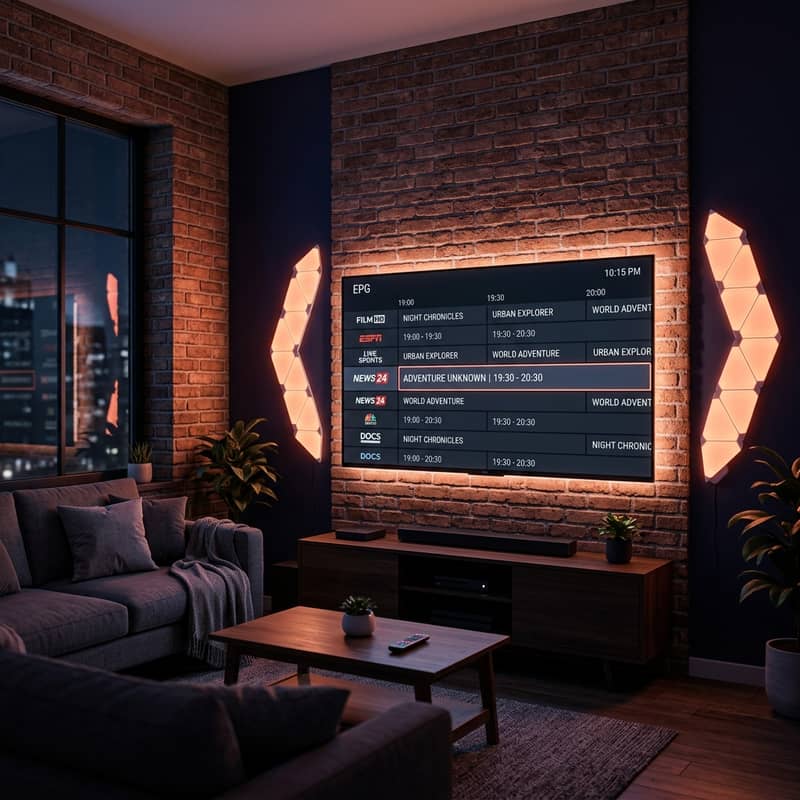
Finding and properly setting up the best IPTV provider for your household is genuinely a game-changer — not just a minor upgrade from cable, but a complete transformation of how your family watches television. With the right provider, the right app, a solid VPN, and a properly configured home network, you get thousands of live channels, decades of on-demand content, and crystal-clear 4K streams at a price that makes your old cable bill look embarrassing. Do your homework on the provider, run the trial before committing long-term, and explore our full channel list and pricing plans to find the perfect fit for your streaming needs.
Frequently Asked Questions
Ready to get started?
Try our service risk-free with a 24-hour free trial.
Related Articles
What is SmartOne IPTV? Discover Its Features and Benefits
Explore the features and benefits of SmartOne IPTV.
How to Watch IPTV on VLC: Step-by-Step Guide for 2026
A complete guide on watching IPTV using VLC.
Discover Elitestream IPTV: Your Ultimate 2026 Review Guide
Uncover the features and benefits of Elitestream IPTV in this detailed review.