

Unlocking 4K IPTV: Your Complete Streaming Guide

Paying for a premium IPTV subscription only to watch your big game freeze, pixelate, or drop to 480p is genuinely infuriating and you deserve better. 4K live IPTV promises the sharpest picture quality available today, but getting it to actually work at full resolution, without a single stutter, requires more than just subscribing and hitting play. The difference between a choppy, unwatchable stream and a cinema-quality 3840x2160 picture sitting in your living room comes down to a handful of setup decisions most guides never bother to explain. This is the guide that does.
Getting 4K live IPTV right the first time isn't just about picture quality, it's about protecting every hour and every dollar you invest in your streaming setup. A single misconfiguration, a throttling ISP, or an incorrectly entered M3U URL can collapse the entire experience instantly.
Core Concepts & Need-To-Know Info
- Bitrate requirements: A 4K HDR live stream typically demands 25 to 50 Mbps of sustained bandwidth per stream. This is non-negotiable.
- M3U playlist: Your IPTV provider will give you an M3U URL, a text file containing channel links. This is what apps like TiviMate, IPTV Smarters Pro, and GSE Smart IPTV load to generate your channel list.
- Xtream Codes API: Many providers offer an Xtream Codes login (server URL, username, password) as an alternative to an M3U URL. This format often loads faster and enables VOD browsing more smoothly.
- ISP throttling: Internet service providers actively detect and throttle IPTV traffic, especially during peak hours. This is one of the most common causes of buffering on otherwise fast connections.
- Buffer size: Apps like TiviMate allow you to manually adjust the buffer size in milliseconds. Setting this too low on a congested network causes constant freezing.
- Codec support: 4K IPTV streams are most commonly encoded in H.265 (HEVC). Your device and app must support hardware-accelerated HEVC decoding, or you will experience heavy buffering from CPU overload.
- VPN tunneling: Using a VPN bypasses ISP throttling entirely by masking your IPTV traffic as regular encrypted data.
Step-by-Step Guide: Setting Up 4K Live IPTV on Firestick or Android TV
- Step 1: Prepare Your Firestick or Android TV Box:
- Navigate to Settings, then My Fire TV, then Developer Options and enable both ADB Debugging and Apps From Unknown Sources. On Android TV, go to Settings, then Device Preferences, then Security & Restrictions and toggle on Unknown Sources for your chosen browser or file manager. This unlocks sideloading so you can install apps outside the official store.
- Step 2: Install Downloader (Firestick) or a File Manager (Android TV):
- Search for Downloader in the Amazon App Store and install it. It's free and takes about 30 seconds. On Android TV, ES File Explorer or X-plore works perfectly. You'll use this to pull your IPTV player APK directly from the developer's website.
- Step 3: Install TiviMate or IPTV Smarters Pro:
- Open Downloader and type in the direct APK URL for TiviMate (available at tivimate.com) or download IPTV Smarters Pro. Install the APK, open the app, and grant any storage or network permissions it requests.
- Step 4: Enter Your M3U URL or Xtream Codes Credentials:
- Open TiviMate and select Add Playlist. Choose either M3U URL or Xtream Codes. Copy your provider's M3U link exactly, as one wrong character breaks the entire playlist. For Xtream Codes, enter the server address, your username, and your password as provided in your welcome email.
- Step 5: Configure Buffer and Playback Settings for 4K:
- Inside TiviMate, go to Settings, then Player, then Buffer Size and set it to at least 5,000 ms (5 seconds). Under Video Decoder, enable Hardware Acceleration to offload HEVC/H.265 decoding to your device's GPU rather than the CPU. This single change eliminates the majority of 4K buffering issues.
- Step 6: Set Your Video Output to 4K:
- On Firestick, go to Settings, then Display & Sounds, then Display, then Video Resolution and select 4K UHD. Enable Dolby Vision or HDR if your TV supports it. On Android TV, match the resolution setting to your TV's native output under Display Settings.
- Step 7: Connect Via Ethernet (Strongly Recommended for 4K):
- Plug an ethernet adapter into your router. Firestick has a USB-OTG port and Android boxes usually have a built-in RJ45 port. Wi-Fi is acceptable for HD but genuinely unreliable for sustained 4K IPTV streams. A wired connection eliminates interference entirely.
- Step 8: Test Your 4K IPTV Stream:
- Find a 4K labeled channel in your playlist and hit play. If it loads clean and holds resolution, your setup is complete. If buffering appears within the first 60 seconds, proceed to the troubleshooting section below.
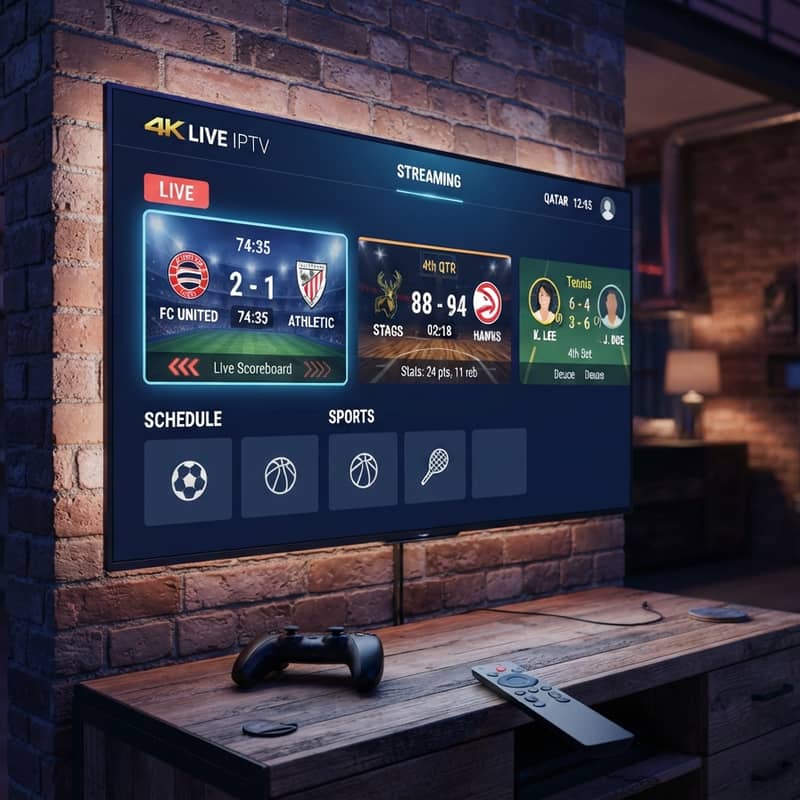
ISP throttling is particularly insidious because your speed test will show full speeds, as the throttling is targeted specifically at video streaming ports, not your general connection. Users discover this all the time: 300 Mbps on a speed test, stuttering on a 25 Mbps 4K stream. A VPN with split tunneling routes only your IPTV traffic through the encrypted tunnel, solving this without slowing down your other devices.
Best VPNs to Stop ISP Throttling on 4K Live IPTV
ISP throttling is arguably the biggest silent killer of 4K live IPTV quality, and a premium VPN is the most effective countermeasure available.
- ExpressVPN: Consistently the fastest option for IPTV. Its Lightway protocol delivers low latency, and its MediaStreamer DNS feature helps on devices that don't natively support VPN apps.
- NordVPN: Excellent server coverage, NordLynx (WireGuard-based) protocol keeps speeds high, and it has a dedicated Fire TV app available directly in the Amazon App Store.
- Surfshark: Best value for IPTV users with multiple devices. Unlimited simultaneous connections and solid 4K streaming performance even on its base plan.
- IPVanish: Popular specifically in the IPTV and Kodi communities. It has a native Firestick app and supports SOCKS5 proxy configurations for advanced setups.
TiviMate vs IPTV Smarters Pro: Which Should You Use for 4K?
Both apps support 4K IPTV streams, but they serve different types of users with different priorities.
- TiviMate: The gold standard for serious IPTV users. Its EPG (Electronic Program Guide) integration is flawless, the buffer controls are granular, and the UI is clean and fast even on older Firestick hardware. The Premium tier ($4.99/year) unlocks multiple playlists, recording, and advanced player settings, which are essential for 4K.
- IPTV Smarters Pro: More beginner-friendly, supports Xtream Codes login natively without configuration, and is great for users who want to get up and running in under five minutes. It's free, though ad-supported.
- GSE Smart IPTV: Worth mentioning as a strong alternative with excellent M3U playlist management and a robust built-in player that handles H.265 well on Android TV boxes.
Network Requirements for 4K Live IPTV Streaming
Your home network is either your best asset or your biggest bottleneck. Here's what 4K IPTV actually demands:
- Minimum 50 Mbps dedicated to IPTV: Account for other devices using your connection simultaneously. A household with multiple active devices needs 100+ Mbps with QoS (Quality of Service) priority set for your IPTV device.
- Router placement matters: If you're using Wi-Fi, your streaming device should be in the same room as your router or connected via a powerline ethernet adapter. Wi-Fi signal degradation across walls directly causes 4K buffering.
- Use 5GHz Wi-Fi, not 2.4GHz: 5GHz delivers faster speeds and less interference from neighboring networks, making it significantly more reliable for high-bitrate 4K IPTV streams.
- DNS settings: Changing your DNS to Cloudflare (1.1.1.1) or Google (8.8.8.8) can improve playlist loading times and occasionally resolve geo-restriction issues on certain IPTV servers.
- QoS configuration: Log into your router admin panel and assign your IPTV device's MAC address the highest traffic priority. This guarantees your 4K stream gets bandwidth first when the network is congested.
Troubleshooting: Fixing Common 4K IPTV Playlist and Buffering Errors
When something goes wrong with your 4K live IPTV setup, the problem is almost always one of five things:
- Playlist failed to load error: Your M3U URL has expired, your subscription has lapsed, or your IP address was flagged for too many rapid reconnection attempts. Contact your provider, get a refreshed M3U link, and re-add it to TiviMate.
- Constant buffering on 4K channels only: Your buffer size is too small, or hardware acceleration is disabled. Check both settings in TiviMate's player options. Also verify your internet speed with a real-time test while the stream is running (not a standalone speed test).
- Audio and video out of sync: Switch your audio output in the player settings from passthrough to PCM, or vice versa. This is a codec handshake issue that affects some TV/receiver combinations.
- Channels loading in HD instead of 4K: Your device's video output is not set to 4K. Return to system display settings and confirm the output resolution matches your TV's native panel resolution.
- App crashing when opening 4K channels: Clear the app cache by going to Settings, then Applications, then Manage Installed Applications, then TiviMate, then Clear Cache, and restart. On Firestick, force-stopping and clearing cache resolves the majority of stability crashes.

4K live IPTV done right is genuinely one of the best home entertainment setups available today, offering better picture quality than most cable packages, more content than any single streaming service, and total flexibility across every device in your home. Every buffering problem has a fixable cause and every setup error has a clear solution, so explore our full channel list and pricing plans to start building the streaming setup you actually deserve.
Frequently Asked Questions
Ready to get started?
Try our service risk-free with a 24-hour free trial.
Related Articles
Explore the Best IPTV Services of 2026: A Complete Guide
Review of the best IPTV services for 2026.
Discover the Best IPTV Providers for 2026: Your Ultimate Guide
A detailed guide on the best IPTV providers for 2026.
Discover the BestBuyIPTV Free Trial: Your Ultimate Guide
Get started with BestBuyIPTV's free trial today!