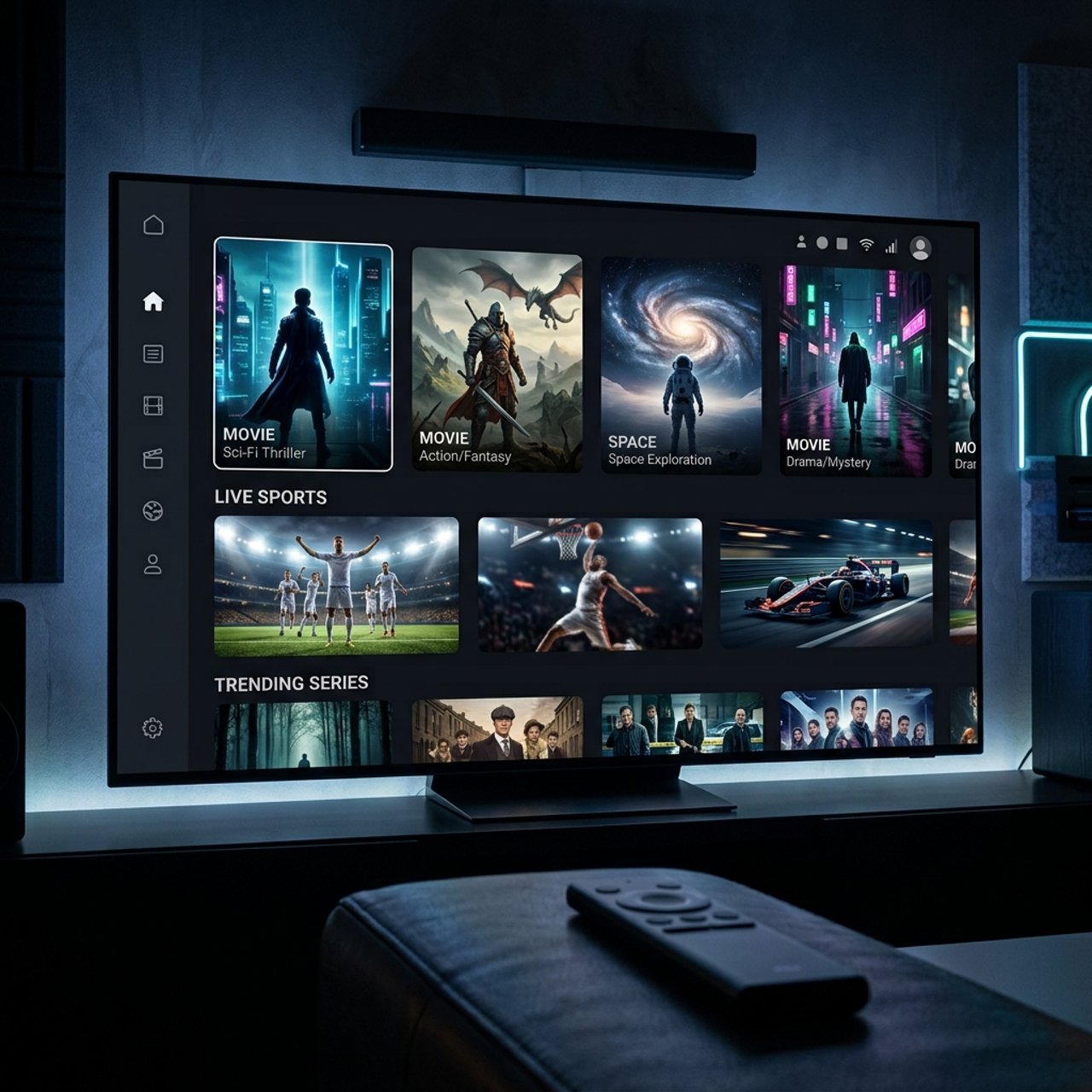
How to Use UHF IPTV: A Complete Guide for Beginners

Tired of paying a fortune for cable only to miss half the channels you actually want to watch? UHF IPTV is the answer thousands of cord-cutters are switching to right now and if you've landed here, chances are you've either just subscribed or you're seriously considering it. The frustrating part isn't finding a good IPTV service; it's figuring out how to actually get it running without buffering every five minutes or staring at a blank screen wondering what went wrong. This guide walks you through exactly how to use UHF IPTV from day one, covering every major device, every critical setting, and every mistake you need to avoid before it costs you your viewing night.
Solving this setup correctly matters because a misconfigured M3U playlist or wrong Xtream Codes entry will leave you with a blank screen even if your subscription is fully active. Getting the technical side right unlocks everything you're paying for.
Core Concepts & Need-To-Know Info
- M3U Playlist URL: This is a web link ending in .m3u or .m3u8 that your UHF IPTV provider gives you. It contains every channel, VOD title, and stream your subscription includes.
- Xtream Codes API: An alternative login method (server URL + username + password) that connects you to the same content with better performance and EPG integration. Most quality apps like TiviMate prefer this method.
- EPG (Electronic Program Guide): The on-screen channel guide showing what's currently airing and what's coming up. You'll need to enter your EPG URL separately in some apps.
- Internet Speed Requirements: You need at least 25 Mbps for HD streaming and 50+ Mbps for 4K. Anything less and buffering becomes a constant problem.
- ISP Throttling: Your internet service provider can detect IPTV traffic and deliberately slow it down. A VPN is the standard fix for this.
- Compatible Apps: TiviMate, IPTV Smarters Pro, GSE Smart IPTV, and Duplex IPTV are the most popular apps used to run UHF IPTV on any device.
- Device Compatibility: Firestick (all generations), Android TV boxes (Nvidia Shield, Formuler), Samsung/LG Smart TVs, and iOS/Android phones all support UHF IPTV with the right app.
Step-by-Step Guide: How to Use UHF IPTV on Any Device
- Step 1: Enable Apps from Unknown Sources (Firestick):
- Go to your Firestick Settings, then My Fire TV, then Developer Options, then Apps from Unknown Sources and toggle it ON. This allows you to install apps that aren't in the Amazon App Store, including TiviMate.
- Step 2: Install the Downloader App:
- From your Firestick home screen, search for Downloader in the Amazon App Store and install it. This is your gateway to sideloading TiviMate.
- Step 3: Download and Install TiviMate:
- Open Downloader and type in the TiviMate APK URL (available from the official TiviMate website or a trusted APK source). Follow the on-screen prompts to install it.
- Step 4: Launch TiviMate and Choose Your Login Method:
- Open TiviMate. On the first screen, select Add Playlist. You'll be given two options: M3U URL where you paste the link your UHF IPTV provider sent you, or Xtream Codes where you enter the server URL, username, and password from your welcome email. Xtream Codes is recommended for better stability and EPG loading.
- Step 5: Add Your EPG URL:
- After your playlist loads, go to Settings, then EPG, then EPG Sources and paste in the EPG URL from UHF IPTV. Set the refresh interval to every 24 hours. This populates your guide with real show data.
- Step 6: Organize Your Channels:
- Navigate to Settings, then Channels, then Groups and hide any regions or language groups you don't need. This keeps your channel list clean and makes browsing fast.
- Step 7: Test Your Streams:
- Browse to a live sports channel or a premium network channel and hit play. If it loads within 3 to 5 seconds and holds steady, your setup is working perfectly.
- Step 8: Set Up on a Smart TV (Samsung/LG):
- On Samsung, install Smart IPTV from the Smart Hub app store. On LG, use the GSE Smart IPTV app or install it via the LG Content Store. Open the app, locate the device's MAC address shown on-screen, go to the app's companion website on your phone or computer, enter your MAC address, paste in your UHF IPTV M3U URL, then restart the app on your TV and your full channel list will load automatically.

Imagine settling in for a Sunday NFL game and having it freeze every 30 seconds that's what happens when you skip the VPN and your ISP throttles your IPTV traffic. Equally painful is setting up everything correctly only to realize you typed the Xtream Codes server URL with an extra space, resulting in a login error that looks like a service outage when it's actually a typo.
Best VPNs to Stop ISP Throttling on UHF IPTV
ISP throttling is real, widespread, and deliberately targeted at IPTV traffic. The fix is consistent: route your connection through a VPN so your ISP sees encrypted data instead of recognizable streaming traffic. ExpressVPN is the top pick for IPTV users. Its Lightway protocol delivers fast speeds with minimal latency impact, and it has dedicated servers optimized for streaming. NordVPN offers a dedicated IP option, which is useful if your UHF IPTV provider flags shared VPN IPs. Enable the NordLynx protocol for best speed on Firestick. Surfshark is the budget-friendly option with unlimited device connections, ideal if you're running UHF IPTV on a Firestick, Smart TV, and phone simultaneously. Install your chosen VPN on your Firestick or router, connect to a server in your country, then open TiviMate or your IPTV app as normal. Always test your speed with the VPN active using a speed test app to confirm you're still hitting 25 Mbps minimum before streaming.
Common Setup Mistakes & How to Fix Them
Even tech-savvy users run into these issues when setting up UHF IPTV for the first time. If your playlist loads but shows zero channels, this usually means you entered the M3U URL incorrectly, or your subscription hasn't been activated yet. Double-check the URL and contact your provider to confirm your account is live. If channels load but EPG shows no guide data, you've likely skipped the EPG URL entry step. Go back into your app's settings, find the EPG or Guide section, and paste in the EPG URL your provider gave you. If only some channels work while others show a loading spinner permanently, these are likely premium channels your current package doesn't include, or streams that are temporarily down. If your app crashes on launch after installing on Firestick, clear the app's cache via Settings, then Applications, then Manage Installed Applications, then the app name, then Clear Cache and relaunch. If buffering only occurs during evenings and weekends, that's a classic ISP throttling signature and installing a VPN resolves it in virtually every case.
Recommended Apps: TiviMate vs. IPTV Smarters Pro
Choosing the right app to run UHF IPTV makes a bigger difference than most people expect. TiviMate is the gold standard for Firestick and Android TV. Its interface feels like a native cable TV experience with a full EPG grid, catch-up support, and the ability to record streams to an external drive. The premium version at $4.99 per year is absolutely worth it. IPTV Smarters Pro is the better choice for beginners because it's available in the Amazon App Store with no sideloading required and supports Xtream Codes login with a clean, simple interface. GSE Smart IPTV is the most flexible option for multi-device users since it runs on iOS, Android, and Smart TVs and handles complex M3U playlists with multiple EPG sources without issue. Duplex IPTV deserves a mention for its slick portal-style UI, which works especially well on larger Smart TVs and Android boxes where you want a cinema-style menu. Start with IPTV Smarters Pro if you're new and upgrade to TiviMate once you're comfortable.
Network Requirements for Smooth UHF IPTV Streaming
Your IPTV experience is only as good as your network. For SD channels you need 10 Mbps minimum but 15 Mbps is comfortable. For HD channels at 1080p you need 25 Mbps recommended since anything below this causes compression artifacts during fast-moving sports. For 4K and UHD channels you need 50 Mbps minimum with 75+ Mbps strongly recommended if multiple devices are streaming simultaneously. Your Firestick or TV should be as close to your router as possible since walls and floors kill Wi-Fi signal strength fast. For 4K streaming, plug your streaming device directly into your router using an Ethernet cable or a MoCA adapter since the stability improvement is night and day compared to Wi-Fi. Try switching your device's DNS to 1.1.1.1 (Cloudflare) or 8.8.8.8 (Google) as this speeds up playlist loading and reduces initial stream startup times significantly.
Troubleshooting: Fixing Playlist Errors on UHF IPTV
When something breaks, here's how to diagnose and fix it fast. An Invalid Playlist error means the M3U URL has expired or your subscription has lapsed. Log into your UHF IPTV account panel and regenerate a fresh M3U link, then update it inside your app. If streams load but freeze after 10 to 30 seconds, this points to a buffer size issue inside your app. In TiviMate, go to Settings, then Player, then Buffer Size and increase it to 10 to 15 seconds. If EPG is not updating, force a manual refresh inside your app's EPG settings, and if it still doesn't load your EPG URL may have changed so check with UHF IPTV support. If specific channels are missing from your list, refresh your playlist via Settings, then Playlist, then Update Now in TiviMate since new channels won't appear until you force a refresh. If you have audio but no video (black screen), this is a codec issue. Switch your app's player from the default to ExoPlayer or VLC Player in the settings and one of them will decode the stream correctly.
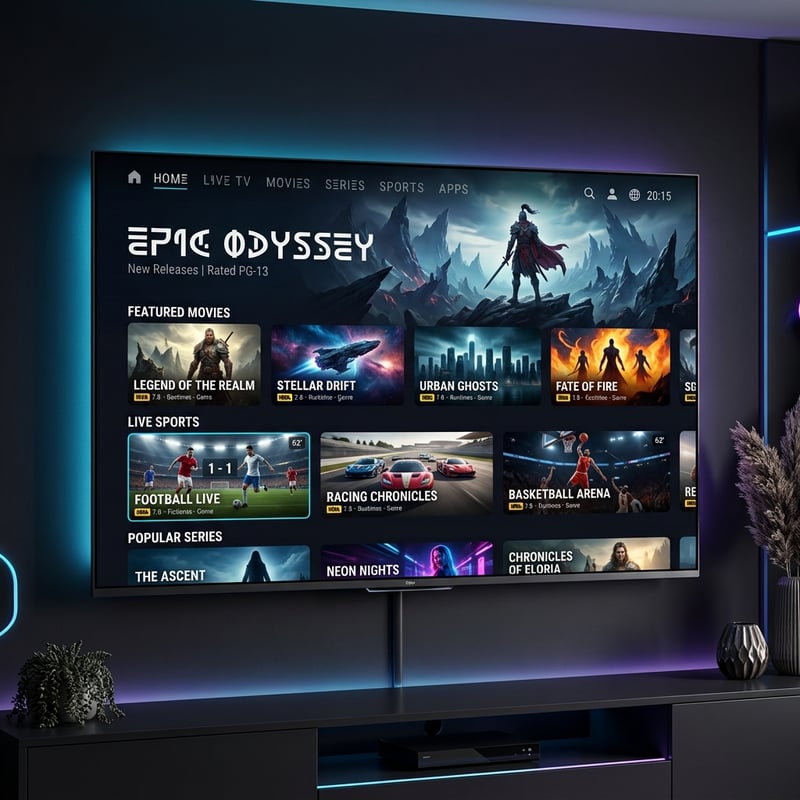
Mastering how to use UHF IPTV isn't complicated once you know exactly what settings to configure and which mistakes to avoid. Whether you're on a Firestick, an Android TV box, or a Samsung Smart TV, the combination of the right app, a solid network setup, and a reliable VPN to beat ISP throttling gives you a streaming experience that genuinely beats cable in every measurable way. Get your M3U playlist or Xtream Codes credentials from UHF IPTV, follow the steps above, and check out our full channel list and pricing plans to find the package that fits your viewing habits perfectly.
Frequently Asked Questions
Ready to get started?
Try our service risk-free with a 24-hour free trial.
Related Articles
HDMI to IPTV Converter Guide and How to Encode Any Video Source for IP Streaming
A technical guide to HDMI encoder hardware that converts any HDMI video source into IP streams for distribution over local networks or the internet covering hardware specifications and encoding settings and deployment architectures.
Discover the Best IPTV Providers: Your 2026 Guide
Find the top IPTV providers for seamless streaming and entertainment.
Unlocking IPTV France: A Comprehensive Guide for 2026
Explore IPTV France subscriptions and streaming tips.